Defining Notification Configuration
To enable Process Status Notifications, you must configure the Notification Settings page. You can enable some or all the states of a process to receive notification. These notification states are set for the notification channels — Email, Notification Window and Pop-up Notification.
Note:
You must select the Pop-up Notification check box on the Notification Settings page to enable editing the pop-up notification settings as part of user preferences. When you configure settings under section, it overrides the configurations set in Run Status Options and Distribution Status Options sections. See Applications User’s Guide: Defining User Preferences .
Access the Notification Settings page ().
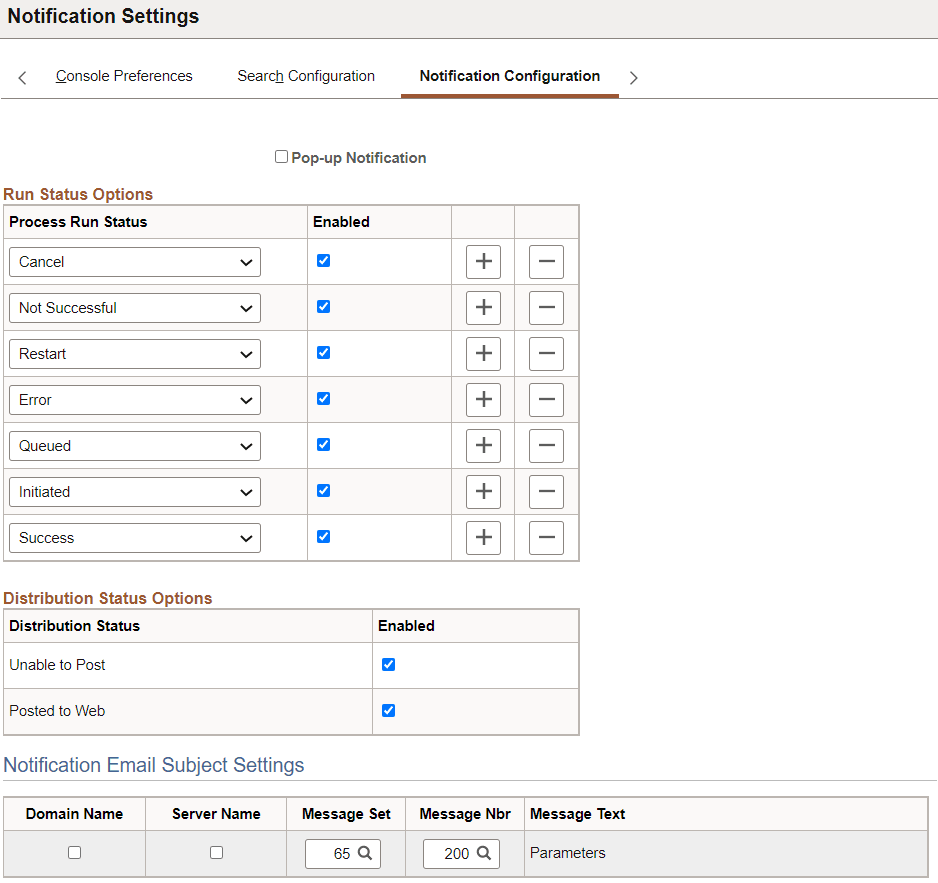
This example illustrates the fields and controls on the Notification Settings page. You can find definitions for the fields and controls later on this page.
| Field or Control | Description |
|---|---|
|
Pop-up Notification |
Select the system-level setting to enable or disable pop-up notifications for Process Run Status changes and Distribution Status changes. The notification setting is disabled by default. The pop-up notification configuration settings under My Preferences > Process Pop-up Notification section is visible only when this setting is enabled. |
|
Run Status Options |
Enable the Run Status Options for which you wish to receive notifications. You can also add or delete states as per your requirement. For more information about process request run status, see Viewing the Process List, “Process Request Run Status”. |
|
Distribution Status Options |
Select the Enabled check box for enabling notification for reports which may successfully post to the web or may not post to the web. |
|
Notification Email Subject Settings |
Set these options to customize the email subject for an email notification with the Domain name, the Server name and/or the message catalog item. |