Defining Servers
To access the Server Definition page, select
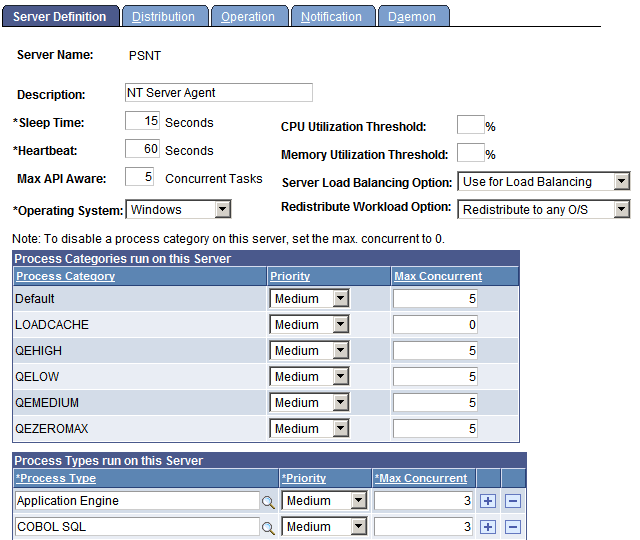
This example illustrates the fields and controls on the Server Definition page. You can find definitions for the fields and controls later on this page.
| Field or Control | Description |
|---|---|
|
Server Name |
This field indicates the process server name. The server name must begin with a letter and can contain a maximum of 8 characters. The PrcsServerName value in the Process Scheduler Domain configuration must match this server name. |
|
Sleep Time |
Enter a sleep time, in seconds, for this server. The PeopleSoft Process Scheduler Server Agent should not run continuously. To control its activity, you can schedule a sleep time, which refers to the number of seconds that you want the agent to wait, or sleep, before it checks for queued process requests in the Process Request table. When it wakes, it checks to see whether any processes have been queued in the Process Request table and need to be run on this process server. For example, if you set the sleep time to 15 seconds and no process is queued, it wakes every 15 seconds and checks for queued processes. If it finds some, it processes as much as possible in 15 seconds and then goes back to sleep. If the work is not completed, it continues from the point at which it stopped for the next 15 seconds, and then goes back to sleep. The sleeping and polling process continues until a database or server administrator manually shuts down the agent. Note: Depending on the server platform, you typically do not set the sleep time at fewer than 10 seconds. Between 15 and 30 seconds is generally recommended for most PeopleSoft applications. The maximum sleep time is 9,999 seconds (about 2 hours and 26 minutes). |
|
Heartbeat |
Enter a time interval, in seconds, for issuing a heartbeat message. The PeopleSoft Process Scheduler Server Agent uses this value to track server status—running, down, or suspended. Each time the server issues a heartbeat message, it updates the last date and time stamp in the Server Status table with the current date and time. This prevents the database from accepting more than one PeopleSoft Process Scheduler Server Agent with the same name. |
|
Max API Aware (maximum application programming interface aware tasks) |
Enter the maximum number of API-aware tasks that can run concurrently on this server. An API-aware task is a process that properly updates its process status through the type-specific API that is provided, such as SQR, and COBOL. It is the responsibility of the application process to update the Process Request table with status information. Note: PSJob is not a valid process type to be considered in Max Concurrency and Process Type priority. PSJob is a container of processes and other PSJobs. |
|
Operating System |
An error message appears if you attempt to start the server agent on an operating system that is different from the operating system specified here. |
|
CPU Utilization Threshold (%) |
Enter a percentage threshold. If the amount of CPU utilization exceeds this threshold, the scheduler's status will change to Overload and it will wait to launch any new processes. The Process Monitor - Server List page displays the current CPU utilization and the threshold value that is entered here. |
|
Memory Utilization Threshold (%) |
Enter a percentage threshold. If the amount of memory utilization exceeds this threshold, the scheduler's status will change to Overload and it will wait to launch any new processes. The Process Monitor - Server List page displays the current memory utilization and the threshold value that is entered here. |
|
Server Load Balancing Option |
Select Use Option or Do Not Use Option. When you select Do Not Use Option, the server takes a request only when the name of the server has been specified on the Process Request page or in any of the definition tables. The distributor does not assign a request to this server when the server name in the request is blank. |
|
Redistribute Workload Option |
Select Do Not Redistribute, Redistribute to any O/S, or Redistribute to Same O/S. When you select the option to redistribute, another active agent can take a request that is originally assigned to this server. When this agent detects that one of the other active agents is no longer active and the server is set up to allow work to be distributed, it takes any queued request that was assigned to the inactive agent and redistributes it, based on the available active agents. |
Note:
After creating the server definition, you must configure the PeopleSoft Process Scheduler Server using PSADMIN.
Process Categories run on this Server
| Field or Control | Description |
|---|---|
|
Priority |
Select High, Medium or Low to prioritize all processes belonging to the corresponding process category that are queued to run on a server. |
|
Max Concurrent |
Enter the maximum number of the processes belonging to the corresponding process category that can run concurrently on this server. Max Concurrent is similar to Max API Aware, except that it controls how many processes of a process class can run concurrently on the server. |
WARNING:
The processes that are contained in the categories must be of a type that are listed to run on the server. If the process type of a process is not listed, the process will not run.
Note:
To disable a process category on this server, set the Max Concurrent value to 0.
Note:
Parallel LoadCache has been assigned to the LOADCACHE process category. That means it will run only on servers that have a LOADCACHE process category whose MaxConcurrent value is greater than 0.
Process Types Run on this Server
| Field or Control | Description |
|---|---|
|
Process Types |
Select the process types that the server should process. This selection enables server load balancing because you can direct particular processes to a specific server. |
|
Priority |
Select High, Medium, or Low to prioritize all processes that are queued to run on a server. |
|
Max Concurrent |
Enter the maximum number of the corresponding process class that can run concurrently on this server. Max Concurrent is similar to Max API Aware, except that it controls how many processes of a process class can run concurrently on the server. Note: Each Winword instance that is initiated shares the common Winword template NORMAL.DOT. Therefore, some instances may encounter an error message when multiple Winword instances are initiated. The Max Concurrent value for the process type Winword should be set to 1 as a precautionary step to prevent this problem. Important: Do not use the Max Concurrent field on the Server Definition page to specify the maximum number of concurrent processes for a PSJOB. To configure the maximum concurrent parameter for any given job, use the Max Concurrent field on the Job Definition page. |
See PeopleSoft 9.2 Application Installation for your database platform.
Related Topics