Monitoring a Daemon Process
To access the Sever Details page, select .
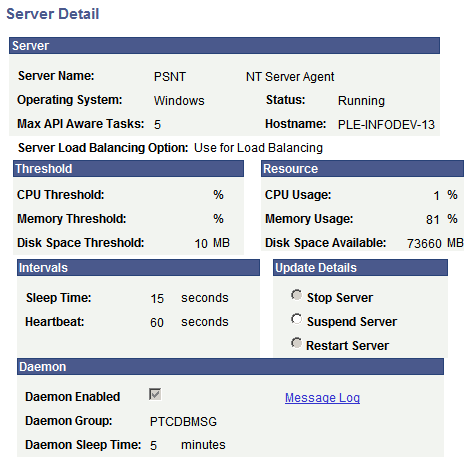
This example illustrates the fields and controls on the Server Detail page. You can find definitions for the fields and controls later on this page.
Use the Process Monitor to monitor messages that are issued directly by the daemon and messages that are issued by the application engine programs that the daemon initiates.
To monitor a daemon process:
-
Select
-
Select the Server List page.
-
Click the Details link that is associated with the required process.
The Server Detail page appears, displaying information about the server and daemon group.
-
Click the Message Log link, located in the Daemon group box.
The Message Log page appears. A Delete button is located on this page, but it remains hidden when the daemon is running. When the Delete button appears, click it to delete all of the messages in the log.
-
Click the Return button to return to the Server Detail page.
-
Click the Cancel button to return to the Server List page.
Click the OK button if you have stopped, suspended, or restarted the server.
Related Topics