Viewing Server Details
To access the Server Detail page, click the Details link on the Server List page.
This example illustrates the fields and controls on the Server Detail page. You can find definitions for the fields and controls later on this page.
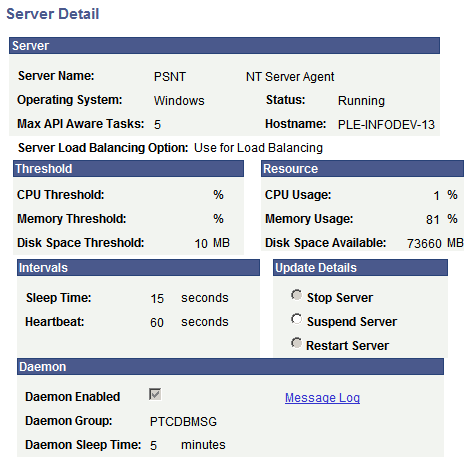
Server
| Field or Control | Description |
|---|---|
|
Server Name |
Displays the name of the server on which this process runs. |
|
Operating System |
Displays the name of the operating system of the server. |
|
Status |
Displays the current status of the server: Running, Down or Suspended. |
|
Max API Aware Tasks (maximum application programming interface aware tasks) |
Displays the number of concurrent processes that can run on this PeopleSoft Process Scheduler Server. |
|
Hostname |
Displays the name of the server on which the PeopleSoft Process Scheduler Server Agent was started. |
|
Server Load Balancing Option |
Displays the Server Load Balancing Option value selected for this server. |
Threshold
| Field or Control | Description |
|---|---|
|
CPU Threshold |
Displays the CPU threshold percentage value specified in the server definition. If CPU usage exceeds this value, the server will not schedule new requests until CPU usage drops below this amount. |
|
Memory Threshold |
Displays the Memory threshold percentage value specified in the server definition. If memory usage exceeds this value, the server will not schedule new requests until memory availability drops below this amount. |
|
Disk Space Threshold |
Displays the disk threshold specified in Process Scheduler configuration file. The server will not schedule new requests until space becomes available. |
Usage
| Field or Control | Description |
|---|---|
|
CPU Usage |
Displays current CPU usage. |
|
Memory Usage |
Displays current memory usage. |
|
Disk Space Available |
Displays the amount of disk space available. |
Intervals
| Field or Control | Description |
|---|---|
|
Sleep Time |
Displays the specified interval at which the PeopleSoft Process Scheduler Server Agent wakes up and polls the Process Request table. |
|
Heartbeat |
Displays the value used by the PeopleSoft Process Scheduler Server Agent to track server status. Each time the server issues a heartbeat message, it updates the last date and time stamp in this table with the current date and time. This prevents the database from accepting more than one PeopleSoft Process Scheduler Server Agent with the same name. |
Update Details
| Field or Control | Description |
|---|---|
|
Suspend Server |
Select to prevent a running PeopleSoft Process Scheduler Server from accepting new process requests. |
|
Restart Server |
Select to restart a PeopleSoft Process Scheduler Server that has been suspended. If a server has been stopped, you must restart it using PSADMIN. |
Note:
After selecting one of these options, you must click OK to run the command.
Daemon
| Field or Control | Description |
|---|---|
|
Daemon Enabled, Daemon Group, and Daemon Sleep Time |
Displays the selections specified in the server definition. |
|
Message Log |
Click to go to the Message Log page. A Delete button is located on this page, but it remains hidden when the daemon is running. When the Delete button appears, click it to delete all the messages in the log. |
Related Topics