Setting Runtime Parameters
To access the Runtime Parameters page, select
This example illustrates the fields and controls on the Runtime Parameters page. You can find definitions for the fields and controls later on this page.
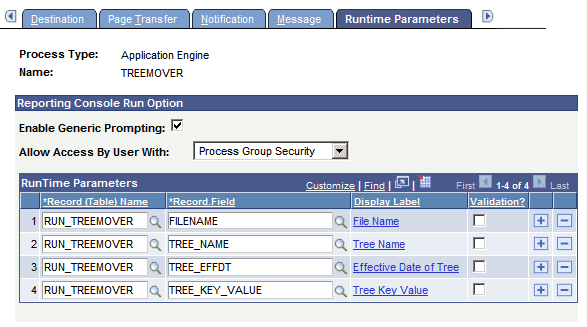
Use this page to enable the Run option from the Reporting Console and register runtime parameters associated with the process.
| Field or Control | Description |
|---|---|
|
Enable Generic Prompting |
Select this check box to allow users to schedule this process from the Reporting Console. Note: The prompt button is disabled for the run time record field that do not have a matching prompt record. |
|
Allow Access By User With |
Select the type of permission required to schedule the process from the Reporting Console. It specifies whether full process security or process group security should be applied when the process is run from the Reporting Console or a web service.
Note: Users with the role PeopleSoft Administrator will always get the Run option on the Reporting Console if Generic Prompting is enabled. |
Runtime Parameters
Application run control records are used to retrieve the parameter values at execution time. In order to run the process from the Reporting Console, the user must be able to enter the runtime parameters necessary for the process with the correct application run control record. This also allows the user to retrieve saved parameter values from an application run control record.
| Field or Control | Description |
|---|---|
|
Record (Table) Name |
Enter the application-specific run control record used in this process. |
|
Field Name |
Enter a row for each field used in the run control record. |
|
Select Label |
Use this link to select the field label that will display on the generic prompting page. Select the Label Type:
|
|
Validation? |
Select this check box to perform validation on parameter values entered using the Reporting Console. A Validation link will appear when the check box is selected. Use this link to specify the validation function from the Application Class. |
Runtime Parameter Restrictions
Not all application run control records can be used for generic prompting. Restrictions include:
-
Run control records having multiple rows at Level 1 for the same combination of Run Control Id and Operator Id are not supported in the generic prompting page. If a record has keys other than Run Control Id and Operator Id then it implies that it can have multiple rows at level 1 with the same values of Run Control Id and Operator Id. The generic prompting page cannot display multiple rows and can store only one Level 1 row at a time.
-
Prompt values will be displayed for fields only if the field on the prompt table is the highest order key.
Setting Validation Function
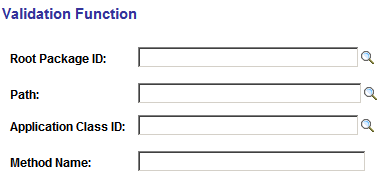
When the user selects Validation for a field, the Validation Function link appears. Select the Validation Function link to enter the location of the validation program.
This example illustrates the fields and controls on the Validation Function page. You can find definitions for the fields and controls later on this page.
| Field or Control | Description |
|---|---|
|
Root Package ID |
Enter the package name that contains the class that you want to specify, or use the Lookup button to search for and select one. |
| Field or Control | Description |
|---|---|
|
Path |
Enter the name or names of any subpackages that contain the application class that you want to specify, or use the Lookup button to search for and select one. |
|
Application Class ID |
Enter the name of the application class that contains the method that you want to specify, or use the Lookup button to search for and select one. |
|
Method Name |
From the Method drop down list box, select the method from the selected application class that you want to specify. |