Testing Event Notifications
To access the Event Notification page, select
Note:
A REN server must be configured before you can test Event Notification.
See Defining Event Notifications and Configuring a REN Server.
This example illustrates the fields and controls on the Event Notification page. You can find definitions for the fields and controls later on this page.

Multiple REN servers can be used by the system. However, only information for REN servers that have been configured with the REN server cluster owner as either Reporting or ALL (PeopleSoft Multi-Channel Framework, Optimization, and Reporting), are listed on this page.
To verify the REN server cluster owner, select
| Field or Control | Description |
|---|---|
|
Cluster ID |
Displays the unique ID for the REN server. |
|
Cluster URL |
Displays the following URL: http://<hostname>:7180 hostname: Application server machine name. 7180: Default REN server port number. Note: If you change the default, then you must change the values for the Cluster and Browser URLs. |
|
Browser URL |
Displays the following URL: http://<hostname>.<default_auth_token>:7180 hostname: Application server machine name. default_auth_token: PIA Auth Token Domain name, specified as the default_auth_token when configuring the REN server. |
|
Active Flag |
Indicates whether the REN server is Active or Inactive. An active REN server enables the Window output type. An inactive REN server does not accept the Window output type. However, pending reports will finish on current popup windows. |
|
Test |
Select to display the Test REN Server page. Use this page to verify that the URLs are valid. |
Testing Cluster and Browser URLs
Access the Test REN Server page.
This example illustrates the fields and controls on the Test REN Server page. You can find definitions for the fields and controls later on this page.
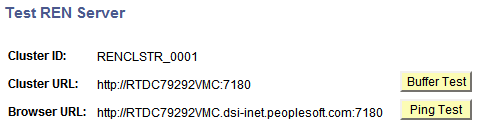
Two different tests can be performed:
-
Buffer: This test is performed on the Cluster URL. It tests the ability of PSRENSRV to break up and send a large file (over 50,000 characters) using multiple internal buffers. The numbered blocks count visible characters, but invisible HTML markup commands are on every line, so the actual server reply content length is 55,902 characters.
Note:
The test is successful if all characters are shown and an End of file message appears at the bottom of the page.
-
Ping: This test is performed on the Browser URL. It sends a sequence of ping events to the PSRENSRV, waiting for each to respond before sending the next.
Note:
The test is successful if Events Sent and Events Received both reach the same final value. The average latency depends on network configuration, machine load, and whether debugging is enabled.
To perform a Buffer test:
-
Select the Buffer Test button.
The Buffer Test for PSRENSRV page appears in a new browser window.
-
Verify that all characters are shown and that an End of File message appears at the bottom of the page.
-
Close the browser window.
To perform a Ping test:
-
Select the Ping Test button.
The Ping Test for PSRENSRV page appears in a new browser window.
-
Select the Run Ping Test button.
The system performs a total of 10 pings.
-
Close the browser window.
Select the Return button to return to the Event Notification page.