Viewing Process Details
To access the Process Detail page, select the Details link on the Process List page.
This example illustrates the fields and controls on the Process Detail page.
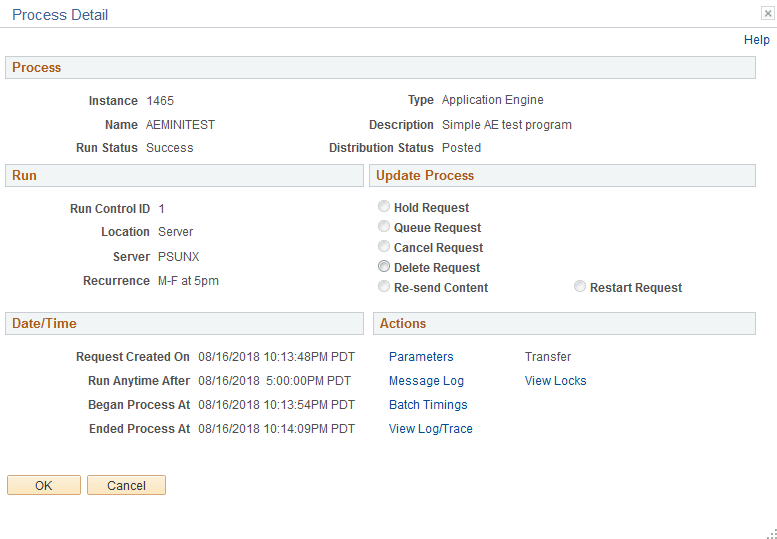
Use the Process Detail page to view details, such as request parameters, message logs, and any recovery instances that have been run. Many of the items on this page are display-only. However, you can use some controls to manipulate the program run.
Note:
You must select OK to confirm the Update Process request on the Process Detail page.
Process
This display-only group box contains general descriptive information to help you identify the process request, including the run and distribution states.
Run
| Field or Control | Description |
|---|---|
|
Run Control ID and Location |
Displays the run control ID and the run location. |
|
Server |
Displays the name of the server used, if the process runs on the server. Note: When the process is in queue status, the name of the requested server is appears. |
|
Recurrence |
Displays the recurrence name if this process has a recurring schedule. |
|
Current Step |
For Application Engine Process Type only. The Step this Application Engine process is currently executing appears in PROGNAME.SECTION.Step format. |
Update Process
The actions that are available in this group box depend on your user authorizations and the current status of the request. This group box is available only if your user ID is authorized to update the selected request.
The option that you select depends on the current run status of the process request. For instance, you cannot cancel a job that has already completed, and you cannot hold a request that is currently processing. The valid actions based on the current status of each process request appear in the following table:
| Current Status | Valid Actions |
|---|---|
|
Blocked |
Hold, Cancel |
|
Cancelled |
Delete |
|
Error |
Delete |
|
Hold |
Delete, Cancel, Restart |
|
Initiated |
Cancel |
|
No Success |
Delete |
|
Pending |
Hold, Cancel |
|
Processing |
Cancel |
|
Queued |
Hold, Cancel |
|
Restart |
Hold, Cancel |
|
Success |
Delete |
|
Warning |
Delete |
Note:
The action Resend Content is available when the Distribution Status for a process is Not Posted.
You can dynamically change the trace value to the desired setting on restart for processes in the Process Monitor, which helps you to debug failed processes. The trace option is available for processes having completion status as No Success or Error.
This additional feature is displayed for processes of the Application Engine, SQR Report, or COBOL types when selecting the restart option following the completion and failure of a restartable process. It includes:
-
Trace Options text box
-
Tool Tip help
This example illustrates the Trace Options field on the Process Detail page.
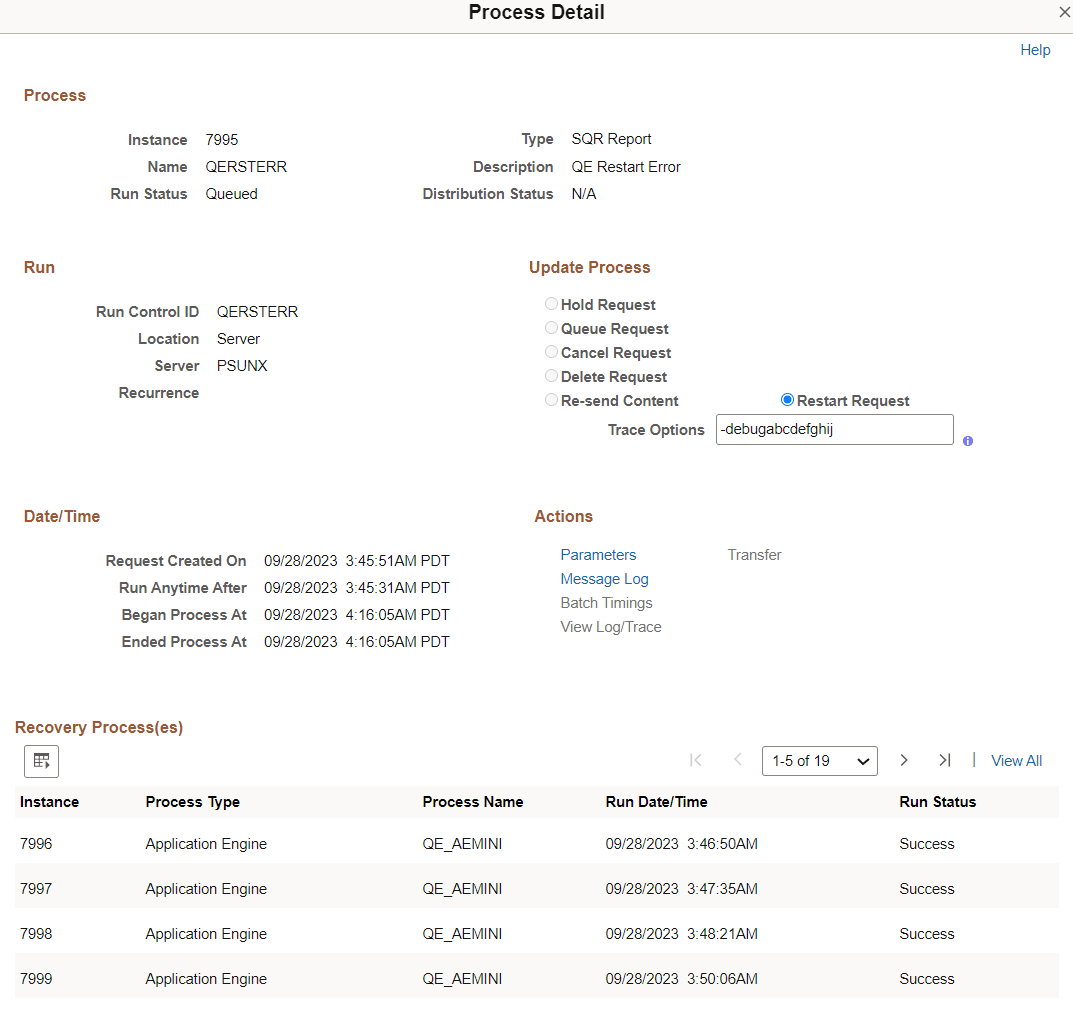
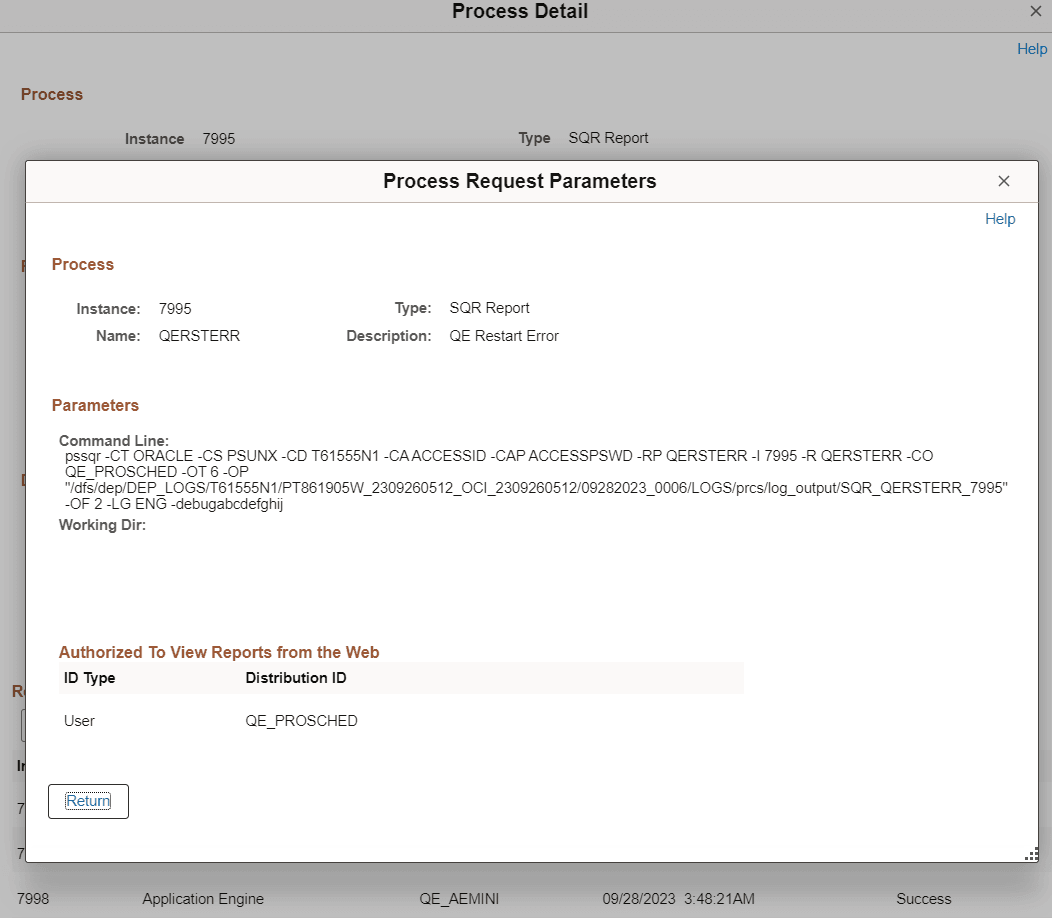
The text entered for tracing can be found in the Command Line section of the process request parameters. If trace values are already specified in the command line through the Process Definition Override parameters, the Trace Options text box is pre-filled and can be edited within the Process Monitor on restart. You have the option to input new tracing values if they are not initially present in the command line. Additional information about these actions is provided in the Viewing Process Detail Actions section of this topic.
This example illustrates the tracing text appended to Command Line in Process Request Parameters.
The Tool Tip help text is dynamically populated based on the process type.
| Generic Process Type | Trace Options Help Text Sample |
|---|---|
|
AppEngine |
-TRACE 7 -TOOLSTRACEPC 3596 -TOOLSTRACESQL 31 |
|
SQR |
-debugabcdefghij |
|
COBOL |
135 |
|
nVision |
NIL |
|
WinWord |
NIL |
|
Data Mover |
NIL |
The trace options are not available on restart for the following cases:
-
Process Scheduler jobs
-
Restart request through Related Actions link for Update Actions
-
Restart requests done for Hold/Cancel statuses.
Date/Time
| Field or Control | Description |
|---|---|
|
Request Created On |
Displays the date and time at which the request appeared in the Process Request table (PSPRCSRQST). This is the same as the Start Request field on the Recurrence Definition page. |
|
Run Anytime After |
Indicates the date and time at which the user selected File, Run in a PeopleSoft application. |
|
Began Process At |
Displays the actual date and time at which the process was selected and initiated. For server-based requests, a large gap may exist between the Request Created On and Began Process At values because of PeopleSoft Process Scheduler Server Agent sleep time and other server processing activity. |
|
Ended Process At |
Indicates the date and time at which the selected process status updated to Success. |
Note:
If the request fails at initiation, the begin and end times do not appear.
Actions
This group box contains links to other pages, including Parameters, Message Log, Batch Timings, Transfer, and Temp Tables, and View Log/Trace. These pages provide additional details about the process.
Additional information about these actions is provided in the following Viewing Process Detail Actions section of this topic.