Copying Requests
To access the Copy Report Request page (NVS_RQST_BUCPY_SBP):
-
Select
-
Enter report request information.
-
Select the Copy to Another Business Unit/Clone link from the nVision Report Request page.
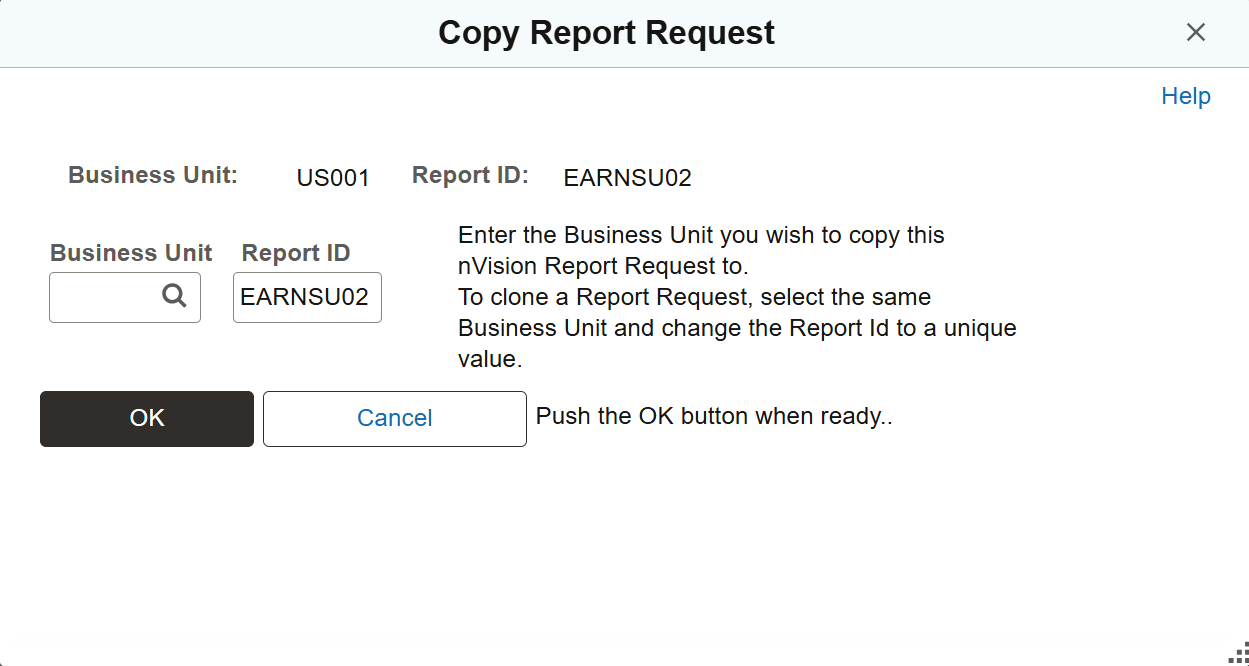
The Copy Report Request page appears.
This example illustrates the fields and controls on the Copy Report Request page. Definitions for the fields and controls appear following the example.
| Field or Control | Description |
|---|---|
|
Business Unit |
Select a business unit to copy the report request to. To clone the request, select the same business unit as the original request. |
|
Report ID Text Box |
Enter a new report ID to copy the report request to another business unit. To clone the request, enter the same report ID. |
Security and Copying Report Requests
When you copy a secure report request, all the groups and users associated with that request are copied from the original request to the new copy:
-
If you copy a report request to another existing report request, the existing request must either be public or you must have access to it.
-
If you do not have access, an error message will display.
-
If you copy a report request to another report request, only those users and groups with access to the original will have access to the target after the copy.
-
Any users or groups who had access to the target prior to the copy but not the original are removed from the access list; if you want them to have access, you must reassign it after the copy is complete.
For example, assume users A and B have access to Report Request 1, and users A and C have access to Report Request 2. If User A copies Report Request 1 to Report Request 2, then following the copy only users A and B will have access to Report Request 2—user C no longer has access.