Defining Variable Criteria
This example illustrates the fields and controls on the PeopleSoft nVision Layout Definition dialog box: Variable tab.
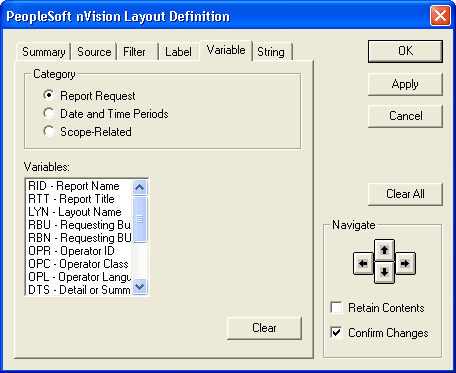
To define variable criteria in nVision:
-
Open any existing layout or create a new one.
-
Select from the menu.
-
In the PeopleSoft nVision Layout Definition dialog box, select the cell to which you want to apply variable criteria.
-
Select the Variable tab.
-
Select the appropriate category, and then select a variable.
-
If you selected one of the Date and Time Periods variables, specify a ledger.
When you select the Date and Time Periods option and you click a variable in the Variables list, the Ledger field appears.
-
If you selected one of the Scope-Related variables, fill in the Scope Field field, if necessary.
When you select any Scope Related variable except SCN or SCD, the Scope Field text box appears to the right of the Variables field.
If the layout uses a scope that has multiple fields, use the Scope Field option to specify the scope field on which to base the variable you want to insert. For example, if you defined a scope using the Department and Product fields, and wanted a descriptive field from the Department table to appear on your report, you would enter DEPTID as the scope field.
Note:
If you do not specify a scope field, the default value is the first field defined in the scope.
-
If you selected the DES variable, indicate where to retrieve the descriptive information.
The Descriptive Field (DES) variable is user-defined and retrieves text information from either the tree node table or detail value table associated with a field in the scope. For example, if your scope is based on DEPTID, and creates an instance for each tree node at the Division level, you can use variables to identify each instance with the division name and related information from the tree node.
Use the Field on Detail Value Table field to retrieve descriptive information from any text field on the detail values table that is associated with the scope field. For example, if you were generating instances of a report using a scope based on detail values of the Department field, you could enter the name of any descriptive field, such as the Manager_Name field, on the Department table, and the text contained in that field would appear on each department’s instance of the report.
Use the Field on Tree Node Table field to retrieve descriptive information from any text field on the tree node table (usually named TREE_NODE_TBL) when using a tree-based scope. For example, if you added a field for the manager responsible for each node in your tree, you could retrieve this information by specifying the field name, such as Mgr_Name, from the tree node table.
-
Click the Apply button to save your changes and define filter criteria for a different cell.
Alternatively, click the OK button to save your changes and close the dialog box.