Securing and Sharing Report Requests in PIA
You can either share and secure nVision reports in PIA or in Windows client.
In web-based PS/nVision reporting, the procedures and processes used to run a report are performed using the different pages of the Report Book menu. Those actions include defining and running report requests, defining and running report books, defining scopes, and running DrillDowns. You can control access to these menu items and customize the pages to allow users restricted access to certain report requests.
Note:
For the Scope and Delivery Templates link on the nVision Report Request page (NVS_REPORT_RQST), the system automatically displays an nVision output option page based on the output type. Security permissions for these secondary pages are inherited from the parent Report Request page, and the Display Only option set in the nVision Report Request component for these pages is ignored.
By default, only the creator of a report request has full access to that request. The creator can select to share the report request with other users or to change the access mode using the Share This Report Request link on the nVision Report Request page.
You can select to access the nVision Report Request page. In this page, click the Share This Report Request link to display the nVision Share Report Request page, where report request creators can view or change the access mode.
Note:
You can share and secure nVision reports either in PIA or in Windows client.
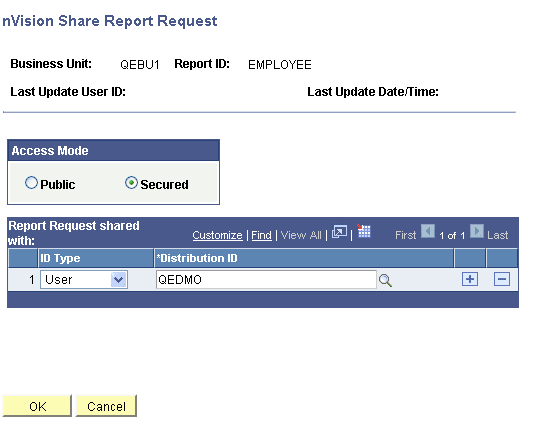
This example illustrates the fields and controls on the nVision Share Report Request page. Definitions for the fields and controls appear following the example.
| Field or Control | Description |
|---|---|
|
Access Mode |
Specifies the access availability for the report request. Select the Public option for all users to view or modify the request. Select the Secured option to specify which users have full access to the report. By default, users have the right to share report requests and access the Security Report Request page. You can change the default value using the Use Secure Rep Rqst in nVision (Use Secure Report Request in nVision) option on the PeopleTools Options page to restrict the users with this right. See System and Server Administration: PeopleTools Options. Note: If you change the access mode from secured to public, all the users and groups who had access to the report will be removed. If you then change the access mode back to secured, you will need to reassign the users and groups. |
|
ID Type |
Select the User option to add a user, or the Role option to add a user role. |
|
Distribution ID |
Enter a valid user or role name, or select one from the list. You can add more users by clicking the + sign. If you selected User from the ID Type list, valid users appear; if you selected the Role option in the ID Type field, user roles appear. |
Since report requests are keyed by business unit, the business unit validation is done for each shared user or role when a report request is opened. If a user or role does not have access to a business unit, that user does not have access to the report request even if she or he is given access through the Access Mode page.
Note:
If a report book contains a report request to which a user does not have access, that user will not be able to view that report request. A message appears when the user opens the report book.
In Windows-client PS/nVision reporting, you can use the PS/nVision VBA interface to programmatically create a customized report request that will restrict users to certain parameters and functions of the report requests.
Administering Report Requests
Use the nVision Report Request Admin page to administer your report requests, including:
-
Removing a request.
-
Transferring a request from one user to another.
-
Making a request public.
Navigation:
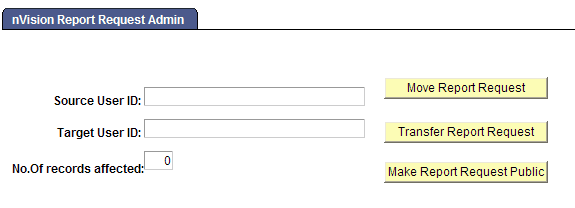
This example illustrates the fields and controls on the nVision Report Request Admin page. Definitions for the fields and controls appear following the example.
| Field or Control | Description |
|---|---|
|
Source User ID |
The user whose report requests will be administered. |
|
Target User ID |
The user ID to which the selected report requests will be transferred if the Transfer Report Request button is clicked. |
|
No. of Records Affected |
The number of records that will be affected (moved, transferred, or made public) by the selected operation. |
|
Move Report Request |
Click to remove the source user's report request. If the report request is not shared by any other user, the report request will be deleted. If the report request has been shared by users other than the source user, only the source user will be removed. |
|
Transfer Report Request |
Click to remove the source user from the report request and grant access to the target user. |
|
Make Report Request Public |
Click to make all report requests owned by the source user available for any user to view and edit. |