Selecting Filter Criteria Options
Use the PeopleSoft nVision Filter Criteria dialog box to add, modify, and delete the nodes from the criteria.
In addition, you can use this dialog box to include fields that build negative criteria; for example, to select nodes for Not In Criteria of the query. With this feature, you can select multiple values, tree nodes, and dimensions as part of Not In criteria query. After making a list of values to be part of the Select clause with Not-In Criteria, this criterion is inserted as any other criteria into the selected cell of the layout.
To define filter criteria in Windows client:
-
Open nVision client by selecting
-
Open any existing layout or create a new one.
-
If you create a new layout, select the Matrix Layout Sheet option, define required values, and click the OK button.
-
Select from the menu.
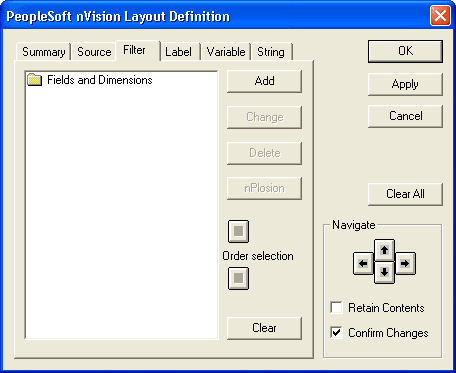
The PeopleSoft nVision Layout Definition dialog box appears.
-
Select the Filter tab, and click the Add button.
The PeopleSoft nVision Filter Criteria dialog box appears.
Note:
The PeopleSoft nVision Filter Criteria dialog box can only be opened in nVision's Windows client.
This example illustrates the fields and controls on the PeopleSoft nVision Layout Definition - Filter dialog box.
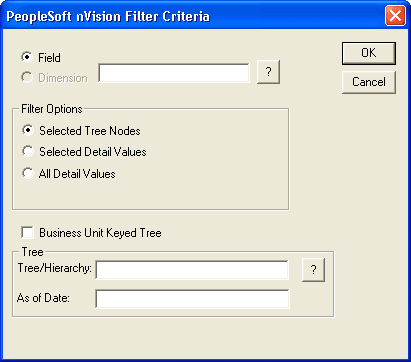
This example illustrates the fields and controls on the PeopleSoft nVision Filter Criteria dialog box, which enables you to select the fields and field values to use as filter criteria.
| Field or Control | Description |
|---|---|
|
Field |
The text box to the right of the Field option displays the field that will be used as criteria. It displays value for only one field at a time—whichever field is selected in the upper text box. You add fields to this list by clicking the Search (?) button and selecting field names. To select from a list of fields, type in a partial name before clicking the Search button. |
|
Filter Options |
Use the Filter Options section to specify the source of the field values that you want to add to the filter criteria: Selected Tree Nodes, Selected Detail Values, or All Detail Values. If your database contains ledgers, the Selected Summary ChartField Nodes option appears. If the Selected Summary ChartField Nodes option is selected, the Tree fields appear prompting you to select a tree from which you select node values to use as criteria. You can select any tree that uses the specified field for its node values and is defined for the setID and effective date associated with the layout. |
|
Business Unit Keyed Tree |
Select this option if your criteria is based on a business unit keyed tree. |
|
Tree/Hierarchy |
Displays the name of the tree. Note: In a dynamic detail tree structure, the field name of the detail values should match the field name of the tree nodes. If these two field names do not match, then an error message appears indicating that the tree is invalid. |
|
As of Date |
Optionally, enter the As of Date values for the tree. If the As of Date value is earlier than the effective date of the tree or is invalid, an error message appears when you save the criteria. |