Adding Field and Tree Node Values to Filter Criteria
To access the PeopleSoft nVision Tree Nodes dialog box:
-
Open nVision client.
-
Open any existing layout or create a new one.
-
If you create a new layout, select the Matrix Layout Sheet option, define required values, and click the OK button.
-
Select from the menu.
The PeopleSoft nVision Layout Definition dialog box appears.
-
Select the Filter tab, and click the Add button.
The PeopleSoft nVision Filter Criteria dialog box appears.
-
Click the OK button.
The PeopleSoft nVision Tree Nodes dialog box appears.
This example illustrates the fields and controls on the PeopleSoft nVision Tree Nodes dialog box.
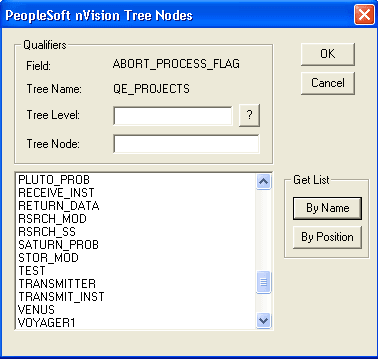
To add a field and tree node values to filter criteria in PS/nVision:
-
Open any existing layout or create a new one.
-
Select from the menu.
-
Select the Filter tab, and click the Add button.
The PeopleSoft nVision Filter Criteria dialog box appears.
-
In the PeopleSoft nVision Filter Criteria dialog box, click the prompt button to the right of the Field option.
-
Select a field name and click the OK button.
-
Enter a partial tree name in the Tree/Hierarchy field and click the prompt button.
-
Select a tree and click the OK button.
The Tree Nodes dialog box appears.
-
If you know the exact node you want to add, enter it in the Tree Node field and click the OK button.
The Tree Nodes dialog box closes and you are returned to the PeopleSoft nVision Layout Definition – Filter Criteria dialog box, which has an added node in the list box.
-
Optionally, apply a node list filter.
To limit node choices to a particular level, select a valid tree level.
To limit node choices to a particular tree branch, enter the tree node at the top of the branch.
-
Display the node list.
To see an alphabetical list of the tree nodes, click the By Name button. Use this button if you have specified a tree level. If you have also specified a tree node, it must be a valid node in the level or no nodes will appear in the list.
To see the hierarchical node structure of the tree—similar to what you would see in Tree Manager—click the By Position button. Use this button if you have specified a tree node. If you also specified a tree level, it is ignored.
Note:
You can use the two list filtering buttons together to help you find the nodes you want. For example, you might first want to see nodes at a particular tree level, in alphabetical order, using the By Name button to find the higher-level node that you want. Then, you can specify that tree node and click the By Position button to see the portion of the tree headed by that node.
-
Highlight the nodes you want to add.
-
Click the OK button to add the highlighted nodes.
The Tree Nodes dialog box closes. You can now see the new node values listed in the tree control list box of the PeopleSoft nVision Layout Definition – Filter dialog box.