Adding Field and Detail Values to Filter Criteria
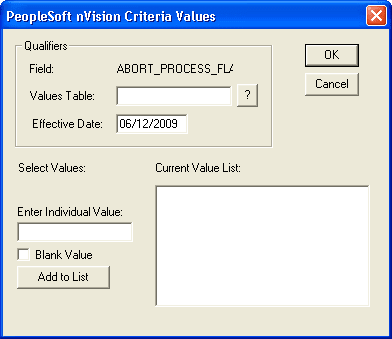
This example illustrates the fields and controls on the PeopleSoft nVision Criteria Values dialog box.
To add a field and detail values to filter criteria in PS/nVision:
-
Open any existing layout or create a new one.
-
Select from the menu.
-
Select the Filter tab, and click the Add button.
The PeopleSoft nVision Filter Criteria dialog box appears.
-
Enter a field name.
-
Select either the Selected Detail Values option or the All Detail Values option.
Note:
If the field is a DrillDown child layout, you can select all detail values from a tree node. The All Detail Values option is used primarily with nPlosion and DrillDown features.
-
If you selected the All Detail Values option, enter a values table name.
-
Click the OK button.
If you selected the All Detail Values option, the Field Name dialog box closes and the PeopleSoft nVision Layout Definitions – Filter dialog box appears again. You can skip the rest of this procedure if you do not need to add specific values and you are using all of them.
If you select the Selected Detail Values option, the PeopleSoft nVision Criteria Values dialog box appears. You use this dialog box to specify the tree detail values you want to add to your filter criteria.
-
In the Qualifiers group box of the PeopleSoft nVision Criteria Values dialog box, specify a values table.
-
Optionally, enter a new effective date.
The default effective date is the value you specified when creating the layout definition.
-
Select the values to add.
If you know the value you want, enter it in the Enter Individual Value field and click the OK button. Otherwise, use the prompt button to display a list of detail values from the Values Table that you specified. You can select multiple values before clicking the Add to List button.
-
Select the Blank Value option—with the Enter Individual Value field empty—to include a null value.
-
Click the Add to List button.
Clicking the Add to List button adds a null value to the list, represented graphically by (None) in the Current Value List text box. The null value appears at the top of the list in the list box, but the actual null value is inserted at the bottom of the list on the PeopleSoft nVision Layout Definition – Filter dialog box.
You can change the order of a value by using the order selection controls on the PeopleSoft nVision Layout Definition – Filter dialog box.
-
Click the OK button to save your changes and to close the PeopleSoft nVision Criteria Values dialog box.
-
Click the OK button again to close the PeopleSoft nVision Layout Definition dialog box.
See Using DrillDown, Using DrillDown Navigation, Using DrillDown Layout Formats.