Setting Query Prompts
Use the Query Prompts page (PTNVSREPORTRQST4) to view all run-time parameters of queries that are used in the layout.
Note:
The Query Prompts page is available if the Report Layout uses query as data source.
Navigation:
-
Select in PIA.
-
Select an existing report or add a new one.
-
Select the Query Prompts tab.
This example illustrates the fields and controls on the Query Prompts page. Definitions for the fields and controls appear following the example.
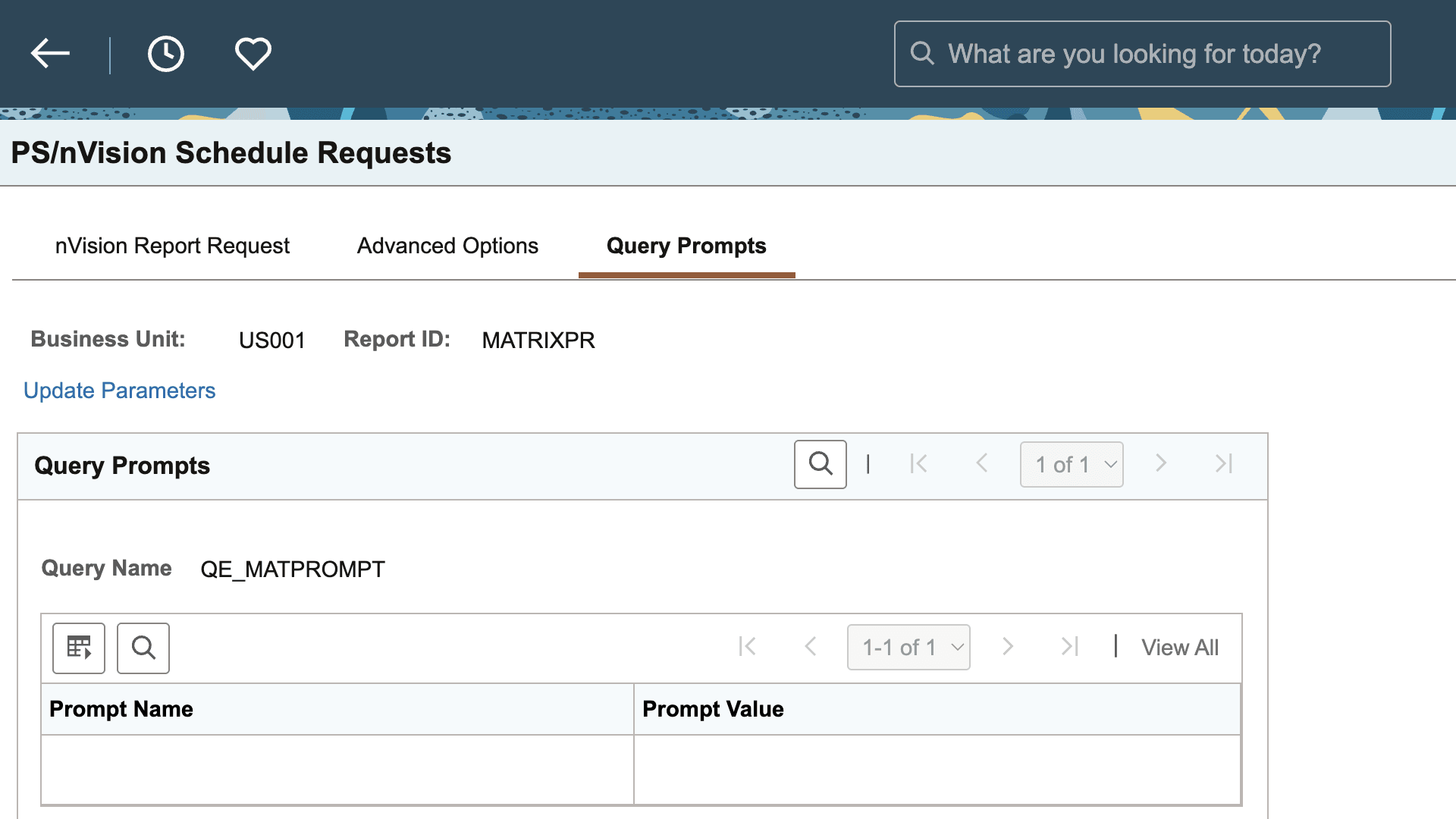
| Field or Control | Description |
|---|---|
|
Update Parameters |
Click to access a subpage where you can update the query prompts values with the most updated parameters of the query. The Update Parameters link does not appear when the user creates and saves a new query based nVision Report Layout. Do one of the following after creating and saving a new query based nVision Report Layout:
Thereafter, the Update Parameters link appears in the Query Prompt section and the user can run the layout by clicking on this link. |
|
Prompt Value |
Enter prompt values that are used for mapping the parameter with the query at runtime. |
A query report that runs from PIA and requires run-time prompt input may receive the following errors:
-
Missing bind value.
Indicates that the query used in the report layout is modified or a different query was used (there are mismatches between prompt details).
-
Empty bind value.
Indicates that an empty value was provided for a prompt in PIA.
-
Invalid bind value.
Indicates that there is an invalid value for a prompt.
Related Topics