Specifying a Layout Definition
You set layout options for your report using the nVision Layout Definition dialog box. The tabs at the top of the dialog box vary depending on the type of layout you are creating. Select a tab to select layout criteria or special nVision functionality for your worksheet.
Note:
You are able to run nVision reports that include up to 16384 columns of data if your nVision layouts are in Microsoft Excel 2007 file formats. Notice that nVision report execution time is directly proportional to the number of columns of data returned. When you design the nVision layout, the location of column criteria can also be set at up to column 16384. However, nVision report execution time is dependent on the location of column criteria; for example, if the column criteria is defined at column 16384 instead of the same column criteria at the column 100, then the report execution time increase because the used area of the worksheet increases when the criteria is defined at the farthest column.
Informational Group Boxes
A group box in the upper-left corner of the Summary tab displays information about the contents and location of the selected cells.
This example illustrates the fields and controls on the PeopleSoft nVision Layout Definition dialog box: Summary tab.
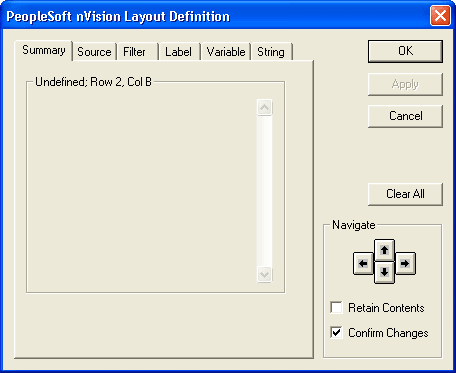
When no PS/nVision information is stored in the current selection, the group box appears as it does in this dialog box. The box is titled Undefined, followed by the location of the cells selected. If you have an entire row selected, the name of that row appears; the same applies to columns. If you have the entire worksheet selected, the location text is Sheet Defaults.
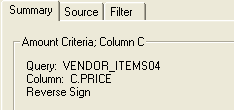
If the current selection contains PS/nVision information, the title of the group box reflects it. Also, the details about that information appear as the contents of the group box.
This example shows the informational group box displaying PS/nVision cell contents.
Note:
When you view a PS/nVision layout, you’ll notice that Row 1 and Column A are always hidden. PS/nVision reserves them to store control information, such as data selection criteria; you cannot use Row 1 or Column A in your layout. The first available column is B, and the first available row is 2. Whenever you open a new layout definition, the cell pointer is automatically placed at cell B2—the upper-left cell available for use in the layout.
Navigating Within Layouts
To move between cells and columns, use the navigate buttons in the dialog box.
For example, clicking the right arrow moves the cell pointer in Excel one cell to the right. You can select individual cells, or you can select entire rows and columns by navigating to the uppermost and left-most sides of the layout. You can also select the entire worksheet by navigating to the upper-left corner of the layout. The new cell selection appears in the informational section title.
This is an example of the navigate section.
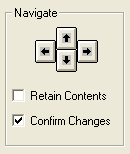
Select the Retain Contents option to preserve the currently displayed information in the informational group box when you navigate elsewhere. You can then apply the same information to the new cells and make only minor changes, if necessary.
Clear the Confirm Changes option to stop being prompted to save your changes each time you change the PS/nVision information and navigate elsewhere. This can save time if you are creating a new layout. When this option is cleared, changes you have made to the current row, column, and so on are automatically saved when you use the arrow keys.
Dialog Box Control Buttons
| Field or Control | Description |
|---|---|
|
OK |
Click this button to close the dialog box and you are able to access the Microsoft Excel menus, or to enter text into the worksheet manually. |
|
Clear All |
Click this button to remove any existing criteria from the current selection. Note: If you clicked the Clear All button and you navigate to another cell or other area of the layout, your criteria are permanently deleted unless you click the Cancel button before you move the cursor. |
|
Apply |
This button is only available after you click the Clear All button. Click this button to apply your changes. |
|
Cancel |
Click this button to exit the sheet without clearing criteria. |
Layout Definition Tabs
Six tabs appear at the top of most Layout Definition dialog boxes. Not all layout types require the same information, so not all of these tabs appear with each type of layout.
This is an example of six taps in the PeopleSoft nVision Layout Definition dialog box.
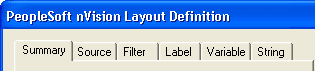
Using these tabs, you can specify options for your worksheet and for rows and columns. The controls on the dialog box vary depending on whether you have a cell, row, column, or the entire worksheet selected.
| Field or Control | Description |
|---|---|
|
Summary |
Displays the information about the contents and location of the selected cell. |
|
Source |
Enables you to select query, ledger, and TimeSpan criteria as well as some nPlosion options. |
|
Filter |
Identifies specific detail values from PeopleSoft trees. These act to limit query, ledger, and label criteria. |
|
Label |
Retrieves descriptive field values from either tree nodes or detail values. Like queries and ledgers, these criteria also perform the role of a data source—although the data is always textual rather than numeric. |
|
Variable |
Displays information that is specific to each report request and report instance—for example, scope instance number, reporting period, and other information that can change when you use a different scope. |
|
String |
Enables you to build multilingual layouts. Certain text strings are replaced by specially formatted strings whose user-language equivalents are retrieved from a table in the database. |
|
Column |
Enables you to map the layout columns to the appropriate query columns. The columns contain the data that the query returns. This tab is only available if you have selected a tabular layout. |
|
Options |
Enables you to select one of the Sheet Options, Row Options and Column Options. This tab is only available if you have selected a tabular layout. |