Adding Criteria Properties
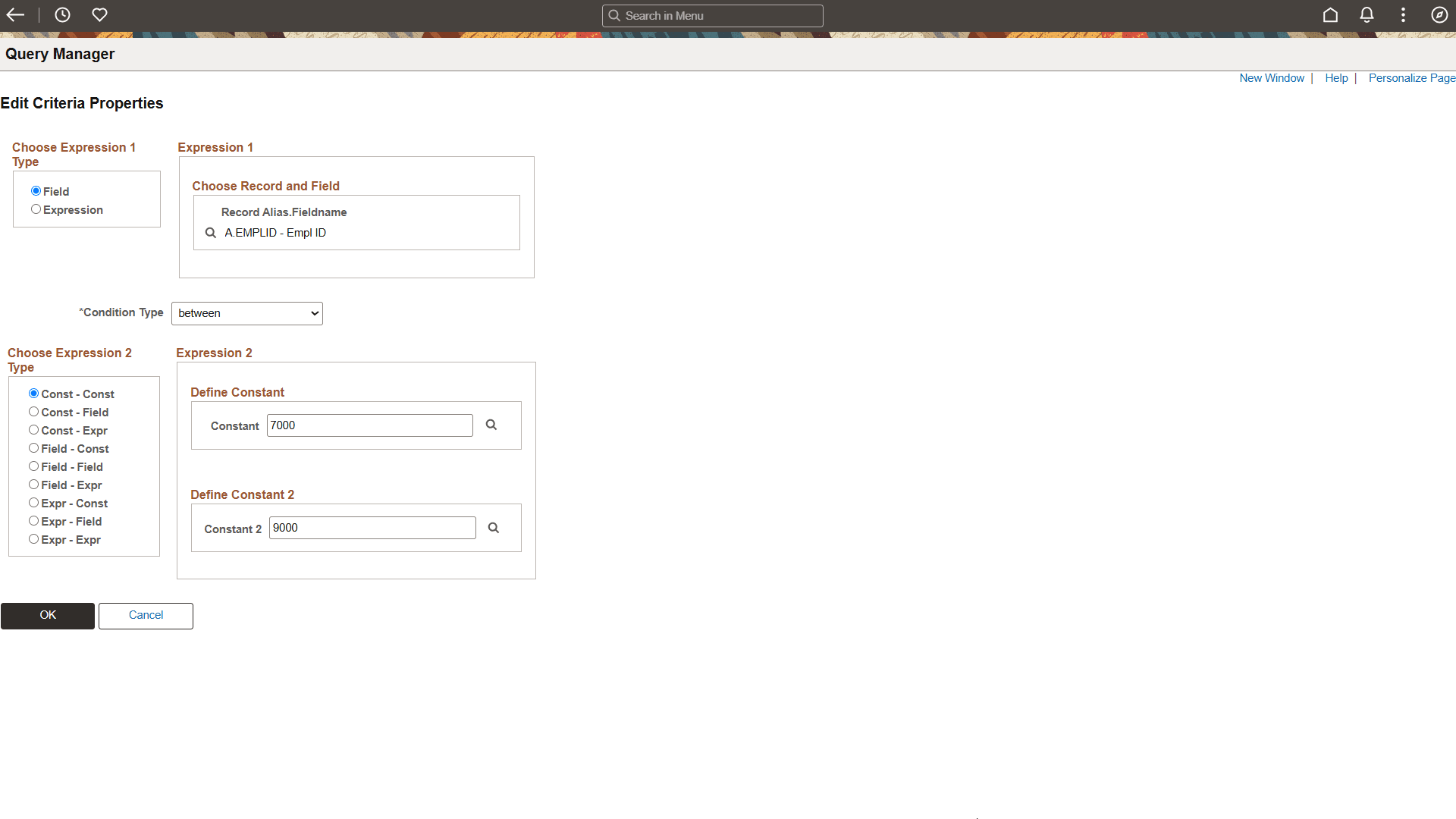
Use the Edit Criteria Properties page (QRY_CRITERIA_SEC) to add or edit selection criteria properties for your query statement.
Navigation:
-
Select
-
Open an existing query.
-
Select the Criteria tab to access the Criteria page, and click the Add Criteria button.
Alternatively, access the Fields page and click the Use As Criteria link.
This example illustrates the fields and controls on the Edit Criteria Properties page. Definitions for the fields and controls appear following the example.
| Field or Control | Description |
|---|---|
|
Field |
Select this option if you want to base the selection criterion on another field’s value, usually a field in another record component. To compare the values from fields in two records, you must join the record components. When you select this option, you must select an appropriate comparison operator from the Condition Type drop-down list. |
|
Expression |
Select this option if you want PeopleSoft Query to evaluate an expression that you enter before comparing the result to the value in the selected field. When you select this option and click the New Expression link to create a new expression, you must then select an expression type. If you are entering an aggregate value, select the Aggregate Function check box. You can also enter parameters for length and decimal positions. Also enter the expression in the text box. Query Manager inserts this expression into the SQL. |
Creating Criteria Based on a Field
To create criteria based on a field:
-
Select
-
Create a new query or search for an existing one.
-
Access the Criteria page, and click the Add Criteria button.
Alternatively, access the Fields page and click the Use As Criteria link. If you accessed the Edit Criteria Properties page by clicking the Use As Criteria link on the Fields page, Query Manager populates the selected field in the Expression 1 field.
-
In the Edit Criteria Properties page, specify the criteria for the field, and click the OK button to return to the Fields or Criteria page.
You can also use a field from a record as criteria even if you do not select that field for query output.
Creating Criteria Not Based on a Field
To create criteria that is not based on a field:
-
Access the Edit Criteria Properties page by clicking the Add Criteria button on the Criteria page.
The Edit Criteria Properties page appears enabling you to edit Expression 1 and Expression 2 fields.
-
In the Choose Expression 1 Type group box, select the Field or Expression option.
-
Edit the second (right-hand) Expression column to enter comparison values.
-
Save your query.