Administering Queries
Use the Admin page (QRY_ADMIN) to administer queries.
Navigation:
This example illustrates the fields and controls on the Query Administration page.
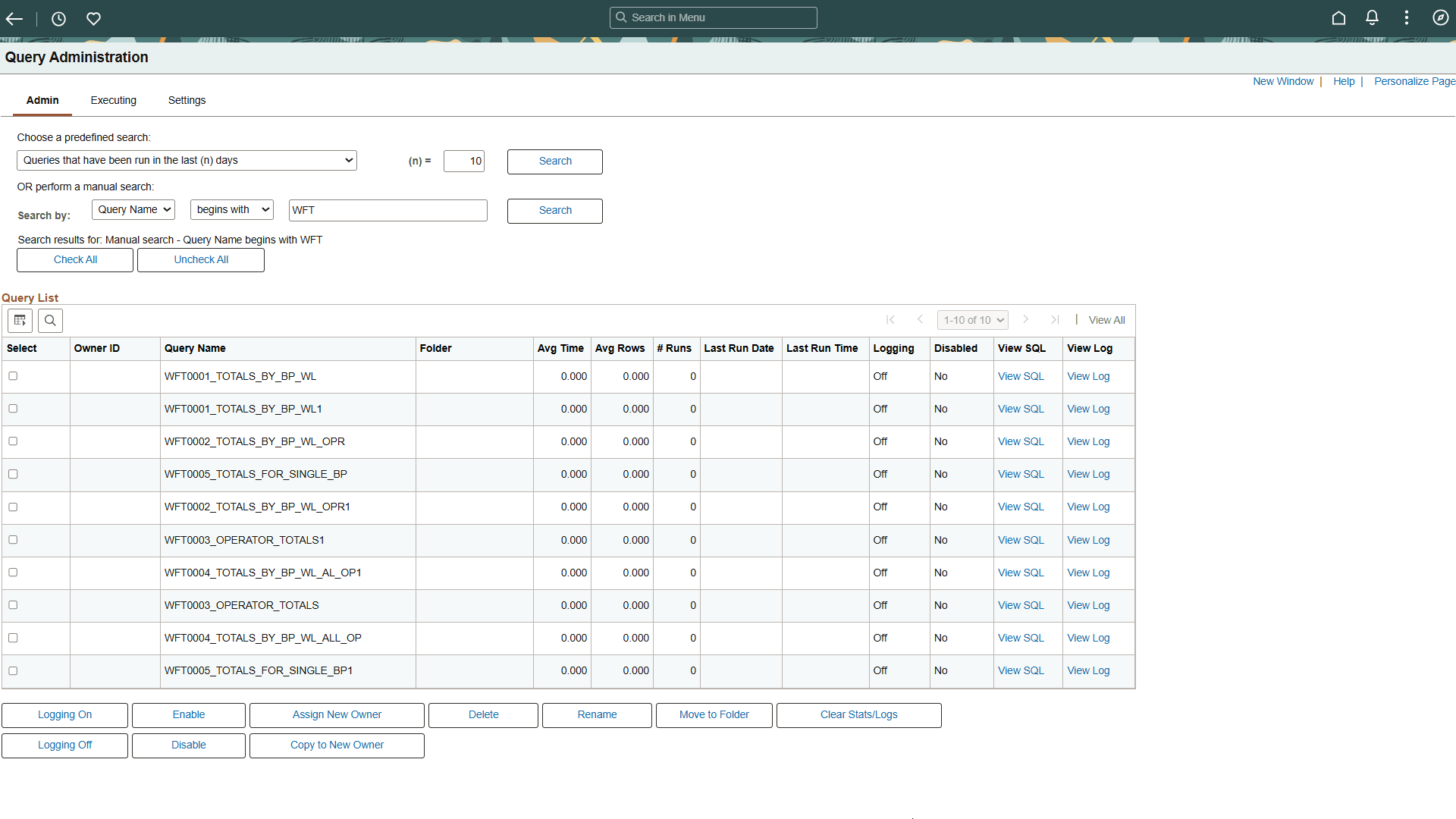
To administer queries:
-
Use either the predefined search or manual search option to restrict the list of queries that are displayed.
For a predefined search, enter the desired value for the selected search option in the (n) = field and select one of the following options:
-
Queries that belong to locked out accounts
-
Queries that have been disabled
-
Queries that have been run in the last (n) days
-
Queries that have logging turned on
-
Queries that have never been run
-
Queries that have run but not in the last (n) days
-
Top (n) queries by largest average number of rows
-
Top (n) queries by longest run time
-
Top (n) queries most frequently run
For a manual search, select to search queries by query name or owner ID.
You can define your search further by selecting either begins with or contains search type.
-
-
Click the Search button to display a list of queries that match your search criteria.
The Query List group box lists those queries that match your search criteria.
-
Review the following statistics for each query that is listed:
-
Owner ID
-
Query name
-
Folder
-
Average time to run
-
Average number of rows
-
Number of times run
-
Last run date and time
-
Logging status
-
Disabled status
Note:
If a query appears in the list as <UNTITLED>, a user has created and run one or more queries without saving them. Results from all unsaved queries appear as a single untitled row. You can clear statistics only for untitled queries. Attempting to perform any other action on untitled queries will result in an error message.
-
-
For the appropriate query, click the View Log link to view the log for that query.
A message appears if no logs are available.
-
For the appropriate query, click the View SQL link to view the SQL for that query.
-
Select the check box for each query on which you want to perform an action.
You can also click the Check All button to select all queries, or click the Uncheck All button to clear all queries.
-
Perform an action by clicking one of the following buttons:
-
Logging On: Enables logging for the selected query.
When you enable the logging feature, detailed statistics will be logged on the query every time it has run to completion. The statistics are stored in a separate Query Log table.
Note:
The statistics log is updated with data only if the query runs to completion.
-
Logging Off: Disables logging for the selected query.
-
Enable: Enable the selected query to be run, previewed, or scheduled.
-
Disable: Disables the selected query from being run, previewed, or scheduled.
-
Assigns New Owner: Assign a new owner to the selected query.
-
Delete: Deletes the selected query.
-
Rename: Renames the selected query.
-
Move to Folder: Moves the selected query to a folder.
-
Clears Stats/Logs: Delete the statistics and logs for the selected query.
-
Copy to New Owner:Copy ownership of selected queries from current user to another user. This action only applies to private queries.
-
-
For the appropriate query, click the Logging button to enable logging for that query.
Note:
Your changes are saved automatically, and the Save button is not available.