Creating a Composite Query Definition
To create a composite query definition:
-
In PeopleSoft PIA, select Reporting Tools, Composite Query, Composite Query Manager.
The Composite Query Manager search page appears.
-
Click the Add a New Value link.
The Specify Composite Query Properties page appears.
-
Enter the composite query name, type, status, and description.
Note:
The composite query name must be unique. Values in the Type and Status fields are required.
-
Click the Next button.
The Select Base Query page appears.
-
Select one or two base queries that are used for the composite query.
Note:
Queries with runtime prompts cannot be used as base queries for a composite query.
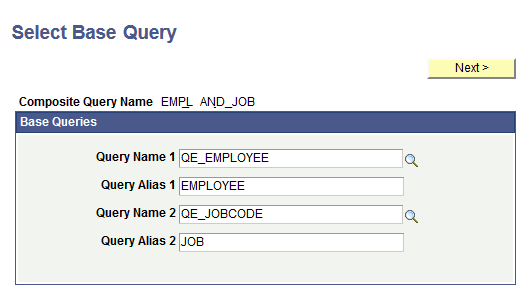
This example illustrates the fields and controls on the Select Base Query page. The first base query is QE_EMPLOYEE, with the alias set to EMPLOYEE. The second base query is QE_JOBCODE, with the alias set to JOB.
-
Click the Next button.
If you select two base queries using the Select Base Query page, the Specify Query Joins page appears, listing the selected queries.
-
Use the Specify Query Joins page to specify query join details.
-
Select a join type in the Join to Related Query drop-down list.
The available options are Inner Join and Left Outer Join.
In this example, select the Inner Join option.
-
In the Query Join Details section, note that the first Query Field drop-down list displays the fields that you have selected as output fields from the first base query. The second Query Field drop-down list displays the fields that you have selected as output fields from the second base query.
In this example, the first base query is QE_EMPLOYEE and the second base query is QE_JOBCODE.
-
Select a query field as a mapping field from the first Query Field drop-down list.
In this example, select A.QE_JOBCODE.
-
Select a condition type from the Condition Type drop-down list.
Condition type defines how the field values are compared. The available options are equal to, greater than, less than, not greater than, not less than, equal to, and not equal to.
-
Select a query field as a mapping field from the second Query Field drop-down list.
In this example, select A.QE_JOBCODE.
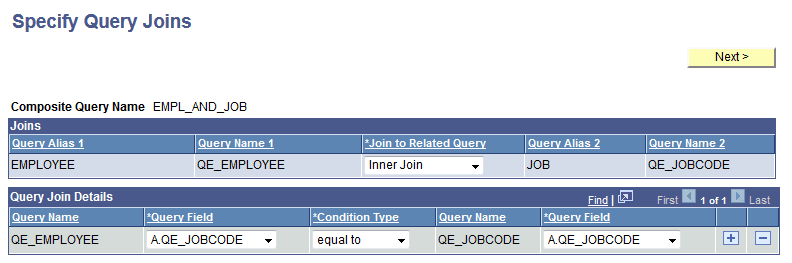
This example illustrates the fields and controls on the Specify Query Joins page listing the selected queries and the join details.
-
-
Click the Next button.
The Select Output Fields page appears listing all fields from the selected base queries.
-
Select the output fields for the composite query.
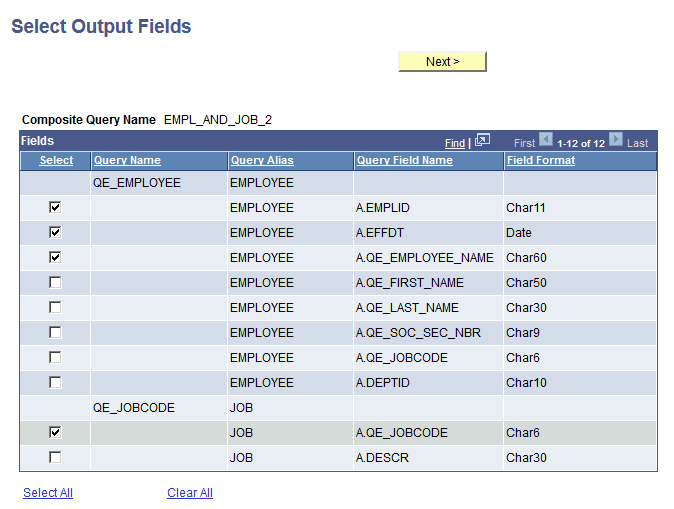
This example illustrates the selections on the Select Output Fields page. The A.EMPLID, A.EFFDT, and A.QE_EMPLOYEE_NAME fields are selected from the QE_EMPLOYEE query. The A.QE_JOBCODE field is selected from the QE_JOBCODE query.
-
Click the Next button.
The Query Composite Manager page appears and displays basic Composite Query definitions that you have defined for the composite query.
-
Click the Save button.
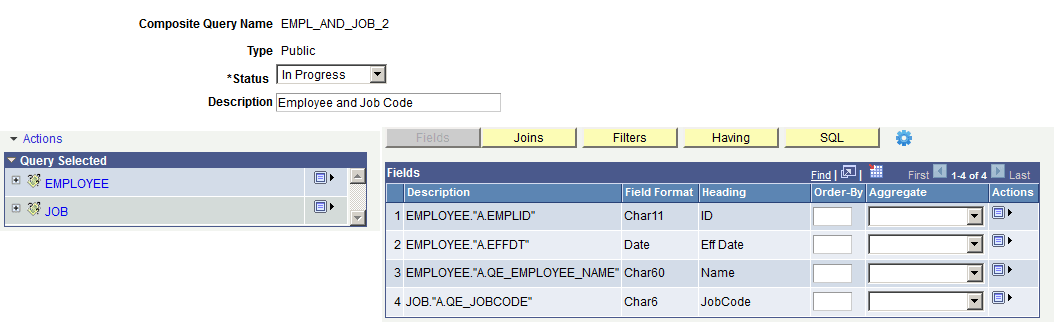
This example illustrates the EMPL_AND_JOB composite query in the Query Composite Manager page. The Query Selected section displays the EMPLOYEE and JOB as the base queries. The Fields section lists the selected output fields. The A.EMPLID, A.EFFDT, and A.QE_EMPLOYEE_NAME fields are from the EMPLOYEE query. The A.QE_JOBCODE field is from the JOB query.