Using the Composite Query Manager Page
Use the Composite Query Manager page (PSCPQMAIN) to view and maintain connected queries.
Navigation:
-
Select Reporting Tools, Composite Query, Composite Query Manager.
-
Search for an existing query and click the corresponding Edit link.
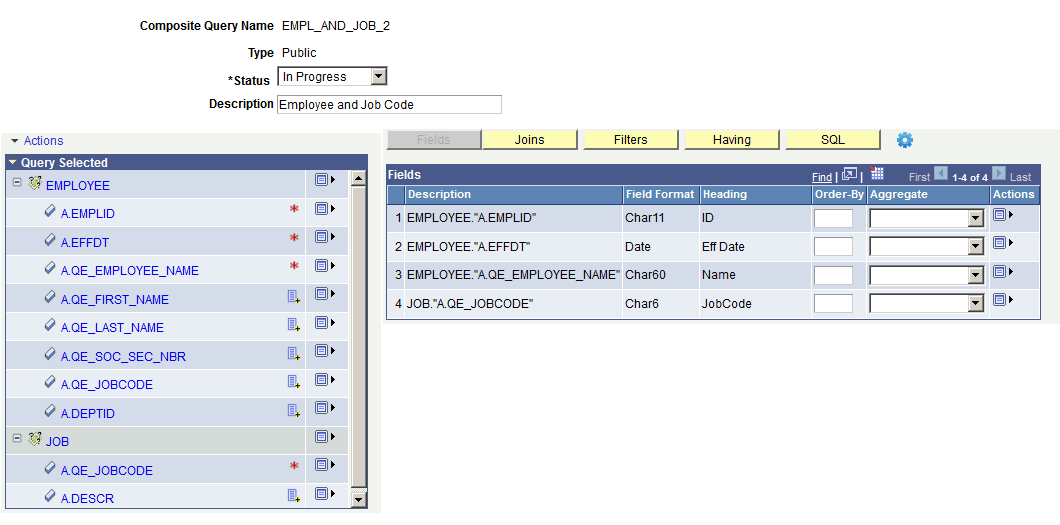
This example illustrates the fields and controls on the Composite Query Manager page. You can find definitions for the fields and controls later on this page.
| Term | Definition |
|---|---|
|
Status |
Select the status of the composite query. The available options are In Progress, Active, or Inactive. Note: Currently, composite queries do not apply the status logic based on the value set in this field, but the status logic will be applied to the composite queries in future PeopleTools releases. |
|
Actions |
The available options are:
|
|
Query Selected |
This section lists the queries that you have selected using the Select Base Query page. |
|
|
Click the Expand icon to expand the list of the fields from the selected query. |
|
|
Click the Collapse icon to collapse the list of fields from the selected query. |
|
|
The Query Name icon indicates the name of the base query. |
|
|
The Query Field icon indicates the name of the fields in the base query. |
|
|
The Selected as Output Field icon indicates that this field is already selected as an output field for the composite query. In the previous example, the selected output fields are A.EMPLID, A.EFFDT, A.QE_EMPLOYEE_NAME, and A.QE_JOBCODE. |
|
|
Click the Add to Output Field List icon to add the corresponding field to the output field list for the composite query. |
|
|
Click the Menu icon to open the actions menu that is available for the selected query or field. If you click the Menu icon for a query, the available options are:
If you click the Menu icon for a field, the available options are:
Note: If the base query includes drilling URL fields, only the drilling URL fields that have the drilling URL type set to Query, Component, or External are listed in the Query Selected section. If the output field of the base query is a drilling URL field or is mapped to the drilling URLs and you add this drilling URL field to the composite query output field list, then you must add all query fields that are used to build the drilling URLs to the composite query output field list. |
|
Joins |
Click this button to display the Joins section and access the Query Join Details page, where you can view, define, and maintain query joins details for the composite query. |
|
Filters |
Click this button to display the Filters section, where you can view and maintain filters criteria for the composite query. |
|
Having |
Click this button to display the Having section, where you can view and maintain the having criteria for the composite query. |
|
SQL |
Click this button to display the SQL section, where you can view the SQL statement that is generated for the composite query. |
|
|
Move the mouse over the Options icon to display the action options, which are:
See Previewing Composite Query Results and Viewing Composite Query Properties. |
|
Fields |
The Fields section displays the output fields of the composite query when you first access the Composite Query Manager page. Use the Fields section to view, define, and maintain the output fields that are selected for the output column results.
|


