Creating a Connected Query
Use the Connected Query Manager page (PSCONQRSBUILDER) to create and maintain connected queries.
-
Select
-
Select the Add a New Value tab.
Alternatively, click the Edit link.
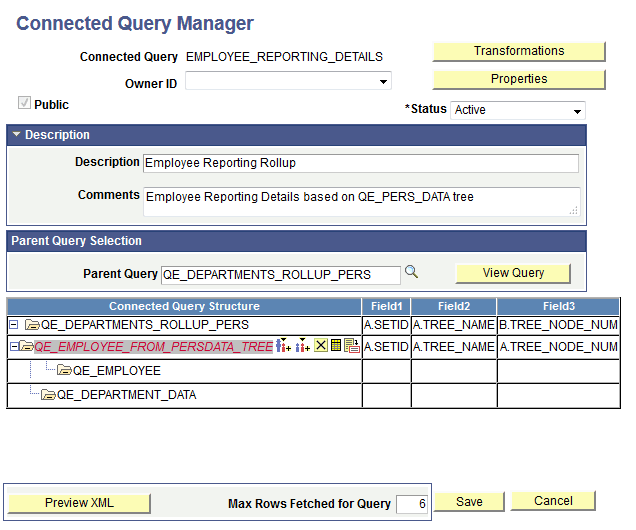
This example illustrates the fields and controls on the Connected Query Manager page. Definitions for the fields and controls appear following the example.
| Field or Control | Description |
|---|---|
|
Connected Query |
Enter a name for the connected query. |
|
Transformations |
Click to access the Connected Query Transformation page, where you can view, add, or modify the list of transformation program XSLTs that are defined for the connected query. |
|
Public |
Indicate the query ownership. Select to indicate that this is a public query. Clear this check box to indicate that this is a private query. Note: Public connected queries can be run by any user with adequate permissions. Private connected queries can be run and edited only by the owner. |
|
Status |
Select the status of the connected query. Values are:
|
|
Properties |
The Properties button is active only after you select a parent query. Click to access the Connected Query Properties page. |
|
Description |
Enter a description for the connected query. |
|
Comments |
Enter comments for the connected query. |
|
Parent Query Selection |
Click the search icon to select a parent query from an existing list. Note: You must use the search icon to search for and select a parent query. After you select a parent query, all buttons become active and the Connected Query Structure section appears with active icons, which enables you to continue building a connected query. |
|
View Query |
Click to open the selected query in read-only mode in the Query Manager component. Query Manager opened from Connected Query is fully functional but does not allow you to save any changes. |
|
Connected Query Structure |
This section appears after you select a parent query. It displays the image icons that you can use to further develop the Connected Query structure. See the Understanding Connected Query Manager section earlier in this topic for a description of the icons. Note: If parent and child queries are not linked with some fields, each row of data for a parent query will have all rows from a child query as no filtering from a parent to child will happen. For example, Project is a parent query and Project Description is a child query. The Project and Project Description queries are linked by the Project_ID field that will assume one-to-one relationship (assuming no EFFDT field exists in a second query). Therefore, if the Project query returns 100 rows, the Project Description query will return a single row for the Project query, and resulted data set will have 100 rows of data. If no field is selected as a mapped field (Project_ID field), Connected Query returns 100 x 100 = 10000 rows. Sometimes mapped fields are not needed, in which case the system displays a warning message when you save the connected query (Connected Query design time). |
|
Use 'Order By' processing |
This option is only available when the SupportsOrderBy option in the Connected Query Properties page is set to True. Select to apply the OrderBy processing option at runtime. Note: This option is always selected for the first query and you cannot modify it. For the following queries, this option becomes active when you click the query name in the Connected Query Structure column. The OrderBy processing option is not used if the connected query is running in the Preview XML mode. When you reopen the Connected Query Property page and set the SupportsOrderBy property to False, the Use OrderBy Processing column is not available in the Connected Query Manager page. If you later set the SupportsOrderBy property back to True, the system will display the processing property that you previously selected. See the Using the OrderBy Processing Option section in Using Connected Query Manager. |
|
Preview XML |
This button becomes active after you select a parent query. Click this button at any time to preview the XML report in a separate window. |
|
Save |
This button becomes active after you select a parent query. Click this button to save your connected query. You can save the connected query as soon as you have added one parent query. |
Steps Used to Create a Connected Query
To create a connected query using Connected Query Manager:
-
Select
-
Select the Add a New Value tab.
The Connected Query Manager page appears.
-
Enter a name in the Connected Query field.
The connected query name must be unique to all private and public queries.
-
Define query ownership using the Public check box.
By default, the Public check box is selected to indicate that this connected query is a public connected query. You can clear the Public check box if you want this connected query to be private .
-
Select the status of the connected query using the Status drop-down list.
Note:
The Inactive status indicates that a connected query does not pass a validation routine. When a connected query is not valid, this status is set automatically during the Save process.
-
Select the Active option to enable the user to schedule a connected query.
-
Select the In Progress option to indicate that this query can be previewed in Connected Query Manager, but can not be scheduled.
The In Progress status is useful when a connected query is not ready for end user to view using the Connected Query Viewer page.
-
-
Optionally, enter description and comments for the connected query using the Description and Comments fields.
If the Description field is blank, Connected Query populates the description using the connected query name.
-
In the Parent Query field, click the search icon to select a parent query from an existing list.
Note:
You must use the search icon to search for and select a parent query. After you select a parent query, all buttons become active and the Connected Query Structure section appears with active icons, which enables you to continue building a connected query.
-
Optionally, click the View Query button to view the selected query.
Note:
You can preview a connected query at any point without having previously saved it.
-
Optionally, continue building your connected query by adding child queries, linking fields between parent and child queries, and so on.
-
Save your connected query.
Because connected query can be created with one parent query presented, you can save your connected query and use it as a new connected query.