Defining Optional Prompts
This section describes optional Prompt expression types and how to set them.
Understanding Defining Optional Prompts
When a user runs a query with an optional prompt defined, a prompt dialog box appears when he or she runs the query. They can enter or select a prompt value to refine the returned result set or not enter a value/by-pass the dialog box and get the entire result set.
When defining criteria, the Between condition type is not supported for Prompt expression types defined as optional. Instead, use an Expression expression type using greater than (>) and less than (<) operators to define the criteria. The following example shows a sample expression using greater than (>) and less than (<) operators to achieve a similar result as a Between condition type:
(A.MESSAGE_SET_NBR = :1 OR A.MESSAGE_SET_NBR > :1) AND ( A.MESSAGE_SET_NBR < :2 OR A.MESSAGE_SET_NBR = :2)Setting Optional Prompts
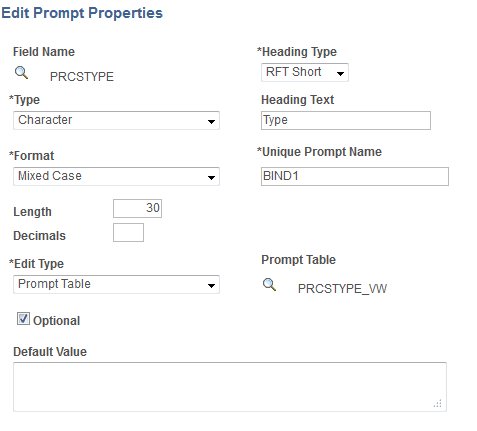
This example shows the Edit Prompt Properties page with the Optional option selected and prompt table is set to PRCSTYPE_VW, which is used to validate the prompt value.
When you use the Run page in Query Manager to run a query with the prompt set to Optional, a prompt window is displayed.
This example shows the prompt window when you run a query using the Run page in Query Manager.
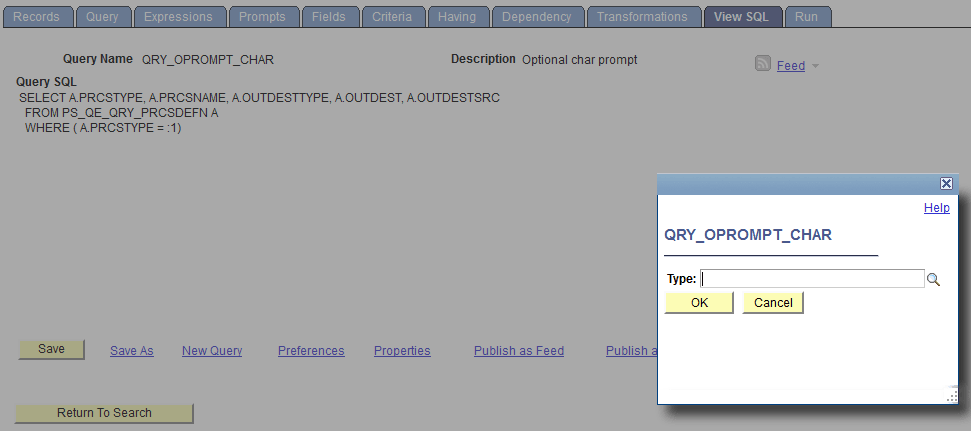
Because the prompt is set to optional, you can either enter a valid prompt value or click the OK button on the prompt window without entering a prompt value.
-
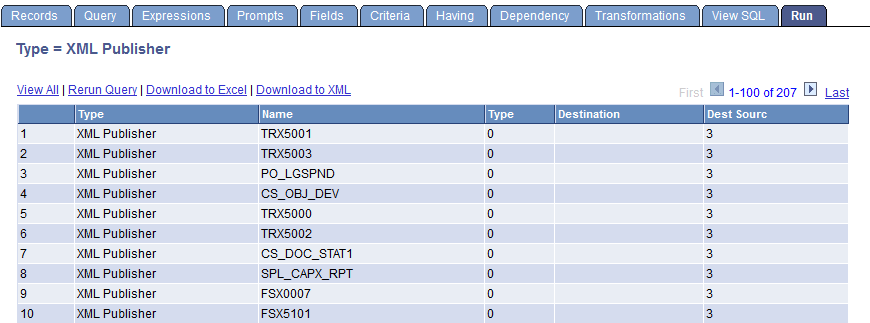
If you enter a prompt value, that prompt value must validated because the prompt is defined to have the Edit Type option set to Prompt Table. If so, the query is run using the entered prompt value and the report results display the prompt setting.
This example shows the query results with Type = XML Publisher is displayed as the prompt setting:
-
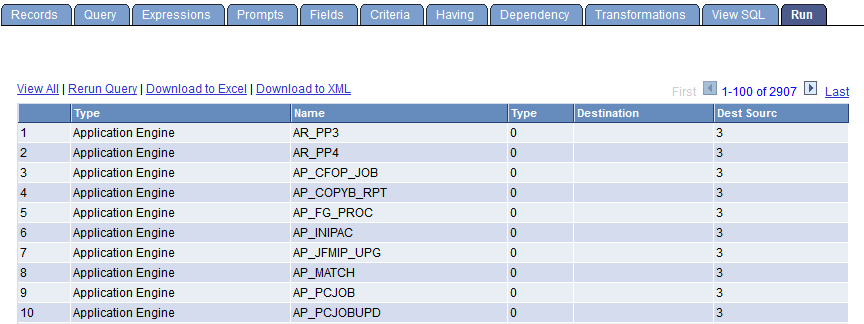
If you click the OK button without entering a prompt value, the criteria defined to compare with the optional prompt is dropped during runtime. The query is run without the prompt value and the report results do not display the prompt setting.
This example shows the query results without the prompt setting.
When you use the Schedule Query page to run a query with the prompt set to optional, a prompt window is also displayed and you can either:
-
Click the OK button on the prompt window without entering a prompt value. Prompt is saved to the run control record without a value. During the running process, the criteria defined to compare with the corresponding optional prompt are dropped from the SQL before the query runs.
-
Enter a valid prompt value on the prompt window and click the OK button. The new prompt value is saved to the run control record. Because there is a valid prompt value, the criteria defined to compare with the corresponding optional prompt are used to run the query.