Renaming Queries
Use the Rename Queries page to rename existing queries.
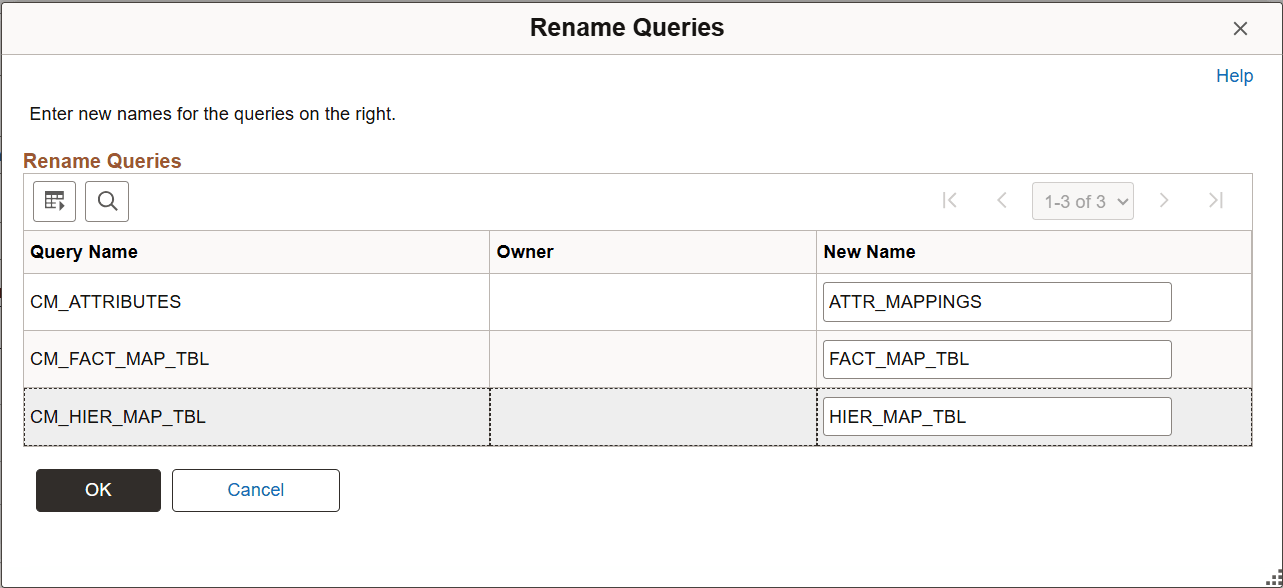
This example illustrates the fields and controls on the Rename Queries page.
To rename a query:
-
Select
-
On the Admin (Administration) page, select a predefined search or a manual search by clicking the respective Search button.
-
Select the queries from the Query List.
-
Click the Rename button.
The Rename Queries page appears, listing the current query names and query owners.
-
Enter new names for the queries in the New Name field.
-
Click the OK button to save your changes.
Note:
Alternatively, you can use the Query Manager search page to rename a query. You must first select a query that you want to rename, and then select Rename Selected from the Action drop-down list.