Step 4: Map Child Query Fields to Parent Query for Filtering
Use the Connected Query Quick Start - Step 4 (CQ_WZ_FLDMAP) to map query fields from a child query to corresponding fields from a parent query.
Navigation:
-
Select
-
Enter a connected query and descriptive information, and click the Next button.
-
Select an existing query to use as the parent query, and click the Next button.
-
Select an existing query to use as the child query, and click the Next button.
This example illustrates the fields and controls on the Connected Query Quick Start - Step 4. Definitions for the fields and controls appear following the example.
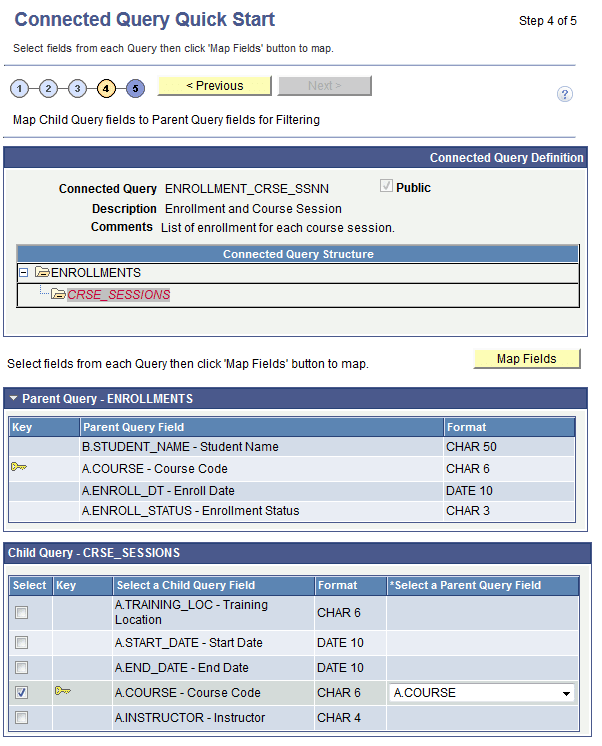
This page displays two sets of fields coming from parent and child queries:
-
The parent query section displays parent query fields and is for informational purposes only.
This section is collapsed by default and you have the option to expand it.
-
The child query section displays child query fields and enables the report developer to select one or more fields for mapping.
For each child query field selection, a drop-down list with possible parent query field lists appears. Those parent query field lists are filtered by compatible field data types. In some cases, Connected Query Manager uses smart thinking to map fields based on partial matching names but ultimate field matching is up to the user.
| Field or Control | Description |
|---|---|
|
Map Field |
Click to update the Connected Query structure. Note: The Fields column in the Connected Query Structure section displays the values that you just selected. |
|
Next |
This button becomes active after you select the fields for mapping and click the Map Fields button. Click to advance the wizard to the next page. |
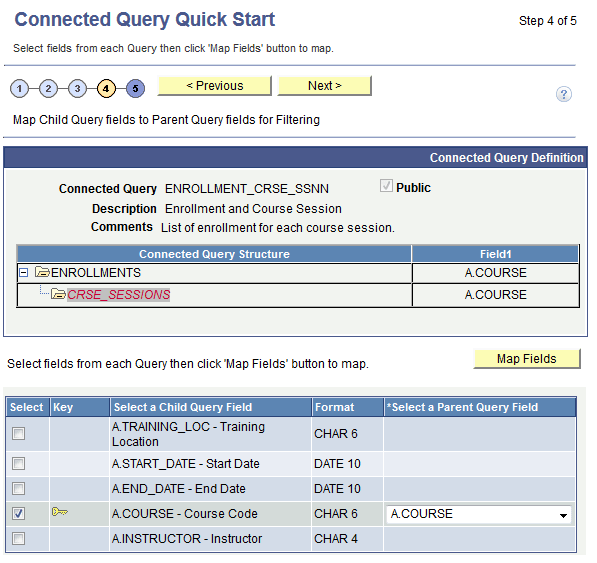
This example illustrates the fields and controls on the Connected Query Quick Start - Step 4. Fields are mapped and Connected Query structure is updated.