Configuring an Add a New Value Page
Use the Add Configuration page to configure a page to add a new value to the PeopleSoft table and specify how the page should appear for an end user.
Click Add New on the Search Configuration page.
This example illustrates the Add Configuration page. Descriptions of the fields appear after the example.
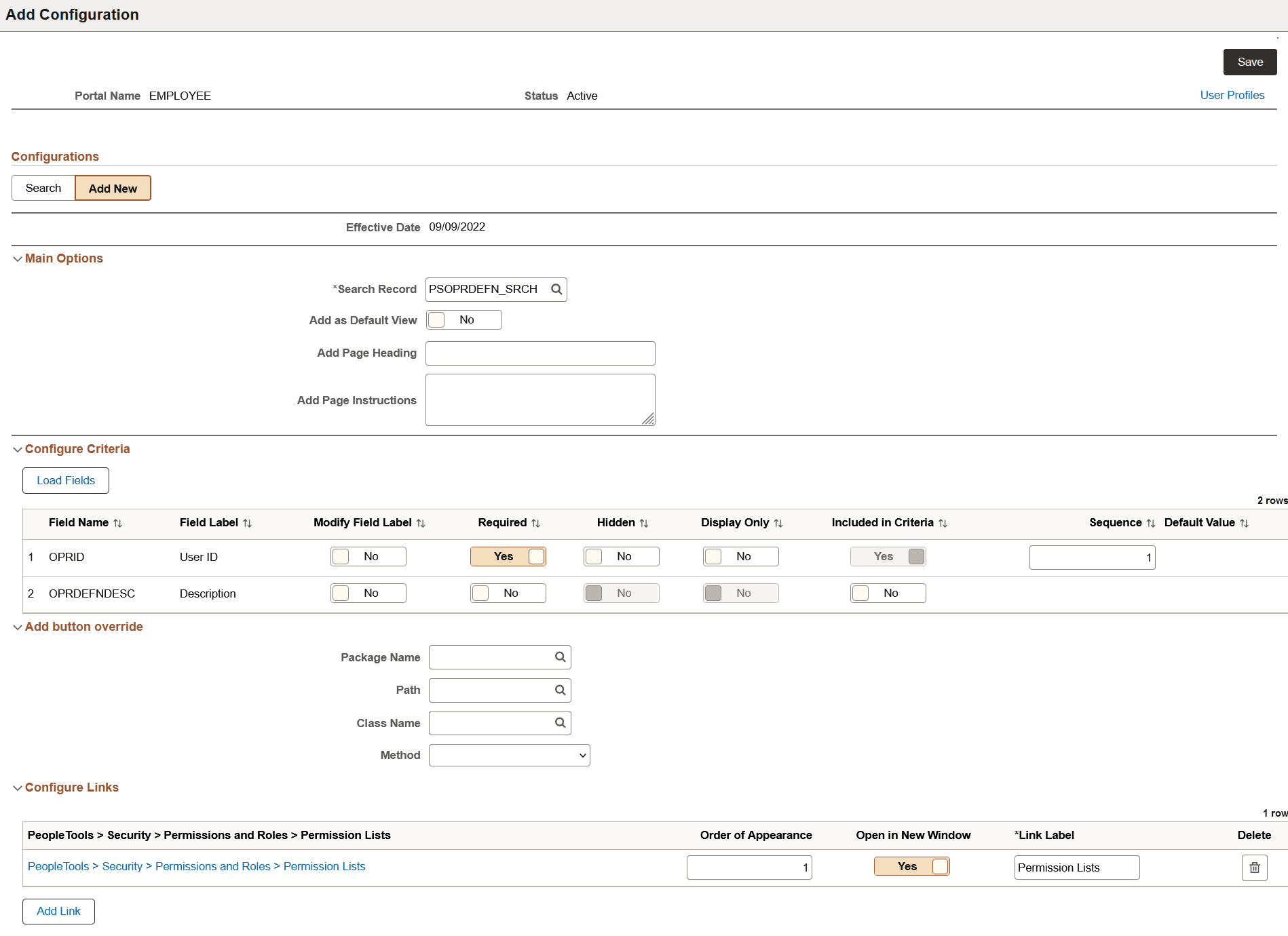
| Field or Control | Description |
|---|---|
|
Status |
The status specified on the Search Configuration page is extended to the Add Configuration page. Therefore, you cannot set or edit the status on this page. |
Main Options
| Field or Control | Description |
|---|---|
|
Search Record |
The Search Record field displays the search record specified on the Component Properties page. However, you may specify a different search record for the content reference. In this case, the search record specified on the Search Configuration page is used when a user accesses this content reference provided the status of this configuration is set to active. If the status is set to inactive, the search record specified on the Component Properties page is used. If the search record does not contain a key or keys, the Load Fields button is disabled. Choosing a search record that contains a key or keys enables the Load Fields button. |
For descriptions of the fields in the Configure Criteria and Configure Links areas, which are similar to the Search Configuration page, see Configuring a Search Page.
Configure Criteria
Select the Load Fields button to display the fields of the configured search record (standard search) or attributes of the configured search definition (keyword search).
The Configure Criteria group box enables you to configure the appearance of fields or attributes and the sequence in which they should appear on the Add a New Value page.
| Field or Control | Description |
|---|---|
|
Field Name |
Lists the fields of the configured search record for standard search or the attributes of the configured search definition for keyword search. |
|
Field Label |
Displays the labels of the fields or attributes. |
|
Modify Field Label |
Set this option to Yes, which enables you to edit the field or attribute label. |
|
Required |
Specify whether the field or attribute should be marked as a required field on the Add a New Value page. The Required button for a corresponding record field is not enabled if the Required check box (on the Edits tab) and the Search Key are selected in the Record Field Properties page in Application Designer. However, the Required button is enabled if the Required check box or the Search Key is not selected in the Record Field Properties page. If you select the Required button, the Include in Criteria button is automatically selected if it was not previously selected. If you deselect the Required button, the Include in Criteria button is not automatically deselected. |
|
Hidden |
Specify whether the field or attribute should be hidden on the Add a New Value page. You can set a field or attribute as hidden only if the field or attribute has a default value associated with it. |
|
Display Only |
Specify whether the field or attribute should be display only. You can set a field or attribute as display only if the field or attribute has a default value associated with it. |
|
Include in Criteria |
Specify whether the field or attribute should be used as search criteria on the Add a New Value page. The Include in Criteria button corresponding to a record field is not enabled if the Required check box (on the Edits tab) and the Search Key check box (on the Use tab) are selected in the Record Field Properties page in Application Designer. However, the Include in Criteria button is enabled if the Required check box or the Search Key check box is not selected in the Record Field Properties page. If you deselect the Include in Criteria button, the Required button is automatically deselected if it was previously selected. |
|
Sequence |
Specify the sequence in which the fields or attributes should be displayed on the Add a New Value page. |
|
Default Value |
Lists the default value for a field or attribute if configured. |
Add Button Override
Use the Add button override area to override the behavior of the Add button. Specify an application class or method for the target component where you want to redirect the user when they select the Add button.
| Field or Control | Description |
|---|---|
|
Package Name |
Specify the root package where the application class is created. |
|
Path |
Specify the path, represented by a colon (:). |
|
Class Name |
Choose the relevant application class. |
|
Method |
Specify the method to be invoked. |
Configure Links
Select the Add Link button to launch the Configure a link dialog where you can specify a content reference that will appear on the Add a New Value page. This functionality enables you to provide links to other components that are relevant to the current component or the next task a user needs to perform.
| Field or Control | Description |
|---|---|
|
Order of Appearance |
Specify the sequence in which the configured links should appear when you configure multiple links on the search page. |
|
Open in New Window |
Specify whether the configured content reference should appear in a new window. If you select No, the content reference opens in the current window. |
|
Link Label |
Enter the label for the content reference. |
After completing the configuration, save the changes. Use the Preview button to preview the new page, which opens a new window to display the newly configured page.