Configuring a Search Page
Use the Search Configuration page to configure a search page and specify how the configured search page should appear for an end user to interact with when accessing the component.
Note:
In the case of a component having multiple content references, the entered value is not applicable to other content references of the same component.
Note:
System-level configured values are used as defaults in content reference-level configuration. When specified, CREF-level configurable search properties specified for a configurable search page will overwrite system-level configurable search properties for that CREF.
Access the Search Configuration page by selecting and then selecting the content reference for which you want to configure a search page.
This example illustrates the Search Configuration page. Descriptions of the fields appear after the example.
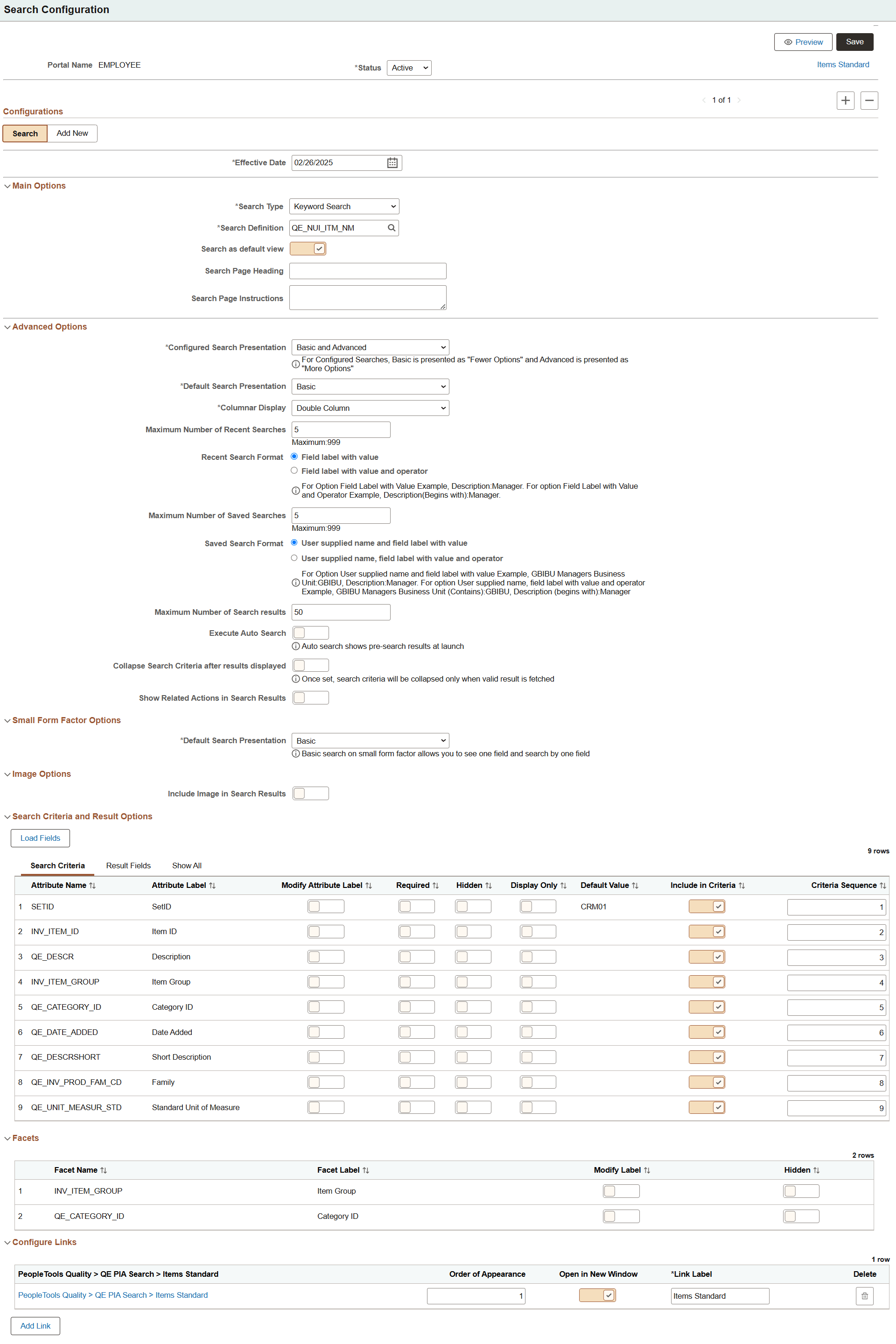
| Field or Control | Description |
|---|---|
|
Status |
If you select Active, the search configuration is applied to the content reference and the configured search page is displayed based on conditions, which are described in the guidelines topic. See Guidelines on Using Configurable Search for Classic Components and Guidelines on Using Configurable Search for Fluid Components. If you select Inactive, the search configuration is not applied to the content reference and the system displays the search page specified in the component. |
|
Preview |
Use the Preview button to view the configured search page. It opens a new window to display the newly configured search page. In the case of multiple effective-dated configurations for a content reference, selecting the Preview button displays the current effective-dated configuration. |
|
Effective Date |
PeopleSoft's effective-dating logic enables you to configure an effective-dated configuration for a future date. You can configure multiple effective-dated configurations for a content reference and use the effective-dating logic to enable the configuration on a future date. For example, you could configure two configurations for a content reference. While one configuration is based on keyword search and is set for a future date, the other configuration can be based on standard search and set for current effective date. Or you could set any of the configurable options and specify a future date for the configuration. Use the plus sign (+) to create a new search configuration for the content reference to which you can apply effective-dating logic. |
|
Search or Add New |
The Search Configuration page displays the Search or Add New, or both tabs based on the configuration of the selected component. That is, if the Update/Display action mode is selected on the Component Properties page, the Search tab appears and if the Add action mode is selected, the Add New tab appears. While the Search tab displays the Search Configuration page, the Add New tab displays the Add Configuration page. Search is the default tab. |
Main Options
| Field or Control | Description |
|---|---|
|
Search Type |
The system displays the search type configured for the component. The following options are available:
If you select a content reference that has a component mapped to a search definition and real-time indexing is enabled, then the default search type is Keyword Search. However, you can change the search type to Standard Search and specify a search record for it. |
|
Search Record or Search Definition |
The Search Record or Search Definition field appears based on the search type. The Search Record field displays the search record specified on the Component Properties page. However, you may specify a different search record for the content reference. In this case, the search record specified on the Search Configuration page is used when a user accesses this content reference provided the status of this configuration is set to active. If the status is set to inactive, the search record specified on the Component Properties page is used. The Search Definition field displays the search definition mapped to the component. Similarly, if a search definition mapped to a component is enabled for real-time indexing, this field displays the search definition, which is enabled for real-time indexing. If a search definition is not mapped to a component, the field is blank. You may specify a different search definition for the content reference, but you should ensure that the search definition is mapped to the component. If you select an unmapped search definition, the following error message displays: Search definition is not mapped to component. |
|
Search as default view |
Use this option to specify whether search should be the default view. If you enable this feature, search will be the default view and Add as the default view is automatically disabled. When a component is configured for Search and Add action modes, you can set only one action mode as the default view. |
|
Search Page Heading |
Specify a heading that will appear at the top of the search page. The heading should not exceed 100 characters. If you do not specify a page heading, the page displays the default heading, Find an Existing Value. |
|
Search Page Instructions |
Enter instructions for an end-user, for example information on how to complete the process. |
Advanced Options
| Field or Control | Description |
|---|---|
|
Configured Search Presentation |
Valid values for search lookup type:
Default search lookup type is Basic and Advanced. For descriptions of search lookup types, see Applications User’s Guide: Understanding Search Pages. |
|
Default Search Presentation |
This field appears when you select the Basic and Advanced option in the Configured Search Presentation field. Valid values for default search presentation:
|
|
Columnar Display |
Specify whether search criteria should be displayed as a single or double column. |
|
Maximum Number of Recent Searches |
This field displays the value specified on the Configurable Search Options page. The default value is 5. However, you may specify the number of recent searches that should appear in the Recent Search Display area. Valid values are 0 to 999. The value entered here is applicable to the selected component and overrides the system-wide configurable search property. |
|
Recent Search Format |
Select a display option for the recent search:
|
|
Maximum Number of Saved Searches |
This field displays the value specified on the Configurable Search Options page. The default value is 5. However, you may specify the number of saved searches that should appear in the Saved Searches area. Valid values are 0 to 999. The value entered here is applicable to the selected component and overrides the system-wide configurable search property. |
|
Saved Search Format |
Select a display option for a saved search:
|
|
Maximum Number of Search Results |
This field displays the value specified on the Configurable Search Options page. The recommended values for keyword search and standard search are 50 and 100, respectively. Specify the maximum number of search results to display. The value entered here is applicable to the selected component content reference and overrides the system-wide configurable search property. |
|
Execute Auto Search |
Select this option to display pre-search results based on the most recent search criteria. For initial auto search results, default search criteria is used. Subsequently, the most recent search criteria is used. |
|
Collapse Search Criteria (applicable when the Search Type is set to Standard Search) |
Select this option to collapse the search criteria fields. However, search criteria is collapsed after search results are fetched. |
|
Collapse Search Criteria after results displayed (applicable when the Search Type is set to Keyword Search) |
Select to collapse the search criteria fields after search results are displayed. |
|
Show Related Actions in Search Results |
By default, related actions are not displayed in search results even if related actions are configured for the component. To display related actions, you should ensure that related actions are configured for the component and enable this option . |
Small Form Factor Options
| Field or Control | Description |
|---|---|
|
Default Search Presentation |
Specify the default lookup search for small form factor devices. |
Image Options
| Field or Control | Description |
|---|---|
|
Include Image in Search Results |
Specify whether to display an image with the search results. When you enable this option, two fields are displayed to provide the record and field information. |
|
Source Record |
The source record keys should be keys in the search record. |
|
Source Field Name |
Select a field of the record. |
Search Criteria and Result Options
Select the Load Fields button to display the fields of the configured search record (standard search) or attributes of the configured search definition (keyword search).
The Search Criteria tab enables you to configure the appearance of fields or attributes and the sequence in which they should appear on the search page.
| Field or Control | Description |
|---|---|
|
Field Name or Attribute Name |
Lists the fields of the configured search record for standard search or the attributes of the configured search definition for keyword search. |
|
Field Label or Attribute Label |
Lists the labels of the fields or attributes. |
|
Modify Field Label or Modify Attribute Label |
Select this option, which enables you to edit the field or attribute label. |
|
Required |
Specify whether the field or attribute should be marked as a required field on the search page. The Required button for a corresponding record field is not enabled if the Required check box (on the Edits tab) and the Search Edit check box (on the Use tab) are selected in the Record Field Properties page in Application Designer. However, the Required button is enabled if the Required check box or the Search Edit check box is not selected in the Record Field Properties page. If you select the Required button, the Include in Criteria button is automatically selected if it was not previously selected. If you deselect the Required button, the Include in Criteria button is not automatically deselected. |
|
Hidden |
Specify whether the field or attribute should be hidden on the search page. You can set a field or attribute as hidden if the field or attributes has a default value associated with it. |
|
Display Only |
Specify whether the field or attribute should be display only. You can set a field or attribute as display only if the field or attribute has a default value associated with it. |
|
Default Value |
Lists the default value for a field or attribute if configured. |
|
Include in Criteria |
Specify whether the field or attribute should be used as search criteria on the search page. The Include in Criteria button corresponding to a record field is not enabled if the Required check box (on the Edits tab) and the Search Edit check box (on the Use tab) are selected in the Record Field Properties page in Application Designer. However, the Include in Criteria button is enabled if the Required or the Search Edit check box is not selected in the Record Field Properties page. If you deselect the Include in Criteria button, the Required button is automatically deselected if it was previously selected. |
|
Criteria Sequence |
Specify the sequence in which the fields or attributes should be displayed on the search page. A field or attribute with the lowest numeric value is displayed at the top. |
|
Field Appearance in or Attribute Appearance in |
Specify the search presentation for each field or attribute. For standard search, the default search presentation is Basic and Advanced. Note: For Keyword Search, this field is only available when the Configured Search Presentation is set to Advanced. |
The Result Fields tab enables you to configure the appearance of fields or attributes and the sequence in which they should appear on the search results page.
| Field or Control | Description |
|---|---|
|
Include in Results |
Specify whether the field or attribute should be displayed in search results. |
|
Include in Small FF |
Specify whether the field or attribute should be displayed in search results on small form factor devices. |
|
Results Sequence |
Specify the order in which the fields or attributes should appear on search results. The field or attribute with the lowest numeric value appears from left to right. |
The Show All tab displays a combined list of configurable fields from the Search Criteria and Result Fields tabs.
Facets
For search type Keyword Search, you can modify the Facet Label or hide a facet, or both, using the Facets section in the Manage Configurable Search page.
| Field or Control | Description |
|---|---|
|
Facet Name |
Displays the name of the facet. |
|
Facet Label |
Displays the current label used for the facet. |
|
Modify Label |
Select to make the Facet Label column editable and modify the facet label. |
|
Hidden |
Select to hide the facet. from the search results page. |
Configure Links
Select the Add Link button to launch the Configure a link dialog where you can specify a content reference that will appear on the search page. This functionality enables you to provide links to other components that are relevant to the current component or the next task a user needs to perform.
| Field or Control | Description |
|---|---|
|
Order of Appearance |
Specify the sequence in which the configured links should appear when you configure multiple links on the search page. |
|
Open in New Window |
Specify whether the configured content reference should appear in a new window. If you select No, the content reference opens in the current window. |
|
Link Label |
Enter the label for the content reference. |
After completing the configuration, save the changes. Use the Preview button to preview the new page, which opens a new window to display the newly configured page.