Creating a Drilling URL
The drilling URL defines the URL, the target, for the search result. The drilling URL enables the end user to click the link in the search result to display the appropriate PeopleSoft application page, with the appropriate data populated in the page.
Note:
Drilling URL must be unique because it is the document ID in the search engine. If it is not unique, data loss in the index may happen.
Note:
OpenSearch has a restriction of 512 bytes for the maximum length of a document ID.
To create a drilling URL for Search Framework:
-
In PeopleSoft Query Manager, select the Expressions tab.
-
Click Add Expression.
-
On the Edit Expressions Properties dialog box, select Drilling URL from the Expression Type drop-down list.
-
Select the appropriate option for the type of drilling URL(s) you are creating.
-
Component URL: For creating the URL to components.
-
Attachment URL: For creating the URL to attachments.
-
Image URL: For creating the URL to images.
Note:
For image URLs, also select the Query tab, select the Properties link, and select Image Hyperlink.
-
-
On the Select a Component page, provide the navigation to the appropriate page.
-
Click Search Keys to define which key(s) needs to be passed to launch the page to display the unique information automatically for a particular search result.
For example, Field Name = CUSTOMER ID and Key Value = A.CUSTOMER_ID.
Note:
If you do not specify the correct search keys, the system will launch the page you have specified, but the user would still need to add the keys manually to view the information associated with a search result, which is not the desired behavior.
-
Click OK.
-
Click the Use as Field button to associate the Drilling URL as a field in the Query.
Note:
Once you have clicked the Use as Field button, you must edit the 'created' field in the Fields table and give it an existing field name in your PeopleSoft database. Query will assign a temporary field name, but this should be changed for easier reference.
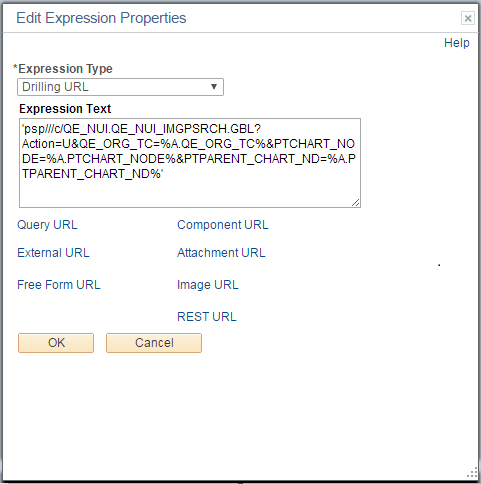
This example illustrates the fields and controls on the Edit Expression Properties dialog box. You can find definitions for the fields and controls later on this page.
When your expression is complete, click the Use as Field link in the Drilling URL grid on the Expressions tab. You should name the field with a valid field name, such as DRILL_URL. The field name should be valid in the PeopleSoft database.
See Working with Attachment Properties and Working with Images.