Refreshing Favorite Searches
The Refresh Favorite Searches page enables you to refresh your favorite saved searches in a batch.
Access the Refresh Favorite Searches page by selecting .
This example illustrates the properties for the Refresh Favorite Searches page. Descriptions of the properties appear after the example.
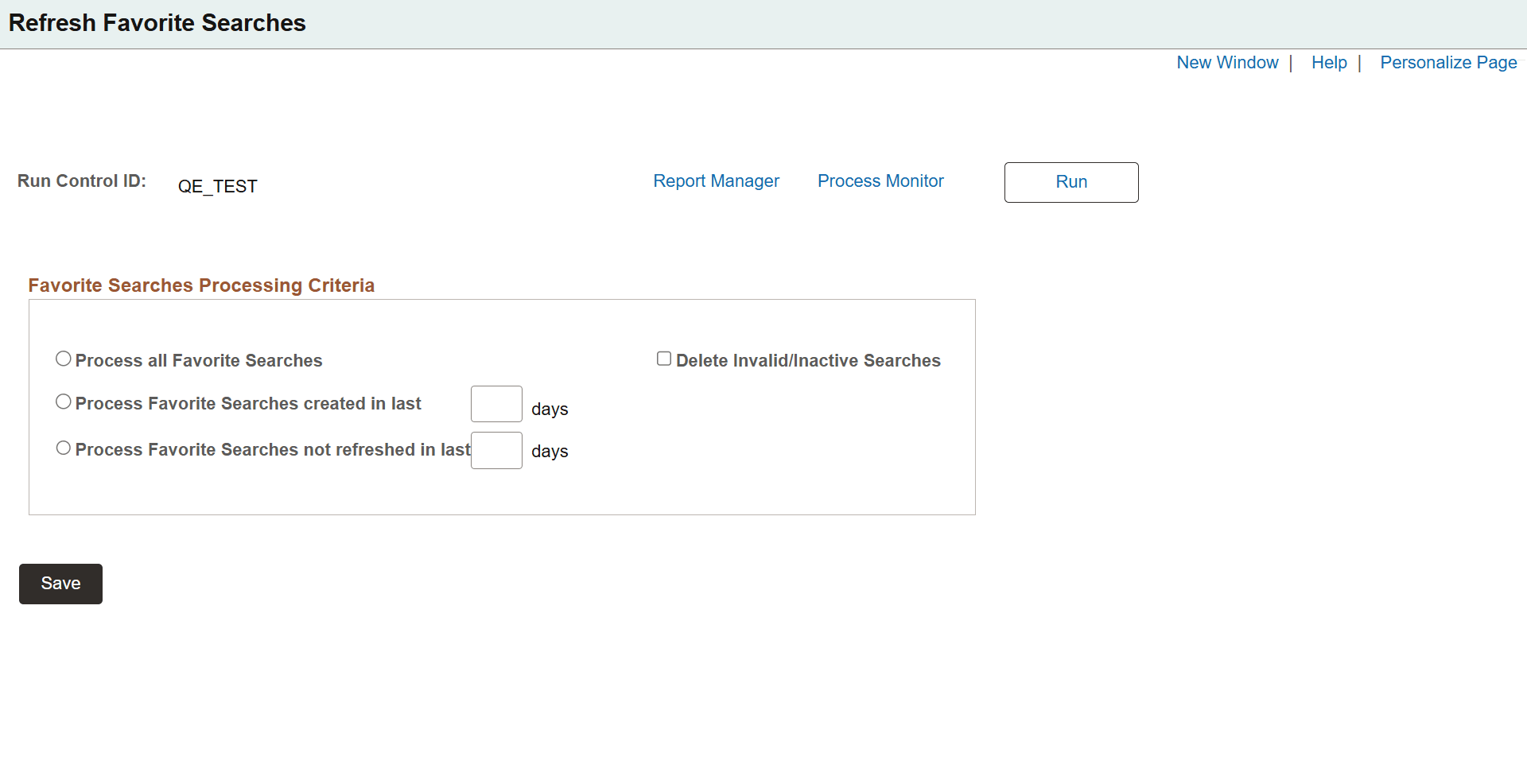
| Field or Control | Description |
|---|---|
|
Run Control ID |
Displays the Run Control ID for the batch process. |
|
Report Manager |
Select this link to open the Report Manager page. See Applications User’s Guide: Viewing Reports in Report Manager. |
|
Process Monitor |
Select this link to open the Process Monitor page. See Process Scheduler: Viewing the Status of Processes. You can use the Message Log link in the Process Monitor page to review the execution time for the batch process. |
|
Process all Favorite Searches |
Select to refresh the search result count for all favorite searches. |
|
Process Favorite Searches created in last 'x' days |
Select to refresh the search result count for all favorite searches created within a specified number of days in the past. |
|
Process Favorite Searches not refreshed in last 'x' days |
Select to refresh the search result count for only those favorite searches which were not refreshed within a specified number of days in the past. |
|
Delete Invalid/Inactive Searches |
Select to delete all invalid and inactive saved searches. Saved search items are considered invalid or inactive if:
Note: Saved search data is not deleted if you select this option. |
|
Run |
Select this button to run the batch process. |