Specifying Advanced Properties
Access the Advanced Properties page by selecting and from the left panel choosing Search Definition. Select the Advanced tab.
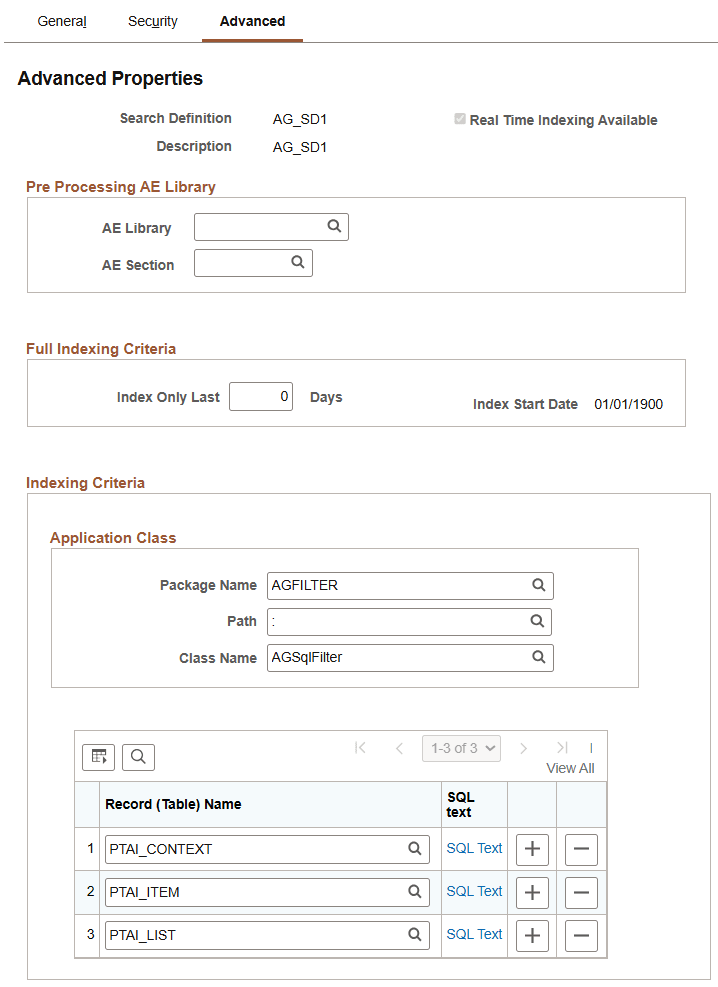
This example illustrates the fields and controls on the Advanced Properties page. You can find definitions for the fields and controls later on this page.
| Field or Control | Description |
|---|---|
|
Search Definition |
Displays the search definition’s name as specified when adding a new value. |
|
Real Time Indexing Available |
Indicates whether the search definition is enabled for real-time indexing or not. If this check box is disabled, the search definition is not available for real-time indexing. For the list of search definitions excluded from real-time indexing, see Excluding Search Definitions from Real-Time Indexing. |
Pre Processing AE Library
Before an index build is run, data can be manipulated to perform additional tasks. For example, it may be required to search through subqueries to determine if one or more subquery might have changed and to update the last updated datetime value on the parent so that the change is recognized. Another use might be to calculate or summarize a value to be indexed. Another common case for pre processing occurs when a query is created based on staging tables. In this case the pre processing Application Engine program can be used to populate the staging tables. This is useful when the data cannot be retrieved using a simple query (such as hierarchal or computed data).
You can define an Application Engine routine to perform these tasks.
Note:
Pre processing adds to the overall indexing time, and it is recommended not to use this in scenarios where it can be avoided.
Note:
Application Engine programs used for pre processing should be defined as type Library.
| Field or Control | Description |
|---|---|
|
AE Library |
To call additional processing logic from Application Engine, specify the correct AE Library (Application Engine program) to run. |
|
AE Section |
Specify the Application Engine program section to run. |
Full Indexing Criteria
| Field or Control | Description |
|---|---|
|
Index Only Last <> Days |
Enter the number of days for which you want to build the index. The number of days entered are treated as days prior to the current date. The default value is 0. |
|
Index Start Date |
The Index Start Date is calculated based on the number of days you enter in the Index Only Last <> Days field. The Index Start Date displays the date after deducting the number of days entered in the Index Only Last <> Days fields from the current date. The index will be built from the date that is displayed in the Index Start Date field. When the value of the Index Only Last <> Days field is 0, which is the default value, the Index Start Date is set to 01/01/1900. |
Indexing Criteria
Use the Indexing Criteria section to define filtering criteria for an Activity Guide Search Definition. The criteria restrict the rows included during indexing. When criteria are configured, the indexing process appends the SQL condition text returned by the configured application class to the generated indexing SQL for the corresponding record by adding an AND condition. Only rows that satisfy the resulting SQL are indexed
Note:
The system uses the SQL condition text returned by the application class. Ensure that the condition is valid for the selected record, and use Meta-SQL for database-specific expressions when the Search Definition must run across multiple database platforms. Before running indexing, review the original indexing SQL generated for each record by enabling Process Scheduler SQL trace to reduce the risk of runtime errors.| Field or Control | Description |
|---|---|
|
Indexing Criteria |
Enables filtering for Activity Guide Search Definition indexing. Use this section to specify the application class that returns SQL condition text and to identify the records for which criteria are applied. |
|
Application Class |
Identifies the application class that provides SQL condition text for the selected records. For more information, see PeopleCode API Reference: getAGFilterSQLText. |
|
Package Name |
Specify the application package that contains the application class used to return the SQL condition text. |
|
Path |
Specify the application class path. |
|
Class Name |
Specify the application class name. |
|
Record (Table) Name |
Specify the Tools Activity Guide record for which the indexing filter applies. SQL filter criteria are not supported for application records. The system passes the selected record names to the configured application class. Note: Application records are not supported for SQL filter criteria because, if the SQL condition is applied to an application record and the data does not satisfy that condition, no rows are returned for that record. As a result, the related data is not displayed on the dashboard, which can cause confusion. |
|
SQL text |
Click to view the SQL condition text returned by the configured application class for the selected record. For more information, see the Viewing SQL Text section later in this topic. |
Viewing SQL Text
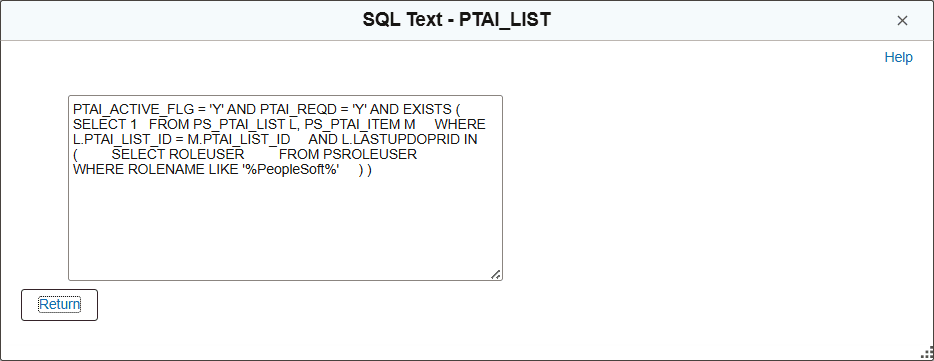
After you specify the application class and add records in the Indexing Criteria grid, click the SQL text link for a record to view the SQL condition text returned by the configured application class. The SQL text is displayed in view-only mode. During indexing, the system appends this condition to the generated indexing SQL for that record.
This example illustrates the SQL text returned for the record.
Note:
When configuring AG SQL filter records, consider the following:- Maintain a one-to-one sequential correspondence between the AG SQL filter records configured on the Advanced tab and the SQL text returned by the application class as an array of strings.
- If you change the order of the filter records on the Advanced tab, update the order of the corresponding SQL strings in the array to match.
- Ensure that every SQL string is syntactically valid. Each non-empty string is appended as-is to the indexing SQL.
- Null strings in the SQL array are skipped and are not appended to the indexing SQL.