Specifying a Data Source for External Data Search Definition
Use the Data Source Definition page to specify the actual source of data. In this context, a data source represents the actual source of external data from which the required data is retrieved and indexed.
Access the Data Source Definition page by selecting , and from the left panel, choose Define External Data Sources.
Alternatively, you may select .
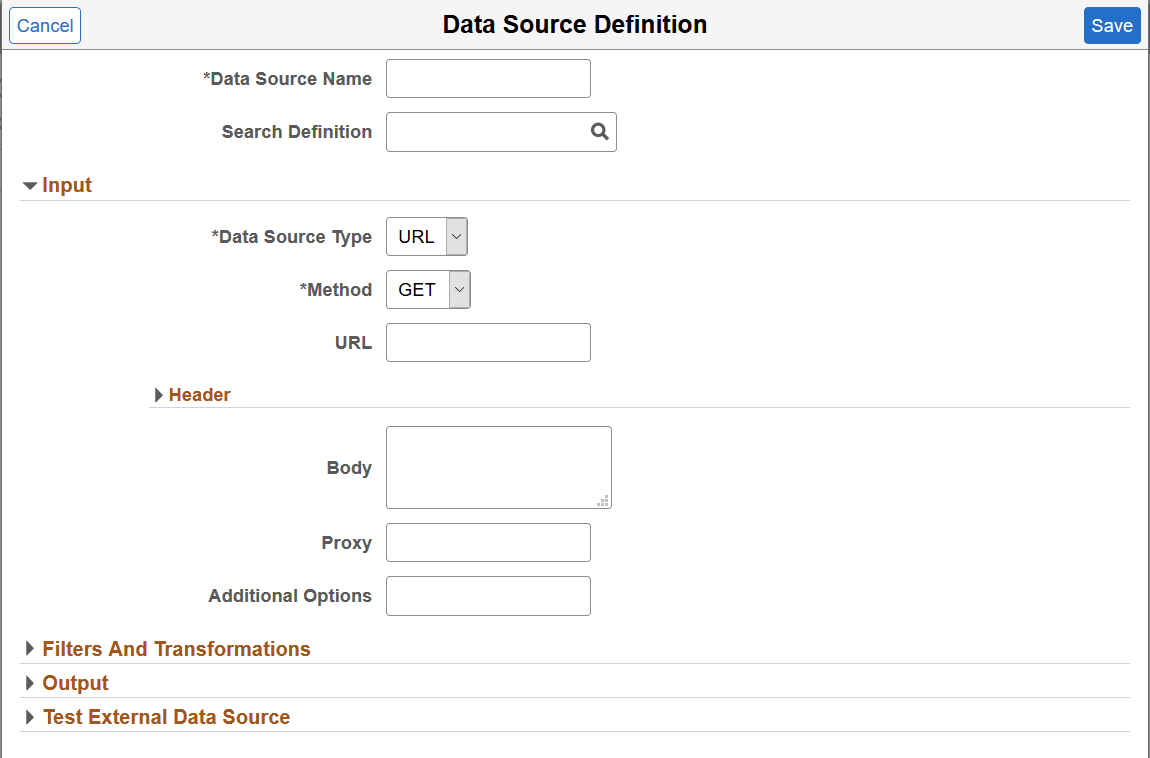
This example illustrates the fields and controls on the Data Source Definition page. You can find definitions for the fields and controls later on this page.
| Field or Control | Description |
|---|---|
|
Data Source Name |
Specify a name for the data source. |
|
Search Definition |
Select an external data search definition to associate with the data source definition. If you’re creating a data source for intermediate processing, you do not associate a search definition with it. |
Input
In the Input and Header sections, the fields that appear are based on your selection of data source type.
| Field or Control | Description |
|---|---|
|
Data Source Type |
Select a type for the data source. Valid options for type are:
|
|
File Type |
The File Type field appears when you select File as data source type. Note: CSV is the only supported file type. |
|
File Name |
The File Name field appears when you select File as data source type. All external CSV files should be placed in the psftappdata folder under <LOGSTASH_HOME>. Any generated files are also saved to this folder. Specify the absolute path of the CSV file. |
|
Method |
The Method field appears when you select URL as data source type. Choose the type of HTTP request that needs to be issued. Valid options for method are:
|
|
URL |
The URL field appears when you select URL as data source type. Specify the path of
the external data. The path should not be absolute; it should be relative.
Path should be relative to |
Header
| Field or Control | Description |
|---|---|
|
Body |
The Body field appears when you select URL as data source type. This field contains the JSON request for the POST and GET methods. |
|
Proxy |
Specify the proxy server details for REST API connection. |
|
Additional Options |
Specify any additional connection parameters. |
Filters and Transformations
This example illustrates the fields and controls on the Filters and Transformations section of Data Source page. You can find definitions for the fields and controls later on this page.
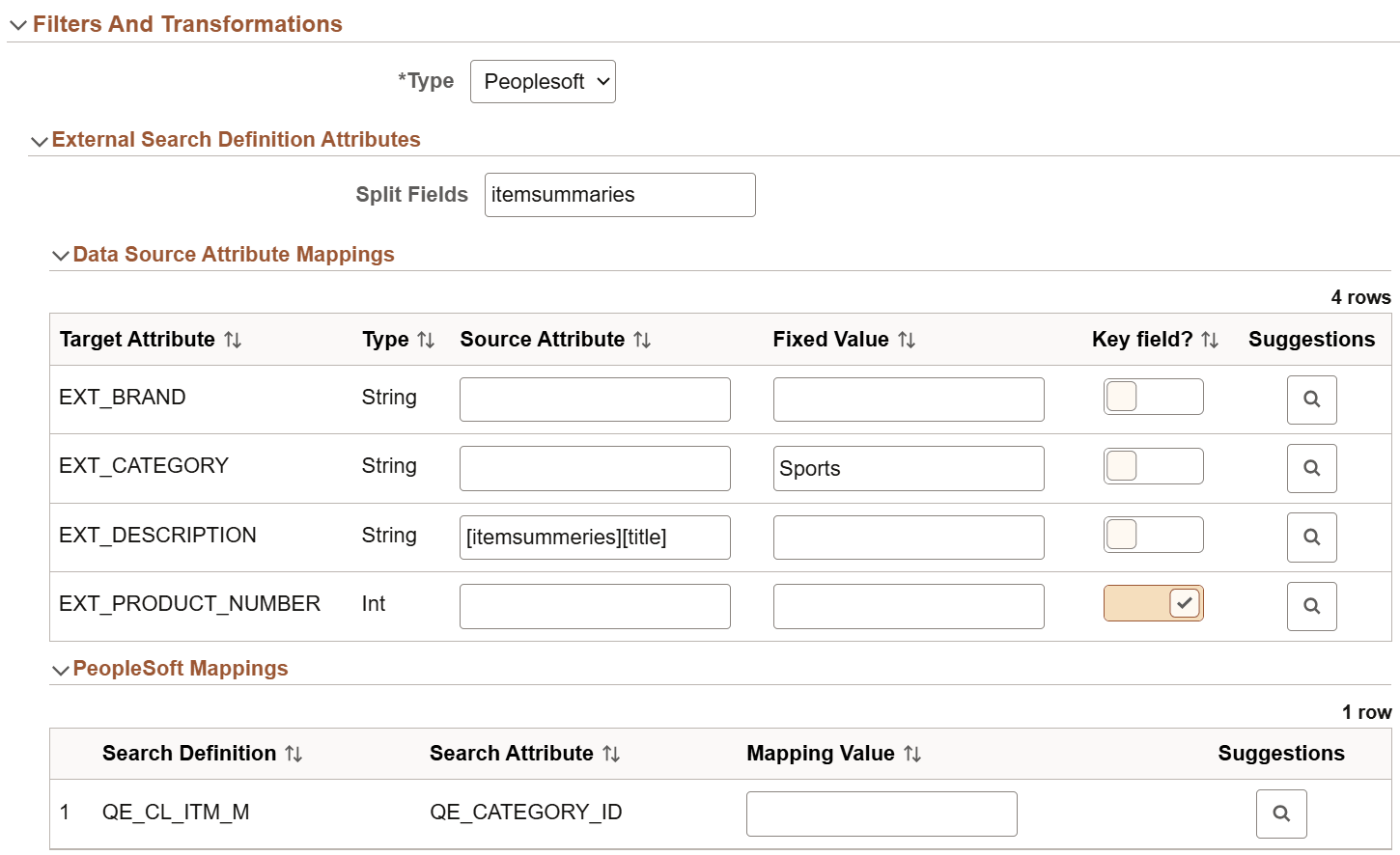
In the Filters and Transformations section, the fields that appear are based on your selection of type.
| Field or Control | Description |
|---|---|
|
Type |
Specify the type of data transformation that you want to achieve.
|
External Attributes
The External Attributes section appears when you select External as the type.
| Field or Control | Description |
|---|---|
|
Split Fields |
You need to specify split fields when you select URL as the data type. You indicate a field from the data source, which requires a split. When a request is made to the REST end point specified in the URL type, it returns a response containing JSON documents. These JSON documents can be nested or hierarchical in nature. If the data you require is under a parent node, then you need to use the split fields option to obtain the children under the parent node. For example, in a product data source, the information related to a product is under a parent node called itemSummaries. To obtain the information of sub-products (children) under the parent node for further mapping, you need to split the field. |
|
Allowlist |
Use this field to limit or filter the data from the data source that is passed to the search engine. Enter comma separated values in this field. If you do not enter any values here, all data from the data source will be passed to the search engine. |
External Search Definition Attributes
The External Search Definition Attributes section appears when you select PeopleSoft as the type.
| Field or Control | Description |
|---|---|
|
Split Fields |
You need to specify split fields when you select URL as the data type. You indicate a field from the data source, which requires a split. When a request is made to the REST end point specified in the URL type, it returns a response containing JSON documents. These JSON documents can be nested or hierarchical in nature. If the data you require is under a parent node, then you need to use the split fields option to obtain the children under the parent node. For example, in a product data source, the information related to a product is under a parent node called itemSummaries. To obtain the information of sub-products (children) under the parent node for further mapping, you need to split the field. |
Data Source Attribute Mappings
In this section, you map the attributes of the external data search definition to the attributes of the data source. The attributes of the external data search definition associated with this data source are displayed enabling you to map these attributes to the attributes of the data source.
| Field or Control | Description |
|---|---|
|
Target Attribute and Type |
Contains the attributes and its type from the external data search definition that you associated with the data source. These values cannot be edited here. |
|
Source Attribute |
As part of the mapping of the external data search definition with the attributes of data source, if you need to map any nested fields under a split attribute, the mapping can be done using the split field as described in the previous section. For example, to map the field, Title, under itemSummaries, you should enter it as [itemSummaries][title] in the Source field. |
|
Fixed Value |
The Fixed Value column enables you to specify a value that meets your requirements. For example, for the City source attribute, you want information only about San Francisco, so you should specify San Francisco in the Fixed Value column. |
|
Key field |
Enable the check box to select a key field that has unique values. When you start indexing on the Manage External Search Index page, Logstash generates an indexing configuration that uses this field for incremental indexing. It only indexes the updated and new rows. If the Key field is not enabled, recrawl indexes the data again, and incremental indexing is not performed. To avoid duplication of data after recrawl, you must delete the index, recreate it, and recrawl. |
|
Suggestions |
When you select the suggestions icon, it displays the attributes from the actual data source, which you can choose for the Source Attribute column. |
PeopleSoft Mappings
Use the PeopleSoft Mappings section to map a specific value from the data source to the PeopleSoft attribute. The mapping from the external data search definition, which you associated with this data source, is displayed here.
| Field or Control | Description |
|---|---|
|
Search Definition |
The search definition defined in the PeopleSoft Mapping section of the external data search definition is displayed here. This field is read-only. |
|
Search Attribute |
The search attribute defined in the PeopleSoft Mapping section of the external data search definition is displayed here. This field is read-only. |
|
Mapping Value |
Map a specific value from the data source to the PeopleSoft attribute. For example, the EP_AP_VENDOR search definition contains the VENDOR_NAME_SHORT attribute. For this attribute for the vendor, XYZ, the value stored in PeopleSoft is XYZ01. You should enter this value, XYZ01, in the Mapping value column. This value is added to all the search engine documents which are indexed and obtained from the XYZ data source. |
|
Suggestions |
Displays the values from the selected search attribute, which you can choose for the Mapping Value column. |
If an external search definition, which is mapped to an external data source, is updated, then the updated data automatically reflects on this page.
Output
In the Output section, you specify where the data source output should be stored.
| Field or Control | Description |
|---|---|
|
Output Type |
Select an output type based on your requirement.
If you select File, the following two fields—Codec and File—are displayed. |
|
Codec |
The Codec field corresponds to the codec setting of the Logstash file output plugin. The external data that is sent as input requires to be transformed in order to ensure that it has all the necessary attributes to be used in PeopleSoft. The following sample code shows the transformed data. Output gets transformed from: To: For more information on the codec setting, refer to Logstash documentation, which is available on www.opensearch.org. |
|
File |
Specifies the location of the file. |
Test External Data Source
This section enables you to check the REST end point request and response.
| Field or Control | Description |
|---|---|
|
Request |
Specify a request to test the data source. |
|
Response |
Displays the REST end point response. |
|
Submit |
When you click Submit, the REST end point request is initiated. |