Understanding Search Pages
Configurable search enables you to configure the presentation of the delivered search pages for classic and fluid components. The search pages for PeopleSoft application components (classic and fluid) provide these options:
-
Find an Existing Value (Standard search).
-
Add a New Value.
-
Keyword Search.
Note:
Configurable search does not support a combination of standard search and keyword search for a component. For a list of supported combinations, see Considerations for Using Configurable Search.
The PeopleTools delivered classic search page is displayed for classic components, by default. However, for fluid components, you need to specifically enable the delivered fluid search page for individual components or system-wide.
See Understanding Configurable Search.
This example illustrates the fields and controls on the Classic PeopleSoft Application Component Search. You can find definitions for the fields and controls later on this page.
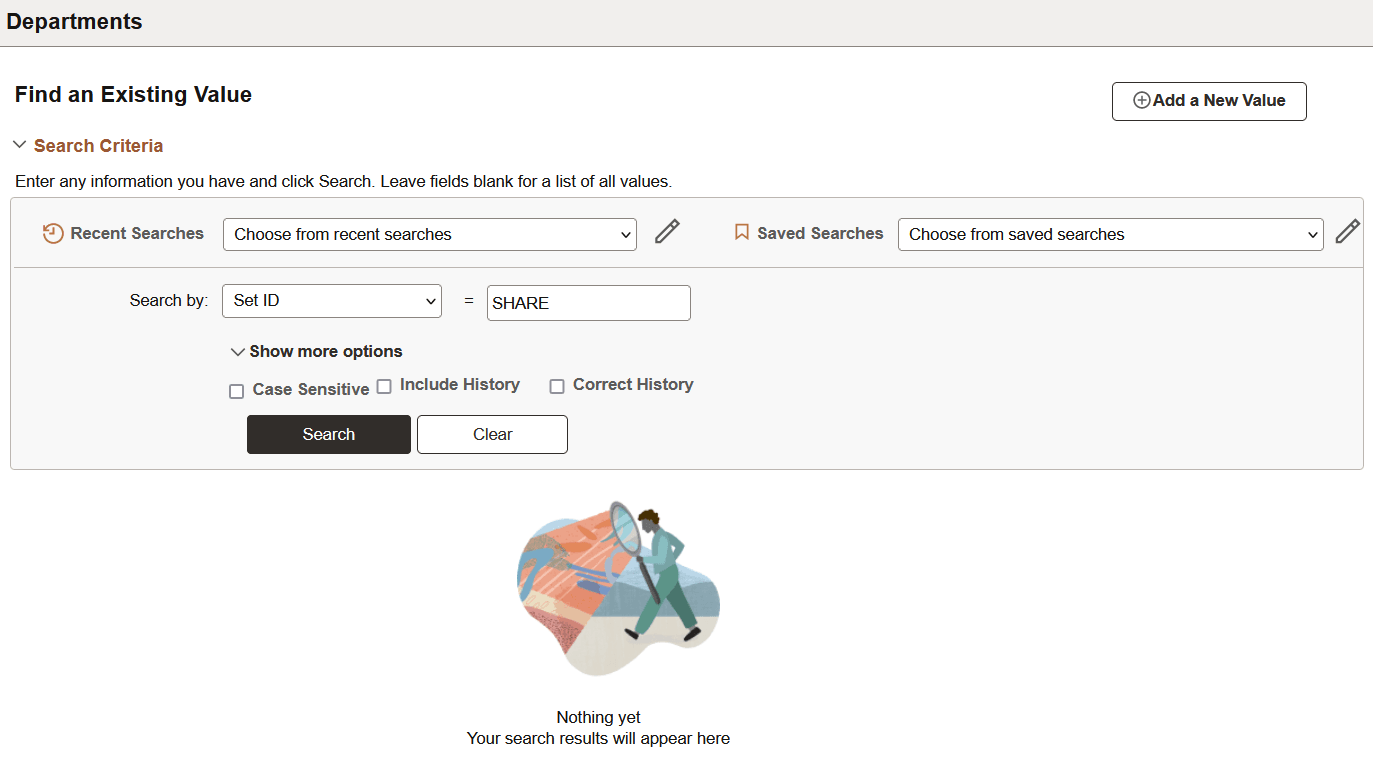
While the Find an Existing Value page enables end users to find the rows of data they need to view or modify, it is limited to running searches only across level 0 fields. The Find an Existing Value search runs against the live data tables, the component search record, not a search engine index.
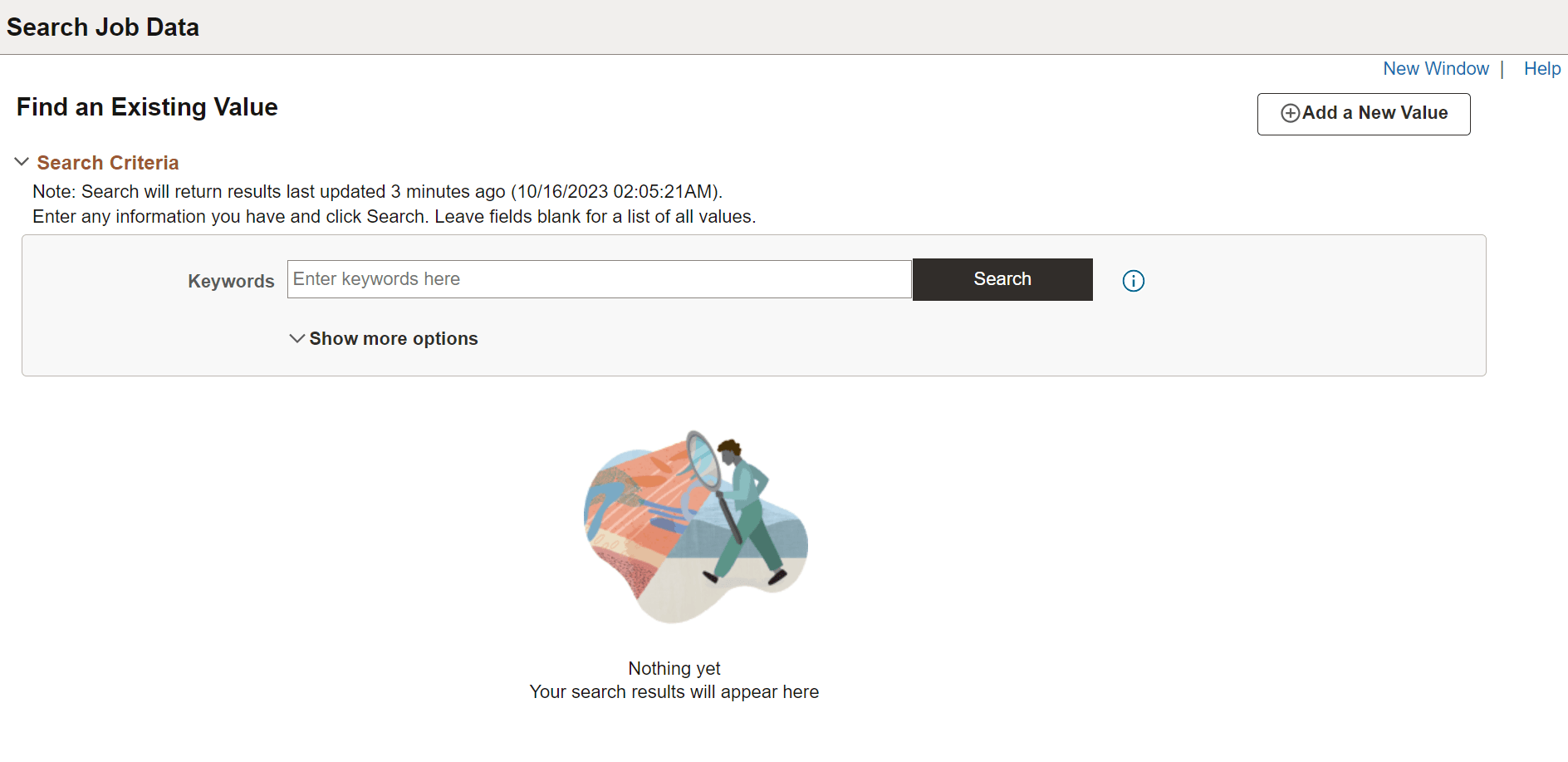
Using the Keyword search page, end users can perform a deeper, more free-form search against the data. The Keyword search runs across the indexed values stored on the search engine server, which contains fields across all scroll levels.
Note:
The Keyword Search page only appears if a search index has been associated with the component in a search definition. Because the keyword search runs against the indexed data, depending on the frequency of index builds, the indexed data may not entirely match the Find an Existing Value search results. You can ensure that the indexed data is near real time by enabling real-time indexing for the mapped search definition.
For information on real-time indexing, see Configuring Real-Time Indexing.
This example illustrates the fields and controls on the Keyword search page. You can find definitions for the fields and controls later on this page.
The search pages that display after you’ve enabled Keyword search for a component are:
-
Keyword Search: This page enables the user to run free-text searches using the Keywords edit box. Implementation teams can index any attributes that they would like the end user to be able to search.
-
Add a New Value: This is the same interface as the Add a New Value page used in previous PeopleSoft releases, which enables you to add new rows to PeopleSoft tables.
If the search server is down, search definition is not deployed, or search definition is not indexed, the system automatically displays the standard search instead of the keyword search and displays the following error message:
| Error | Possible Cause | Resolution |
|---|---|---|
|
Keyword Search is unavailable at this time - Error “Keyword Search is down”. Transferred to Standard Search until the issue is resolved. |
Search server is down or not available. |
Contact your Search Administrator. |
|
Keyword Search is unavailable at this time - Error Search Definition is not Deployed. Transferred to Standard Search until the issue is resolved. |
Search definition is not deployed. |
Contact your Search Administrator. |
|
Keyword Search is unavailable at this time - Error Search Definition is not Indexed. Transferred to Standard Search until the issue is resolved. |
Search definition is not indexed. |
Contact your Search Administrator. |
Recent and saved searches are displayed based on search type. For example, if you have saved some searches in keyword search and the page is switched to standard search, then it doesn't show the keyword search page's recent and saved searches. Similarly, when the issue is resolved and the keyword search is available, you notice that recent and saved searches from the standard search don't appear on the keyword search.