Using the Configure Real Time Indexing Page
Use the Configure Real Time Indexing page to enable real-time indexing for a specific search definition and to specify any additional information required for real-time indexing of the search definition.
Access the Configure Real Time Indexing page by selecting .
The search page displays search definitions with the source type as query, connected query, and activity guide from the default search instance. The search page also provides a comprehensive view of the deploy status retrieved from the Deploy Search Definition page, and the real-time indexing configuration status of the search definitions, enabling you to take the necessary action on a search definition.
Select a search definition to display the real-time indexing information. The search definition metadata is imported including security and attachment configurations.
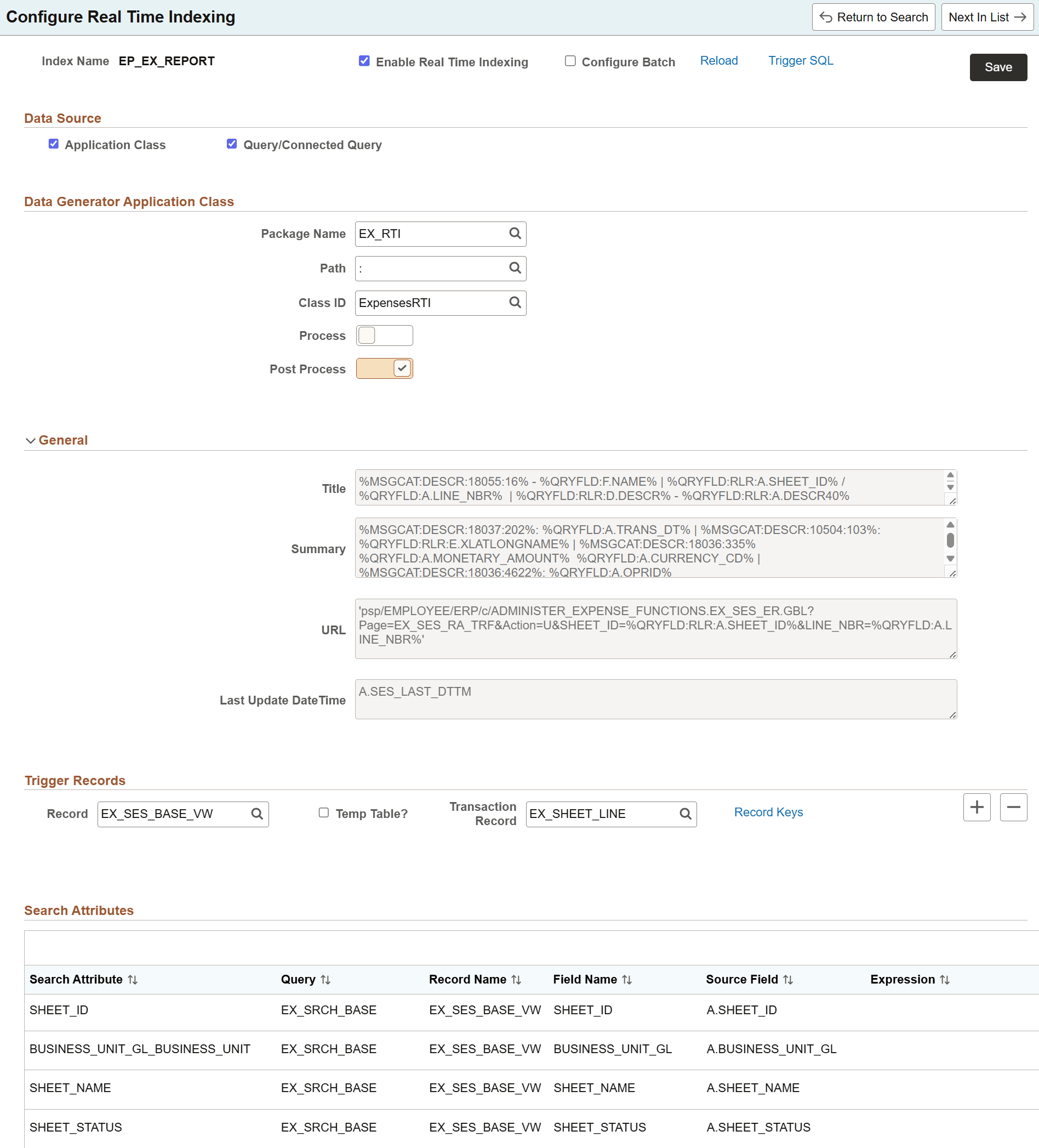
This example illustrates the fields and controls on the Configure Real Time Indexing page. You can find definitions for the fields and controls later on this page.
| Field or Control | Description |
|---|---|
|
Enable Real Time Indexing |
Select the check box to enable real-time indexing for the search definition. |
|
Configure Batch |
Select the check box to configure batch programs, with a specific Process Type and Process Name, from an available list of batch programs. |
|
Trigger SQL |
After reviewing or modifying the search definition, you should save the search index. The Trigger SQL link appears only when you select Save on the page. Then, you should create a trigger. A trigger record is generated at runtime. Contact your database administrator to implement triggers on the database. Note: PeopleSoft RTI trigger names have the prefix SFA and suffix TR. For example, SFA_PT_PORTAL_MRU_TR. Any of the following ways can be used to create a trigger:
This field is not available for activity guide search definitions. For more information on trigger records, see the section on Trigger Records later in this topic. |
|
Reload |
The Reload link appears only when you select Save on the page. If a search definition is updated after configuring it for real-time indexing, you should use the Reload link to import the updates to real-time indexing. Note: After completing the reload action, ensure that you save the real-time indexing configuration, and then restart the Process Scheduler domain. Warning! The reload operation may clear the existing configurations for application class and trigger records. You may have to redo these configurations after clicking the Reload link. |
Data Source
| Field or Control | Description |
|---|---|
|
Query/Connected Query or Activity Guide |
The system automatically selects Query/Connected Query or Activity Guide as data source for those search definitions that are based on query, connected query, and activity guide. |
|
Application Class |
The system automatically selects Query/Connected Query or Activity Guide and Application Class as data sources for those search definitions that contain preprocessing or post processing Application Engine program. When both Query/Connected Query or Activity Guide and Application Class are auto populated as data sources, the real-time indexing process runs the application class method first and then runs SQL query. If query uses a temporary table, the application class method should insert the data to the temporary table. You can choose to use only the application class as the data source rather than Query/Connected Query or Activity Guide. In this case, the application class methods perform the necessary preprocessing or post processing and also set the values for all search attributes of each search document to index. The real-time indexing process then creates the JSON document and uses the Direct Transfer technology to index the data. |
Data Generator Application Class
The Data Generator Application Class section is displayed when application class is selected as the data source.
| Field or Control | Description |
|---|---|
|
Package Name |
Specifies the root package where the application class is created. You should ensure that the extended application class exists in the database. |
|
Path |
Species the path, represented by a colon (:). |
|
Class ID |
Choose the relevant application class. |
|
Process |
Set the Process option to Yes if you want to perform any validation or preprocessing and to defer or discard processing. When you set this option to Yes, you should extend the Process method of the delivered application package PTRTIPKG:PTRTI. |
|
Post Process |
Set the Post Process option to Yes if you want to perform any validation or post processing. When you set this option to Yes, you should extend the PostProcess method of the delivered application package PTRTIPKG:PTRTI. This field is not available for activity guide search definitions. |
General
Search definition metadata is imported and displayed in the Title, Summary, URL, and Last Update Date Time fields.
You cannot edit these fields.
Trigger Records
A trigger record is necessary for real-time indexing. Therefore, you must ensure that the Record field contains a trigger record. When a search definition is based on Query or Connected Query, the system checks the query to try and determine the best trigger record and pre-populates the value for you.
The keys of the trigger record (transaction record) should exist in the primary record of the parent query. During the initial configuration, the trigger records are the suggestions based on the parent query, which you can modify according to your needs. You should add a trigger record only if no trigger record is given.
Optionally, you can add more trigger records but doing so will affect the performance. Also, keeping triggers on child records may cause undesired data insertions to the real-time indexing staging table, which may increase the processing time.
Note:
Trigger records are pre-populated for already configured search definitions, and it's recommended not to change these trigger records.
Trigger Records is not available for activity guide search definitions.
| Field or Control | Description |
|---|---|
|
Record |
The Record field is pre populated based on the parent record used in Query/Connected Query of the search definition where the Last Modified Date Time is configured. If it is a view, the first record used in that view is auto selected as transaction record to create a trigger. However, you can change it to any other record in that view. The real-time indexing process recognizes a transaction only when the trigger record inserts a row for the transaction. Hence, the trigger record should be decided based on this condition. Adding multiple trigger records can cause the same data to be processed multiple times to the search engine. |
|
Record Keys |
Select the Record Keys link to select the key fields that the system uses for RTI trigger SQL generation for the trigger record. For more information about selecting record keys, see Selecting Record Keys section below. |
|
Temp Table |
Temp Table check box is displayed where there is an associated application class with a search definition. Select the check box and enter the transaction record associated with the Temp Table. The Temp Table is expected to get modified or populated by using the application class. |
|
Transaction Record |
Transaction Record can be associated with a temporary table if you select the Temp Table check box. It can also appear when the record field is a view. |
Selecting Record Keys
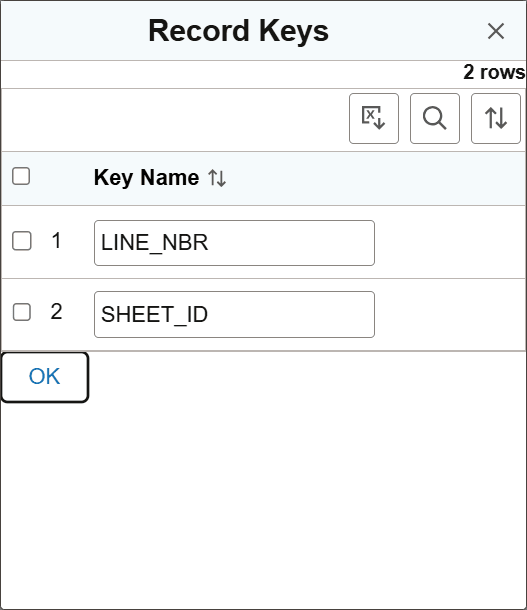
Use the Record Keys page to select a subset of key fields from the trigger record’s complete key set. If the trigger record includes keys from a subrecord, those keys are also available for selection.
RTI supports a maximum of 16 keys for each trigger record. If a trigger record contains more than 16 keys, select 16 or fewer keys. The selected keys are used when you download the trigger SQL from the Configure Real Time Indexing page or create the trigger from Application Designer.
If the same trigger record is used by different search definitions, each search definition can use a different key selection for that record.
If you do not select any keys, the system uses the default trigger-key behavior.
This example illustrates the fields and controls on the Record Keys page, where you select the key fields to use for RTI trigger SQL generation.
Attachments
If a search definition contains attachments, the Include Attachments check box is displayed.
| Field or Control | Description |
|---|---|
|
Include Attachments |
Use this check box to either include attachments or exclude attachments from real-time indexing. If a search definition contains attachments, it is ideal to include attachments in real-time indexing. However, if you observe that attachments are causing delay in real-time indexing, you can choose to exclude attachments. In this case, you can use incremental indexing because in incremental indexing attachments are also indexed. If an index does not contain attachments, the Include Attachments check box is not displayed. |
Search Attributes
The Search Attributes section displays metadata imported from the search definition, and it cannot be edited here.
Application developers can use this mapping from the search definition page to know what attributes should be loaded in the application class.