Working With Facets
A facet is an attribute that may be part of one or more search definitions. It provides an alternate representation of the list of values for a given attribute. Facets are attributes used to filter and narrow down a set of search results.
If a facet contains sensitive or PII data, it will not be displayed. For more information on masking of sensitive data, refer to Masking of Data in Search Results.
This example illustrates the fields and controls on the Filter by: Facets. You can find definitions for the fields and controls later on this page.
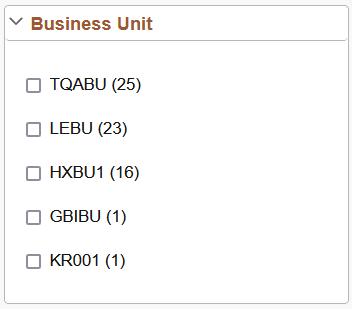
Facets:
-
Show search results across each index.
-
When clicked show only results in that index related to that facet value.
-
Can further narrow results using sub-facets in that index.
For example, assume the Customer component has a faceted attribute of Customer Level with values of L1, L2, and L3. By selecting the L1 facet link, L2 and L3 values will be removed from the search results list, leaving only the L1 for viewing.
For component Keyword search, the system determines facets associated with the search category to which the component is associated and renders them accordingly.
For Global Search, because the search results might span across multiple indexes that are not related to each other, each search definition within a specific search category should have common attributes marked as facets. These attributes should be generic so search results can be classified under one of these attributes. If non-common attributes are marked as facets in the search category, results not having that attribute will not be displayed.
Note:
If an attribute is marked as a facet, and if for a given search document that facet attribute does not have a value, then the query is dynamically modified to return No Value as the title of the facet.
Facets display 10 values by default. If a particular facet has results for more than 10 facet values, More.... appears at the bottom of the list.
This example illustrates the More... control used to reveal more facet values.
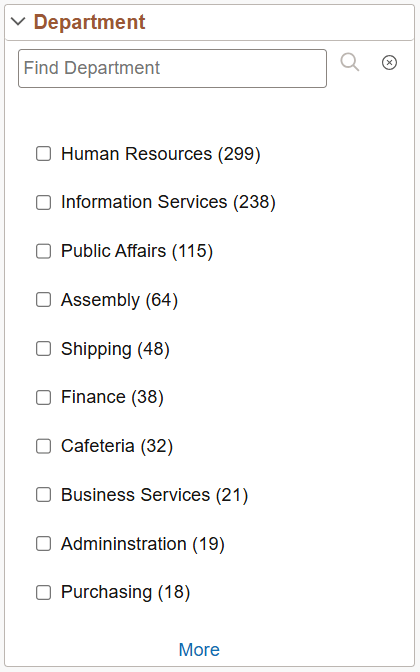
Click More... to expand the list.
Note:
For any facet, the maximum number of values displayed is restricted to 100 for performance reasons.
This example illustrates the Less... control used to reduce the facet values displayed. Once the entire list of facet values is expanded, click Less... to collapse the list, showing only 10 again.
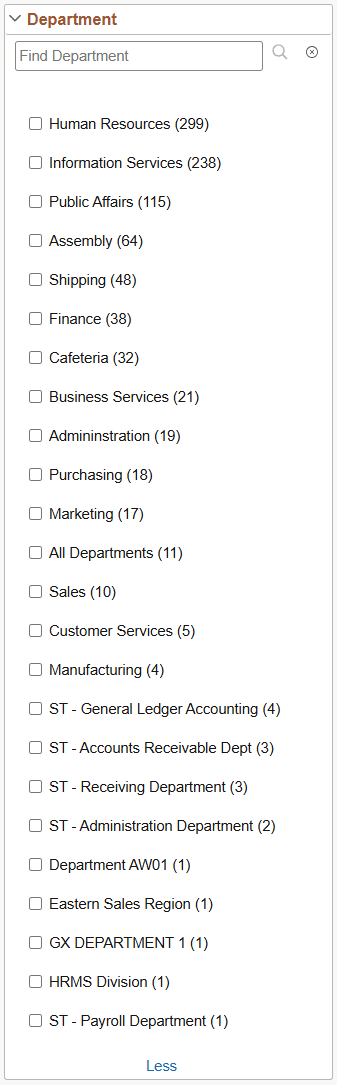
Searching within Facets
When a facet contains more values than are displayed by default, a search field appears within the facet. Use this field to locate a facet value without expanding and scrolling through the full list of values.
Enter search text in the facet search field and press Enter or select the Search button. The facet displays matching values in the same sort order used by the facet.
This example illustrates the search field and controls used to search within a facet.
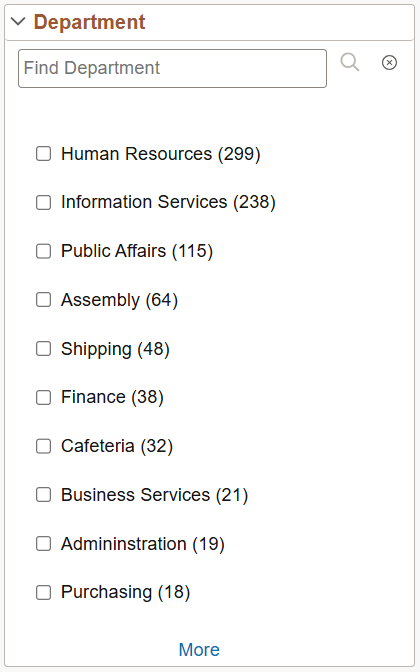
If more than 10 matching values are available, select Show more results to display all matching values. Select Show less results to return to the first 10 matching values.
Search within facets is case-insensitive and supports wildcard characters. You can use the following wildcard characters:
| Wildcard | Description |
|---|---|
|
%(percent) |
Matches any sequence of characters, including an empty string. |
|
_ (underscore) |
Matches any single character. |
|
\ (backslash) |
Treats the next character as a literal character instead of a wildcard. |
This example illustrates the Show more results... control used to reveal more facet matching values.
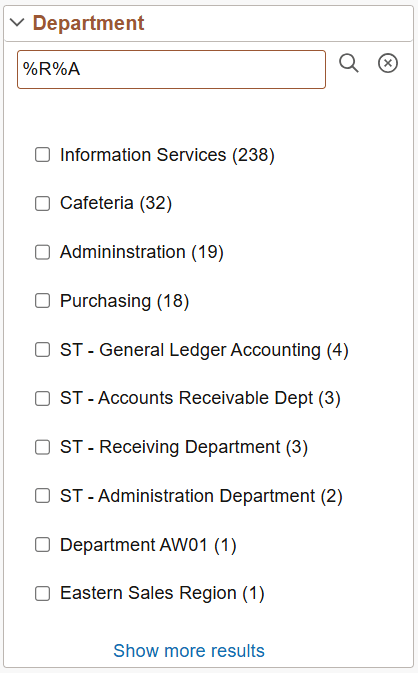
Click Show more results... to expand the list.
This example illustrates the Show less results... control used to reduce the facet values displayed.
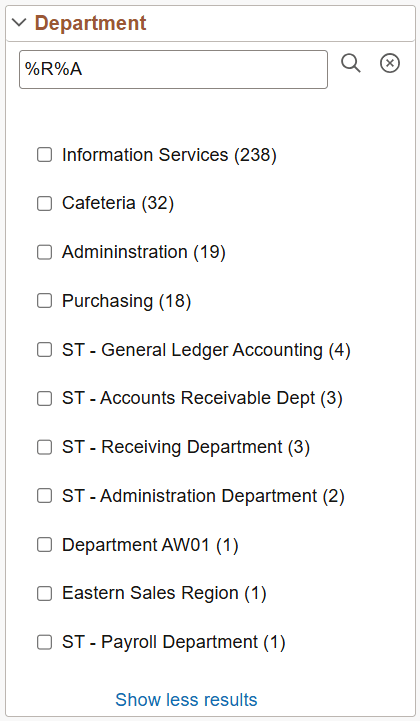
Once the entire list of facet values is expanded, click Show less results... to collapse the list, showing only the default values.
To clear the search text and restore the facet values, select the Clear button or remove the search text and press Enter. Escape key when search text field has focus also clears the search text and restore the facet values.
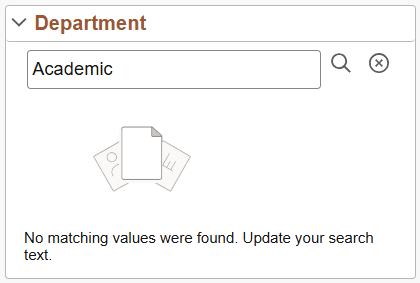
If no matching values are found, the facet displays a message indicating that no matching values were found and prompts the user to update the search text.
This example illustrates the message displayed when no matching values are found in a facet search.
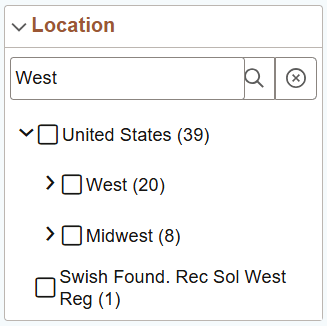
Search within facets is also available for hierarchy facets. In a tree facet, when a child node matches the search text, its parent nodes are also displayed.
This example illustrates search within a hierarchy facet, where matching child values are displayed with their parent values.
Note:
Search within facets is available only for facets that display additional values through the More link. It is not displayed for facets where all values are already visible. Search within facets is not available for PivotGrid Search, Pivot Grid Viewer, or custom search pages.As you drill into a set of facets, your path is expressed in the form of facet breadcrumbs.
This example illustrates the fields and controls on the Facet filter breadcrumbs.
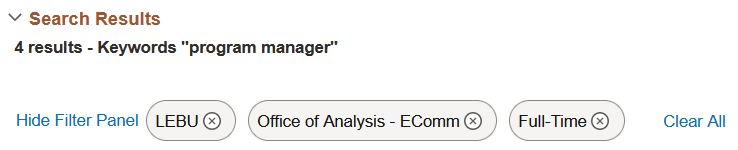
You can deselect the check box for a filter to remove its effect on the search results, or to reverse the direction of your filtering and expand the results.
Click Clear all filters to remove all applied filters, returning the search results to the state prior to faceted filtering.