Working with Intents
An intent is a user’s underlying goal or purpose behind a message or query.
Intents help the NL Search Service map a user’s natural language question to the correct PeopleSoft search category or OpenSearch index, narrow down the purpose of the query, and decide what action to take next. Once the intent is identified, the system may ask for more information, trigger a workflow, call an API, or return a relevant response.
Working with the Intent Store
The Intent Store page displays a list of saved intents. You can also use this page to create new intents.
Select .
The following example illustrates the Intent Store page. You can find definitions for the fields and controls later on this page.
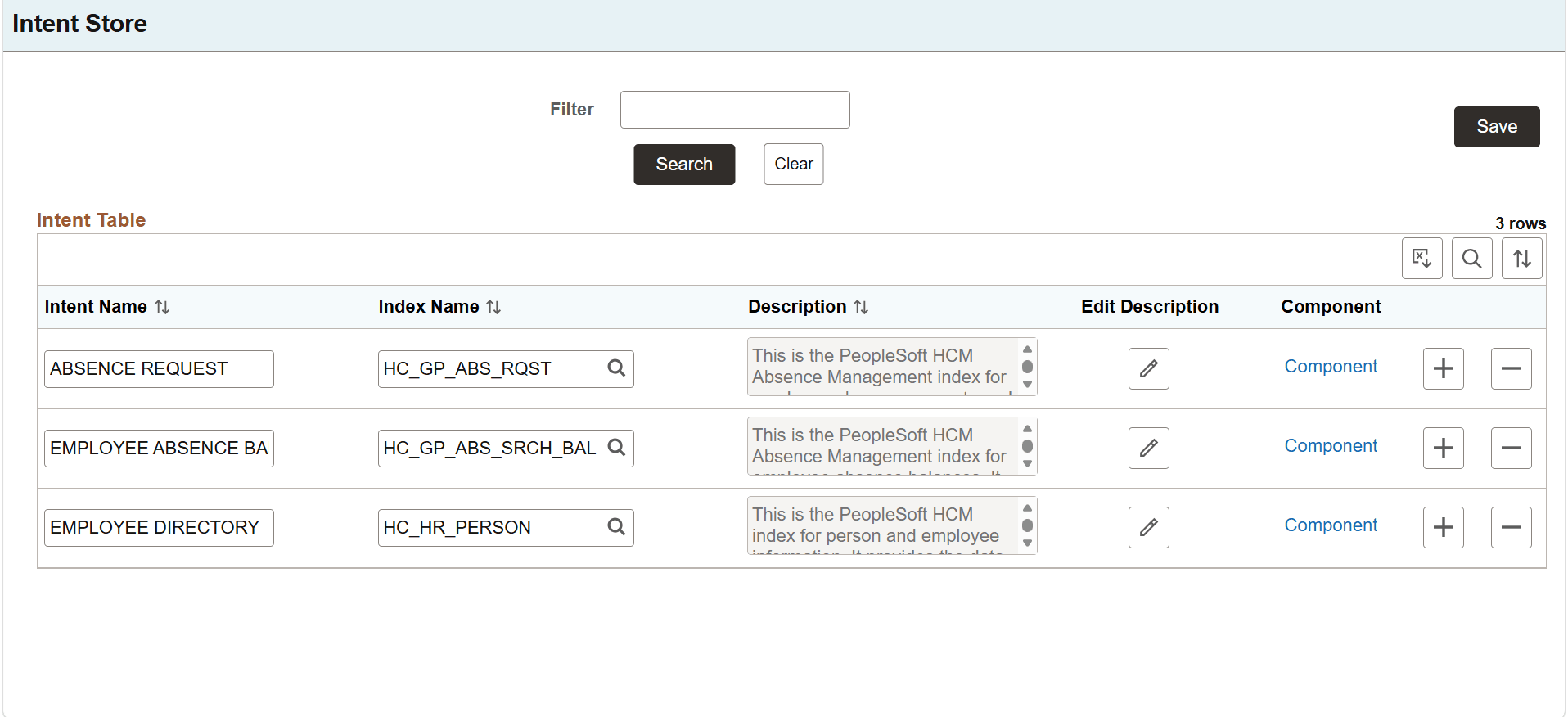
Fields or controls and descriptions for the Intent Store page.
| Field or Control | Description |
|---|---|
|
Filter |
Enter the name of the intent you want to find. |
|
Intent Name |
Enter an intent name associated with the user question. |
|
Index Name |
Enter the search index name that maps to the intent. |
|
Description |
Displays the description for the intent. |
|
Edit Description |
Select to open the Edit Description dialog box and enter or edit the Description. |
|
Component |
When selected, displays the Component Mapping dialog box. Use the Component Mapping dialog box to map relevant components to your intent. |
Use the Component Mapping dialog box to associate one or more PeopleSoft component(s) with a business intent. If the Chat UI is launched from a component that is mapped to an intent, the mapped intent is automatically passed to the LLM. This provides additional context to help the system accurately determine the intent of the user's natural language request.
The following example illustrates the Component Mapping dialog box. You can find definitions for the fields and controls later on this page.
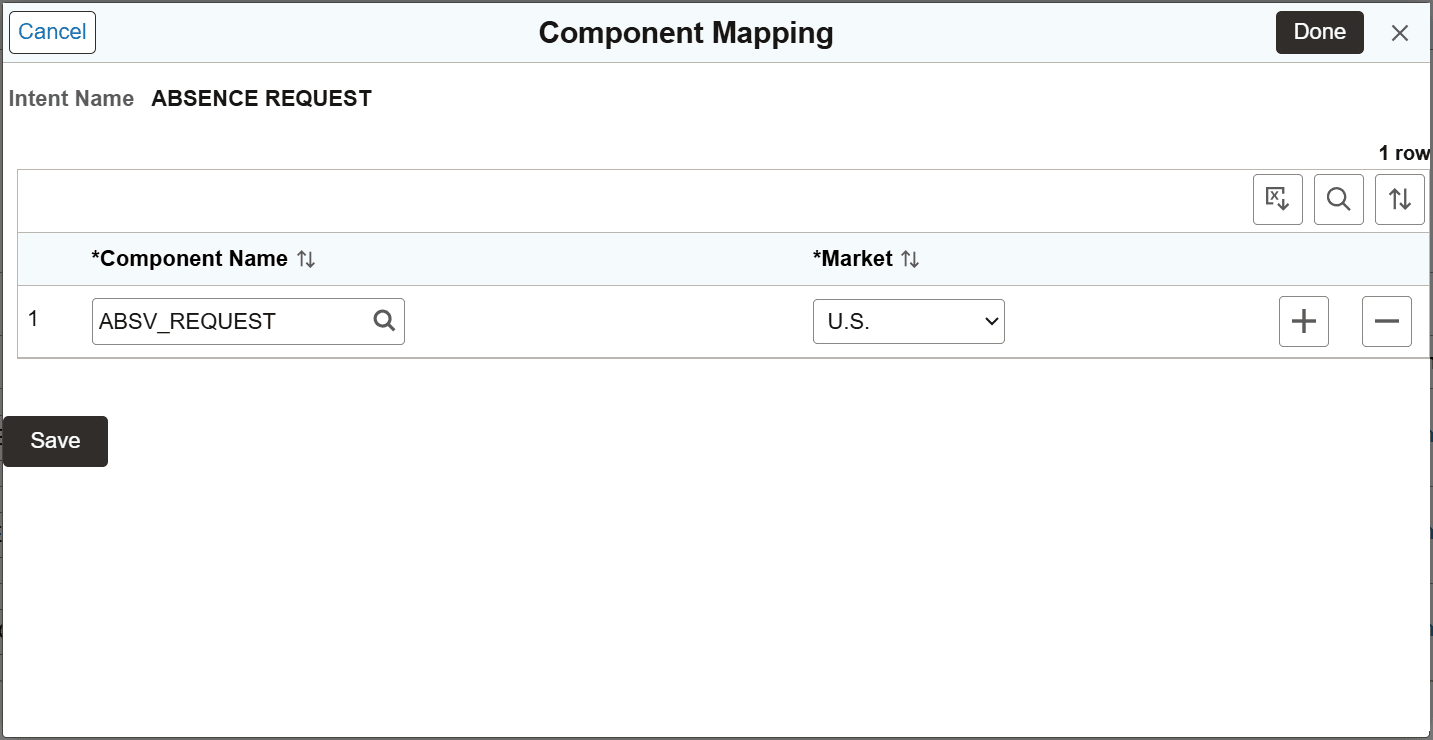
Fields or controls and descriptions for the Component Mapping dialog box.
| Field or Control | Description |
|---|---|
|
Intent Name |
Displays the Intent Name specified in the Intent Store page. |
|
Component Name |
Select a component associated with the intent. You can add multiple components. |
|
Market |
Enter the market that you want to associate with the intent. You can either select a geographical market or a business market from the available options. |
Working with Intent Fields
Use the Intent Fields page to configure the searchable fields associated with an intent. The configured fields help the NL Search service interpret user requests and retrieve information from the appropriate indexed data.
Select .
The following example illustrates the Add Intent Fields page. You can find definitions for the fields and controls later on this page.
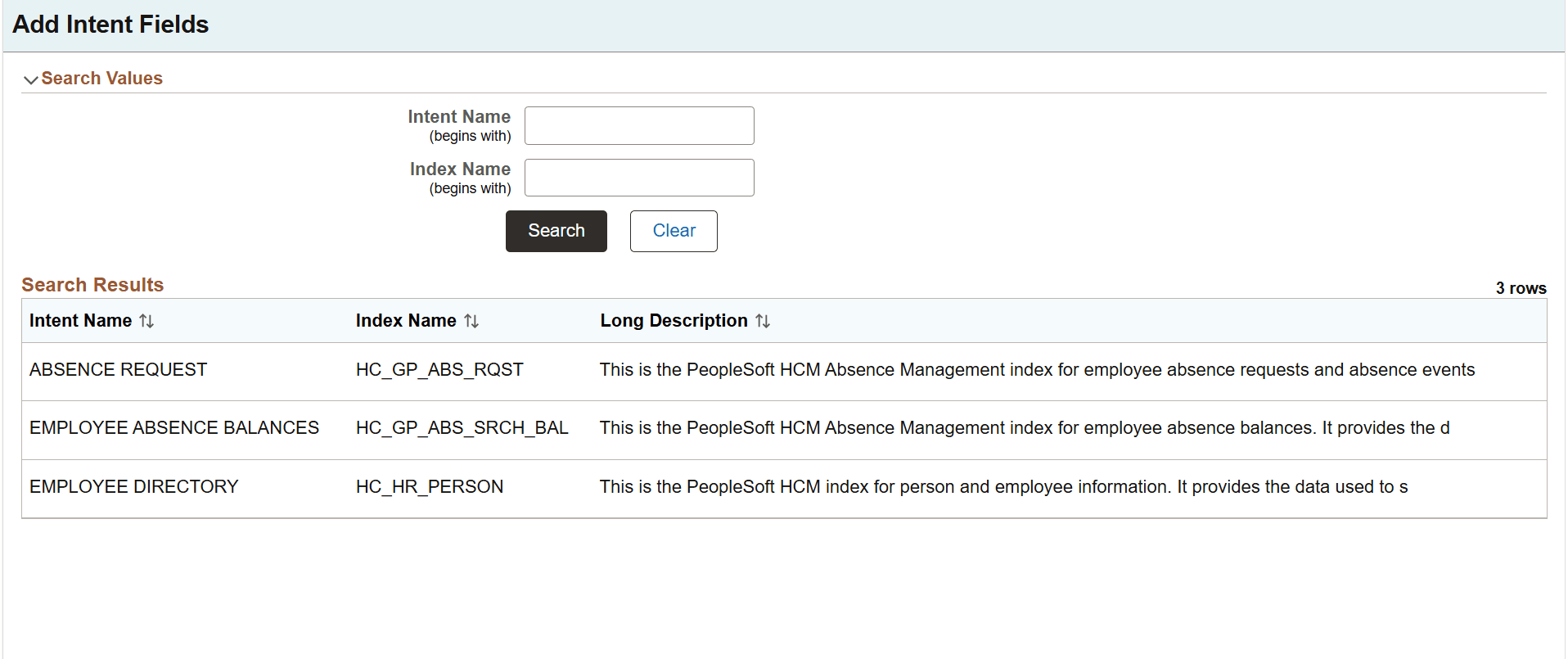
| Field or Control | Description |
|---|---|
|
Intent Name |
Enter the name of the intent you want to find. |
|
Index Name |
Enter the name of the intent you want to find. |
The Add Intent Fields page displays a list of saved intents. Select an intent from the list to access the Intent Fields page for the intent.
The following example illustrates the Intent Fields page. You can find definitions for the fields and controls later on this page.
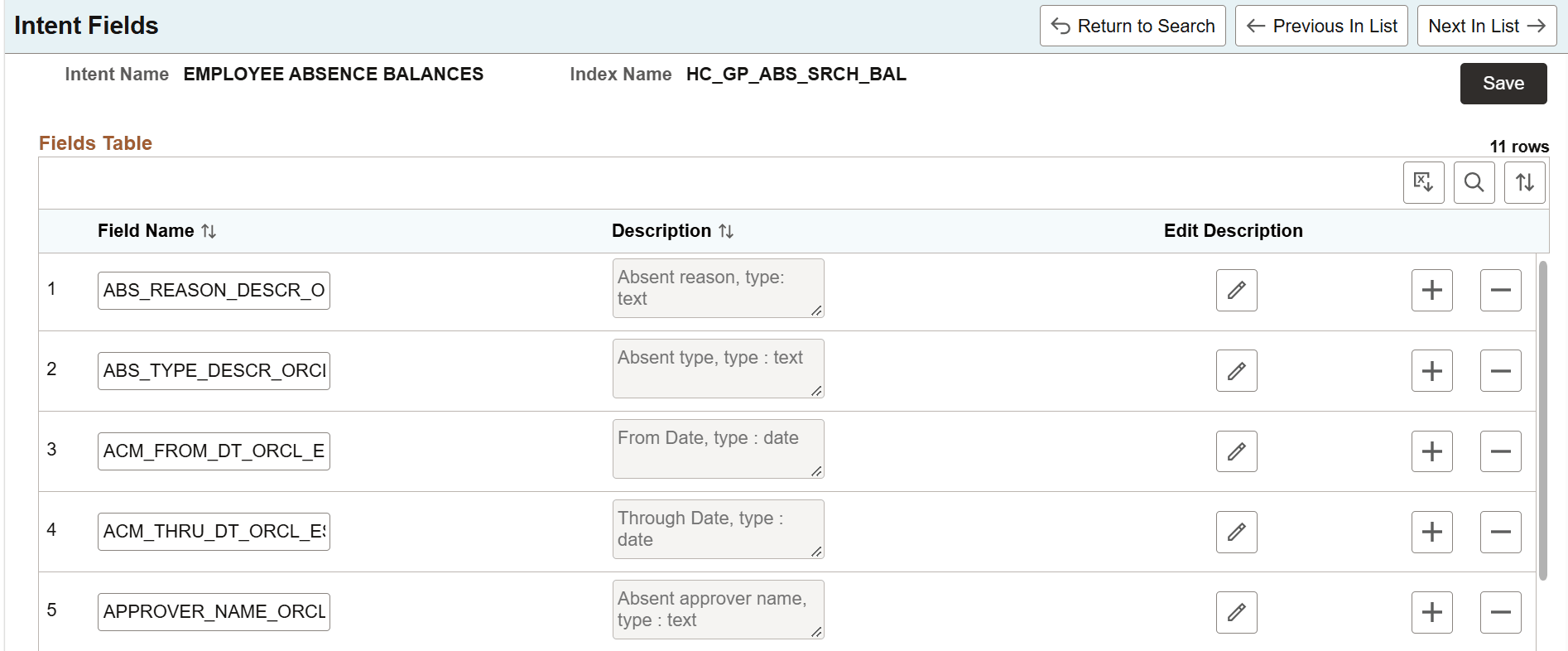
Fields or controls and descriptions for the Intent Fields page.
| Field or Control | Description |
|---|---|
|
Intent Name |
Displays the name of the intent. |
|
Index Name |
Displays the index associated with the intent. |
|
Field Name |
Specify an OpenSearch index field name associated with the intent. NL Search Service uses the field and its description to identify the data available for intent-related queries. |
|
Description |
Provide a brief description for the index field. Also provide information about the type of field, for example, text, number, date etc. Any constraints about the field should also be described here.
. |
|
Edit Description |
Select to open the Edit Description dialog box and enter or edit the Description. |
Related Topics