Working with Real-time Component Search Results
Fluid user interface enables users to create tiles to access a component. In a similar manner, tiles can be created for a real-time component search enabling you to access the component search without having to navigate to a component.
To configure real-time component search, you must create a pivot grid. In Application Designer, you need to specify the component properties for fluid search page. A component configured for real-time search can be set to use either a master detail or a standard search type page.
Note:
In fluid user interface, the real-time component search results are meant to work only with tiles, not with classic pages.
See Fluid User Interface Developer’s Guide: Setting up Real-Time Search for Fluid Components and Fluid User Interface Developer’s Guide: Setting Component Properties for Search Options.
You can use configurable search to configure standard or keyword search configuration for a component. See Guidelines on Using Configurable Search for Fluid Components.
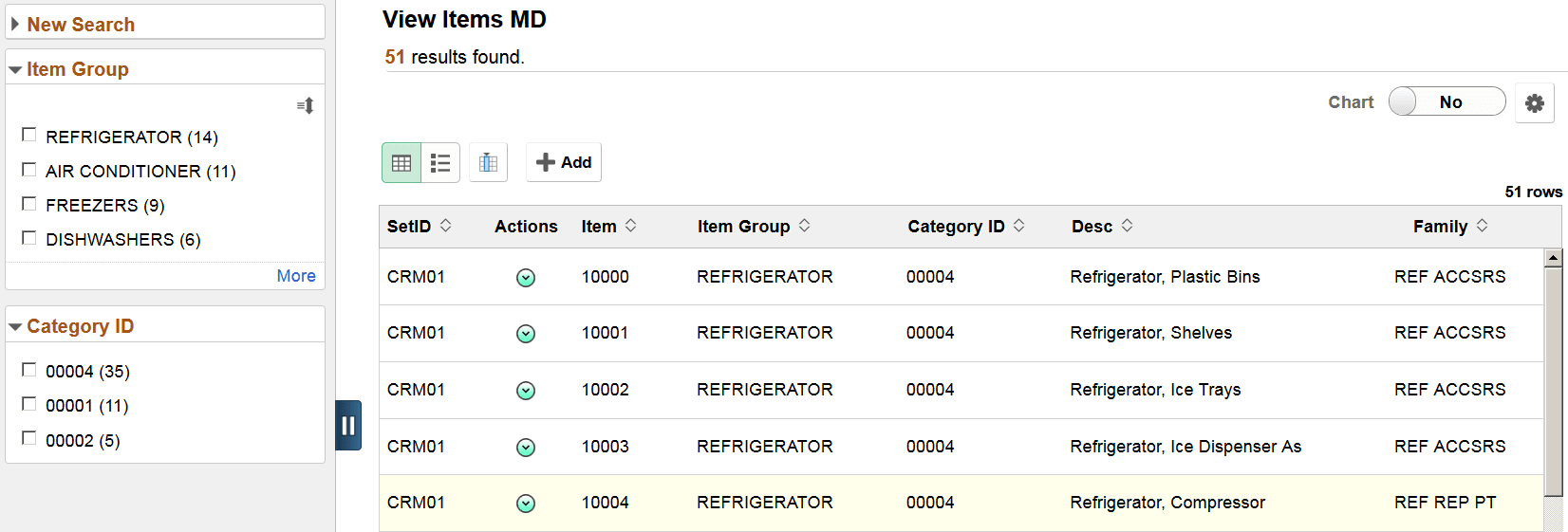
This example illustrates the fields and controls on the Real-time Component Search Results page. You can find definitions for the fields and controls later on this page.
| Field or Control | Description |
|---|---|
|
New Search |
The new search area enables you to initiate a new search by selecting a search category and entering keywords. |
|
Facets |
Facets are attributes used to filter and narrow down a set of search results. You can choose to view the facets as a chart. |
|
Facet Sort |
Use facet sort to alphabetically sort the facet attributes in an ascending or descending order. |
|
Grid view |
Displays the search results in a grid format. In a grid view, related actions, if defined, always appears as the second column of the grid. In a grid view, bulk related actions, if defined, always appear as the first column of the grid. |
|
List view |
Displays the search results in a list. In a list view, a title and a summary is displayed for each search result. The related actions indicator is always displayed on the right of the search result. When you click Bulk mode, the bulk related actions check box appears to the right of the search result. If a list view contains sensitive or PII data, the list view is not displayed. For more information on masking sensitive data, refer to Masking of Data in Search Results. |
|
Bulk mode |
If the search definition is mapped to a component, and if there are any defined bulk related actions associated with that component, the bulk related actions indicator appears at the top of the search results page. Use the Bulk mode to toggle between displaying bulk related actions and exiting the bulk mode. |
|
Add |
Enables you to add new rows to PeopleSoft tables. The Add button is similar to the Add a New Value page in a classic environment. Note: The Add button is not available on small form factor devices. |
|
Chart |
Enables you to view the search results in a chart format. |
|
Options Menu |
Use the Options Menu to:
|
|
Related actions indicator |
If any related actions are defined for the pages of the component, the related actions indicator appears to the right of the search result. Clicking the related actions indicator displays a popup containing the defined related actions. If you use configurable search to configure search for a component, you can choose whether to display related actions or not on the search results page. Administrators set this option on the Search Configuration page. See Working with Configurable Search. |
When you click a real-time component search tile, the search results are automatically displayed without you having to enter any search criteria. Real-time component search uses default search criteria, which is defined in the following:
-
Record field properties.
-
PeopleCode - SearchInit.
-
Pivot Grid.
For more information on defining default search criteria, see Fluid User Interface Developer’s Guide: Setting up Real-Time Search for Fluid Components.
A real-time component search page can display a maximum of 100 rows of search results. This value can be configured.
Images can be displayed along with the search results if you configure to display images.
Master Detail Real-time Component Search
If you choose master detail as the search type for a component, when you create the pivot grid for the component, you must ensure that you select either Grid and List or List. List view is mandatory for a master detail search page because the search results are displayed in list view in the left panel when you drill into a search result.
This example illustrates the Master Detail Real-time Component Search page.
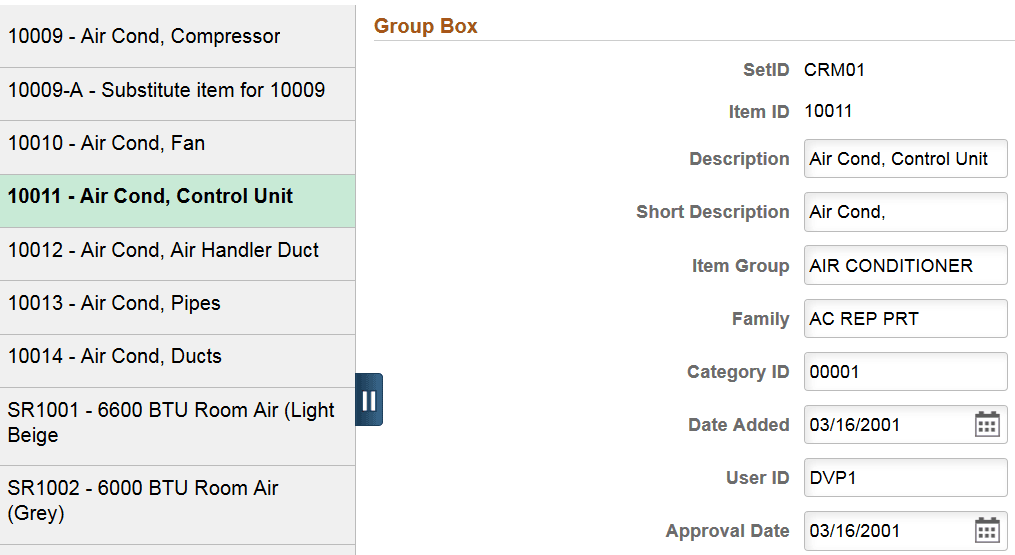
To traverse through the search results, you can use either the search results in the left pane or the Previous in List and Next in List buttons (guided mode buttons) at the top-right corner of the screen.
To return to the search results page, use the Back (Search Results) button.
Standard Real-time Component Search
If you select the standard search type for a component, selecting List view is optional.
When you drill into a search result, component displays on the page. The search results are not displayed in the left panel. To traverse through the search results, you use the Previous in List and the Next in List (Guided mode) buttons.
Accessing Keyword Component Search
If a component is configured for both real-time search and keyword search, you can access keyword search using the Global Search icon when you are on the real-time search results page. The search category drop-down automatically displays the component from where you launched the keyword search and allows you to search for content within the component.