Changing Passwords
The PeopleSoft system enables users to change their passwords as needed.
End users can change passwords using either of these methods.
Access the Change My Password page (select Change My Password from the NavBar menu).
This example illustrates the fields and controls on the Change Password page.
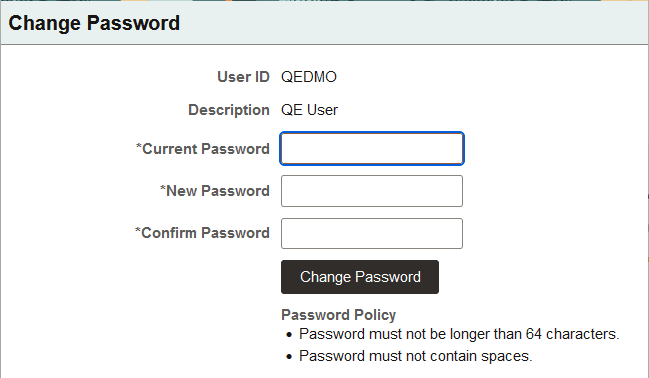
To change a PeopleSoft user password:
-
From the main menu, select Change My Password.
-
On the Change Password page, enter the current password in the Current Password field.
-
In the New Password field, enter a new password.
The page displays the password policy set by the administrator.
-
Confirm the new password by entering it again in the Confirm Password field.
-
Click Change Password.
Note:
For troubleshooting, the administrator may check the entered values and so on through the PeopleCode that supports the page.
End users can also change their passwords from a link on the General Profile Information page.
This example shows the Change password dialog box.
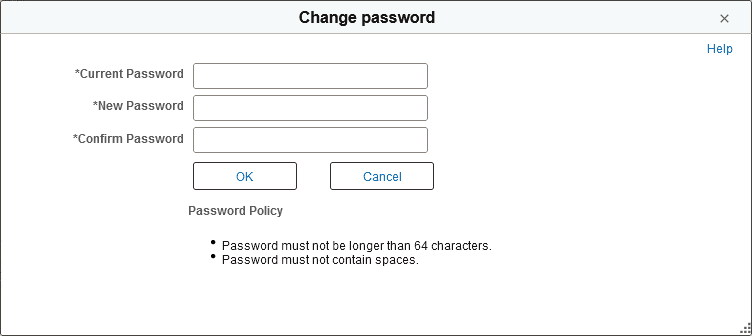
To change a user password:
-
Select My System Profile from the main menu.
-
On the General Profile Information page, select Change password.
-
On the Change password dialog box, enter the current password in the Current Password field.
-
In the New Password field, enter a new password.
The page displays the password policy set by the administrator.
-
Confirm the new password by entering it again in the Confirm Password field.
-
Click OK to accept the new password, or click Cancel to exit without changing the password.