Setting Password Controls
Access the Password Controls page ().
This example illustrates the fields and controls on the Password Controls page. You can find definitions for the fields and controls later on this page.
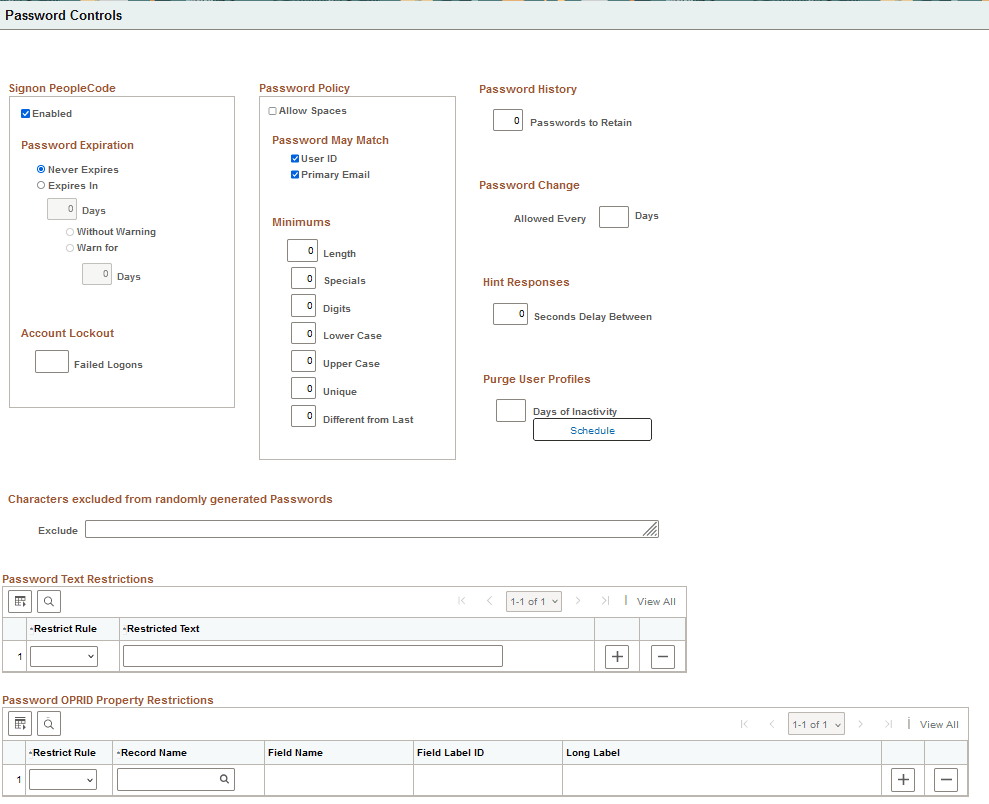
You use the Password Controls page to set any password restrictions, such as duration or minimum password length, that you want to impose on your end users. These options apply when you are maintaining your user profiles within PeopleSoft databases.
Important:
PeopleTools delivers the Password Controls page with a number of default field values. When you perform a standard database installation the default values are set. The default values are not automatically set during an upgrade.
The following tables describe the fields on the Password Controls page, including any default field values delivered. When you enable or specify values for these options, pages used to create or modify passwords will display statements describing the applicable policy details, as mentioned in the tables. For example, end users will see the Password Policy details when using Change My Password, and administrators will see them when configuring user profile attributes.
Signon PeopleCode
| Field or Control | Description |
|---|---|
|
Enabled |
Select the box to enable the PeopleSoft Password Expiration and Account Lockout fields. By default this option is Enabled. You must restart the application server whenever you change this setting. You can extend or customize the controls by modifying the PeopleCode. |
|
Password Expiration |
Use the controls in this section to manage password expiration options.
PeopleSoft delivers a default permission list named PSWDEXPR (Password Expired). When a user's password expires, the system automatically removes all of the user's roles and permission lists, and temporarily assigns them the PSWDEXPR permission list only. A user whose password has expired can access only items in the PSWDEXPR permission list, which typically grants access to only the Change Password component (CHANGE_PASSWORD). For the duration of the session, as in until the user changes the password, the user is restricted solely to the PSWDEXPR permission list. Note: The actual user profile stored in the database is not changed in any way when the password expires. You do not need to redefine the profile. When the password is changed, the system restores the user profile's previous roles and permission lists. Note: The password expiration applies only to signing into the system through the PeopleSoft Pure Internet Architecture (PIA). When you log in to PeopleTools utilities such as Application Designer, Application Engine, or Data Mover, the password expiration control does not apply. For example, if you try to use an expired password to sign in to PIA, you will see an error message, but you can use the same password to sign into Application Designer. |
|
Account Lockout |
Failed Logons: Enter the maximum number of failed sign in attempts to allow before the system disables the user profile. The default value is 5. For example, if you set the Failed Logons value to 3, and a user fails three sign in attempts, she is automatically locked out of the system. Even if she correctly enter a user ID and password on the fourth attempt, she is not permitted to sign in. This feature reduces the risk of any intruders using brute force to break into your system. After an account is locked out, a system administrator must open the user profile and deselect the Account Locked check box manually. |
Password Policy
Use these fields to specify the number and types of characters that passwords must include. Passwords can include up to 64 characters.
| Field or Control | Description |
|---|---|
|
Allow Spaces |
Select to allow spaces within passwords. Spaces are not allowed as the first or last character in passwords. There is further information about using spaces following this table. If this is enabled, the policy statement shown is "Password must not contain leading or trailing spaces." If this is not enabled, the policy statement shown is "Password must not contain spaces." |
|
Password May Match |
|
|
Minimums The default value is zero (0) for all. |
|
Password History
| Field or Control | Description |
|---|---|
|
Passwords to Retain |
Enter the number of user passwords to retain in the password history table (PSPSWDHISTORY). The default value is 0. If the user attempts to reuse a password that is stored in the password history table, the application issues an error and prompts the user to enter a different password. When the number of retained passwords for a user surpasses the number indicated in the Passwords to Retain field, the system deletes the oldest password and then stores the current password as the newest password. |
Note:
If the password history table contains values and you change the Passwords to Retain field value to 0, the system deletes the password history for all users.
Password Change
| Field or Control | Description |
|---|---|
|
Allowed Every n Days |
Enter the number of days required before a password can be changed. This prevents multiple password changes in rapid succession. This option is not applicable to pages that require administrator access. The policy statement shown for non-zero values is "Password change allowed on or after <date>." |
Hint Responses
| Field or Control | Description |
|---|---|
|
Seconds Delay Between |
The setting controls the length of time to wait between processing consecutive hint responses regardless if the response is correct. The default value is 0. |
Purge User Profiles
| Field or Control | Description |
|---|---|
|
Days of Inactivity |
Enter the maximum number of days that a user can go without accessing the application, after which the system marks the profile as inactive. By default the field is blank. After you set the value and save the page, click the Schedule button to access and automate the PURGEOLDUSRS Application Engine program that performs the delete process. If you maintain user profiles in a directory server, a row is added to the PSOPRDEFN table for the system to access while the user interacts with the system. However, when the user is deleted from the directory server, you must manually delete the row in PSOPRDEFN associated with the deleted user profile. |
Characters Excluded from Randomly Generated Passwords
Enter up to 100 characters. You can enter alphanumeric or special characters. When the system generates a new password for users who have forgotten their password, these characters will not be used.
The list of characters you enter will be edited to remove duplicates, spaces, and irrelevant characters. Characters that are relevant for passwords are 0-9, a-z, A-Z, and certain special characters. Others, such as characters with special notation, Chinese, and Arabic, are considered irrelevant for this context.
The system prevents exclusion of all characters for which there is a required minimum.
Password Text Restrictions
Use these options to specify text that is prohibited from appearing in passwords.
| Field or Control | Description |
|---|---|
|
Restrict Rule |
Select a rule to control how the restricted text can be used.
|
|
Restricted Text |
Enter any value up to 64 characters. |
Password OPRID Property Restrictions
Use these options to prevent user ID (OPRID) attributes from appearing in passwords.
Note:
These restrictions may not be applicable when creating a new user profile or copying a user profile.
| Field or Control | Description |
|---|---|
|
Restrict Rule |
Select a rule to prevent the use of the OPRID attribute in passwords.
|
|
Record Name |
Select a record or view that has OPRID as the only key. |
|
Field Name |
Select any field within the selected record or view that is a character field with 64 characters or less. This option is available after you select the Record Name. |
|
Field Label ID |
Select the Field Label ID corresponding to the text to be prohibited. |
|
Long Label |
After you select the Field Label ID, the Long Label text is displayed. This text will be displayed on the list of password policies, for example on the Change Password page. |