Creating Provider Links
Use the Provider Links page to define the trust relationship between a specific Identity Provider and a specific Service Provider within PeopleSoft.
Use this page to define:
- which IdP is trusted for which SP.
- which trust rules apply.
- how the user is resolved from SAML attributes.
- which additional attributes are exposed to custom sign-on logic.
Each IdP–SP pair can have multiple effective-dated versions of its configuration.
To create a trust relationship:
- Select PeopleTools, then Security, then SAML Providers, and then Provider Links.
- Create or select the Provider Link ID for the IdP/SP pairing.
- Select the registered Identity Provider ID and Service Provider ID.
- Define trust rules including: Clock Skew, Replay Window, Init Mode, Subject Confirm Mode
- Configure User ID Resolution mappings used to resolve the PeopleSoft user.
- Configure Custom Signon Attributes to expose selected SAML attributes for downstream custom processing.
- Optionally specify an Application Class for customer-specific sign-on logic.
- Save and activate the effective-dated row to enable runtime trust processing.
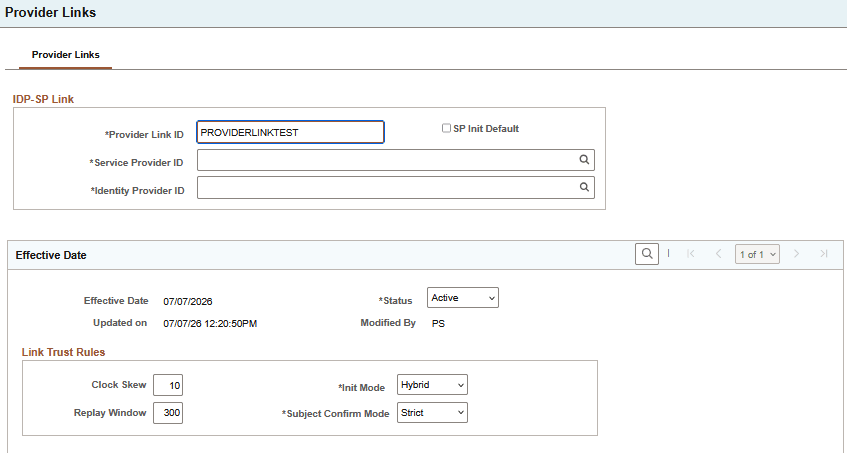
This example illustrates the Provider Links page, 1 of 2.
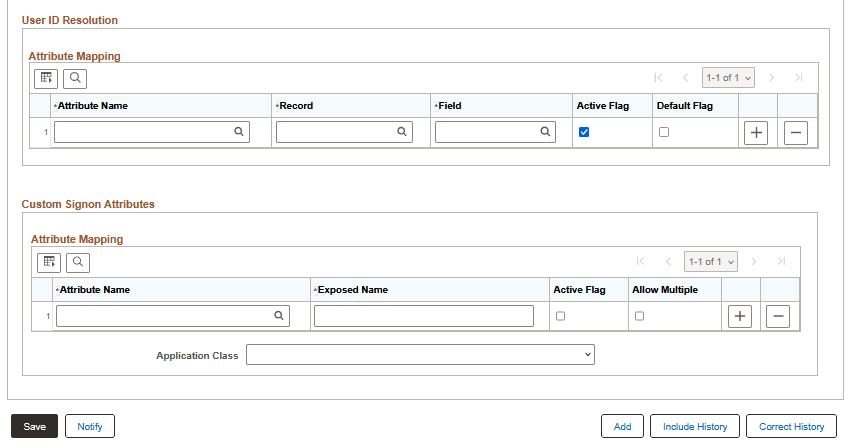
This example illustrates the Provider Links page, 2 of 2.
IDP-SP Link
| Fields or Controls | Description |
|---|---|
|
Provider Link ID |
Enter a unique descriptive name for the IdP–SP pairing. |
|
Service Provider ID |
Specify the SP participating in the relationship. |
|
Identity Provider ID |
Specify the IdP trusted for the relationship. |
|
SP Init Default |
Select this option to identify the default link definition for a non-specific SP Init. |
Effective Date
| Field or Control | Description |
|---|---|
|
Status |
Select Active for the row in force. |
|
Clock Skew |
Specify the number of allowable seconds of time difference when validating time-based SAML conditions. |
|
Replay Window |
Specify the number of seconds during which assertion replay protection remains in force. |
|
Init Mode |
The Init Mode defines which initiation patterns are allowed for the link.
|
|
Subject Confirm Mode |
This controls how strictly Subject Confirmation processing is enforced. Select Strict or Relaxed. A stricter mode should be used unless the integration design explicitly requires a more relaxed treatment. These settings define the security envelope for the relationship and should be chosen conservatively. |
User ID Resolution
Here are the fields in the Attribute Mapping grid in the User ID Resolution section. Each row identifies a SAML attribute and maps it to a PeopleSoft record and field used for user resolution.
| Field or Control | Description |
|---|---|
|
Attribute Name |
Select the exact SAML attribute name expected from the assertion. |
|
Record |
Select the PeopleSoft record used for lookup. |
|
Field |
Select the PeopleSoft field used for lookup. |
|
Active Flag |
Select this option to indicate that the mapping row is active. |
|
Default Flag |
Select this option to indicate the primary mapping row. |
Custom Signon Attributes
Here are the fields in the Attribute Mapping grid in the Custom Signon Attributes section. This section defines which SAML attributes are made available to custom signon logic after authentication succeeds and the user has been resolved.
| Field or Control | Description |
|---|---|
|
Attribute Name |
Select the exact SAML attribute name expected from the assertion. |
|
Exposed Name |
Specify the name under which the attribute is exposed to custom signon logic. |
|
Active Flag |
Select this option if the attribute should be exposed. |
|
Allow Multiple |
Select this option to indicate that multiple values for the attribute may be retained and exposed. |
|
Application Class |
Specify the user-created application class used for custom SAML signon processing. The class must be copied from the delivered The Application Class field identifies a user-created application class that the PeopleSoft system invokes during SAML signon completion. Use this field only when custom processing is needed for SAML attribute values exposed in the Custom Signon Attributes grid. |
Delivered Custom Signon Template
PeopleSoft delivers a template application package named PT_SAML_TEMPLATE. To create custom SAML signon processing, copy this template package to a user-owned application package. The copied package name must include SAML, and the copied package must provide the SamlCustHook application class.
Implement the SamlCustSignon method in the copied SamlCustHook class to process the SAML attribute values declared in the Custom Signon Attributes grid. Only attributes configured on the Provider Links page are exposed to the custom signon context.
Do not configure the delivered PT_SAML_TEMPLATE package directly on the Provider Links page. The Application Class prompt excludes the delivered template package; select the copied user-owned class instead.