Managing User Two-Factor Authentications
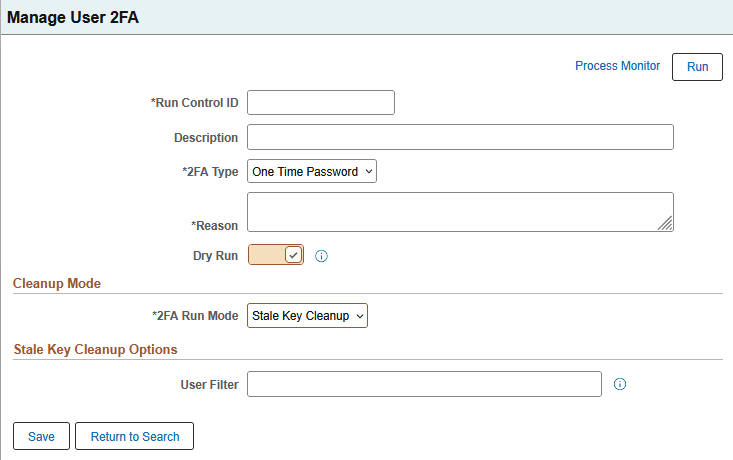
The administrator uses the Manage User 2FA (PTMFAKEYCLEANUP_FL) page to remove or reset existing user authentication.
Access the Manage User 2FA page (select PeopleTools, then Security, then 2FA Administration, and then Manage User 2FA). Add a new Run Control ID or search for an existing one. After supplying the information on the page, click Run or the Process Monitor link to follow the process.
| Field or Control | Description |
|---|---|
|
Process Monitor |
Select to go to the Process Monitor page to follow the progess of the run control. |
|
Run |
Click to run the specified run control. |
|
Run Control ID |
Enter a run control ID. |
|
Description |
Enter an optional description. |
|
2FA Type |
The allowed two-factor authentication type is One Time Password. |
|
Reason |
(Optional) Enter a reason for the cleanup or reset. |
|
Dry Run |
Select this option to test the action you select in 2FA Run Mode. Dry Run previews the cleanup and reports what would be affected. |
|
2FA Run Mode |
Select the required action
|
|
User Filter |
This field is enabled when you select Stale Key Cleanup as the 2FA Run Mode. Specify the users whose keys will be reset or removed. Enter a User ID, a wild card pattern (SQL style), or * to include all users. |
|
Target User ID |
This field is enabled when you select User 2FA Reset as the 2FA Run Mode. Enter the name of a single user. |