Setting ID Type and Attribute Value
Access the User Profiles - ID page (select and click the ID tab).
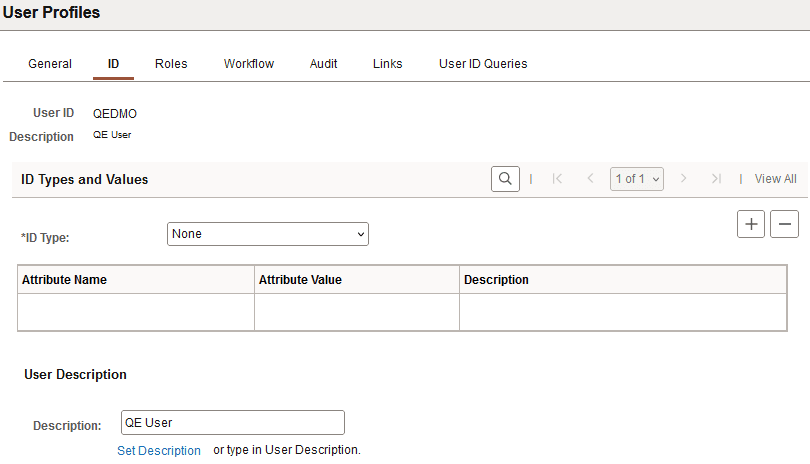
This example illustrates the fields and controls on the User Profiles - ID page.
ID Types and Values
| Field or Control | Description |
|---|---|
|
ID Type and Attribute Value |
Select the ID type and attribute value. Separating user profiles by ID type enables you to have multiple categories of user profiles with ID numbers all within a range of 1–1000, for example, and it also enables you to grant data permission by entity (customer, employee, and so on). When users sign in to your benefits or payroll deductions application, they see only information that applies to them. A user profile is a set of data about an entity—a user—who interacts with the system. The human resources (HCM) system, which keeps track of your employee data, is designed to focus more on your employee user types. On the other hand, your financials system is designed to keep track of customer and supplier user types. ID types enable you to link user types with the records that are most relevant when a user interacts with the system. In the Attribute Value field, select the value associated with the attribute name. For example, the value could reflect the employee number, a customer number, or vendor number. |
User Description
The User Description section enables you to help identify the user.
| Field or Control | Description |
|---|---|
|
Description |
Add a description, such as the name of an individual or an organization, for the user profile. |
|
Set Description |
Click this link to populate the field with a description from the database. |
Note:
Before you assign a user type to a user, you must create user types.
Related Topics