Setting Roles
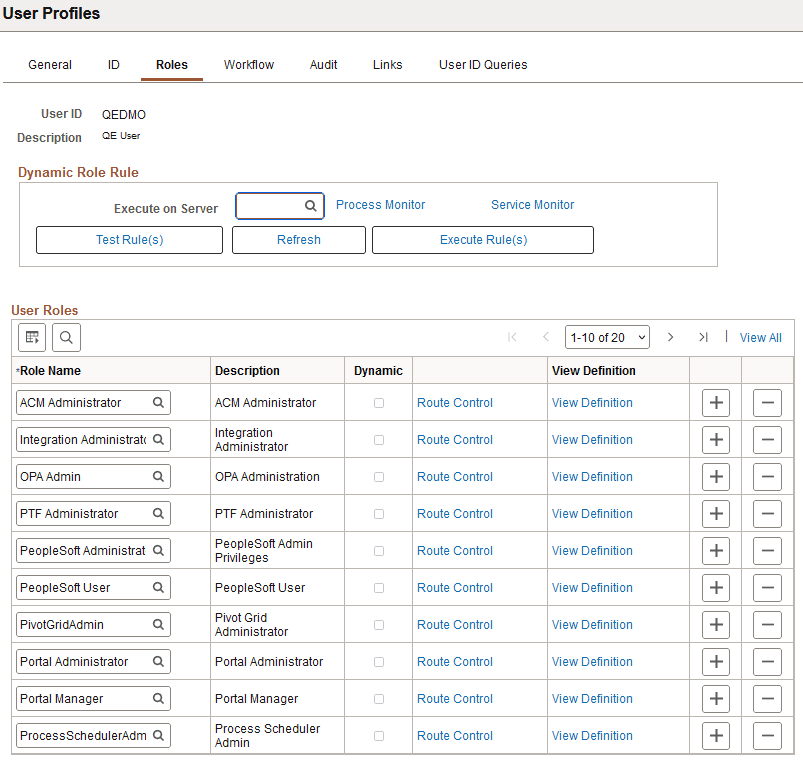
Access the User Profiles - Roles page (select and click the Roles tab).
This example illustrates the fields and controls on the User Profiles - Roles page
Note:
You cannot overwrite roles in the Roles grid. To add a role click the Add Row button (+). To delete a role click the Delete row button (-).
| Field or Control | Description |
|---|---|
|
Role Name |
Displays the name of the role added to the user profile. |
|
Description |
Displays a description of the role added to the user profile. |
|
Dynamic |
Selected if the system assigned a particular role dynamically. |
|
Route Control |
Specify a route control profile for each role assigned to a user. For example, suppose that you have a role named EXPENSE_REP. If you want a particular expense representative to handle all of the expense reports submitted by people whose last names begin with A, you could assign the user a specific route control profile to send the user reports submitted by individuals with last names beginning with A. |
|
View Definition |
Click to view the role definition associated with this user profile. |
See Workflow Technology: Understanding Route Control Development.
See Defining the PeopleSoft Administrator Role.
Dynamic Role Rule
Use these options to test and manually carry out business rules for dynamically updating roles and assigning them to user profiles. You design your role rules using Query Manager, PeopleCode, or LDAP directory rules.
| Field or Control | Description |
|---|---|
|
Execute on Server |
Select the Process Scheduler server that should run your role rule. |
|
Test Rule(s) |
Click to test the rules and verify if they will produce the desired results for a particular user. None of the roles are actually assigned, but the system provides you a report as to what roles will be assigned when you run the rule. Note: The Test Rules button returns total number of members that are assigned both statically and dynamically. Therefore, the count of dynamic members assigned via the Execute Rule may not match the count that the Test Rules button returned. |
|
Execute Rule(s) |
Click to launch the DYNROLE_PUBL application engine program, which executes the rule(s). The application engine program runs through PeopleSoft Process Scheduler. After the DYNROLE_PUBL application engine program runs the rule, it publishes a message, ROLESYNCHEXT_MSG, that contains a list of users in the role. Note: The successful completion of the dynamic roles program does not ensure that your roles were updated; the associated message must also be published successfully. You can also execute dynamic role rules for all roles and users. |
|
Process Monitor |
Select to view the status of the DYNROLE_PUBL application engine program in the Process Scheduler Monitor. |
|
Service Monitor |
Select to check the status of the publication of the ROLESYNCHEXT_MSG message in the Service Operations Monitor. |