Specifying Workflow Settings
Access the User Profiles - Workflow page (select and click the Workflow tab).
his example illustrates the fields and controls on the User Profiles - Workflow page.
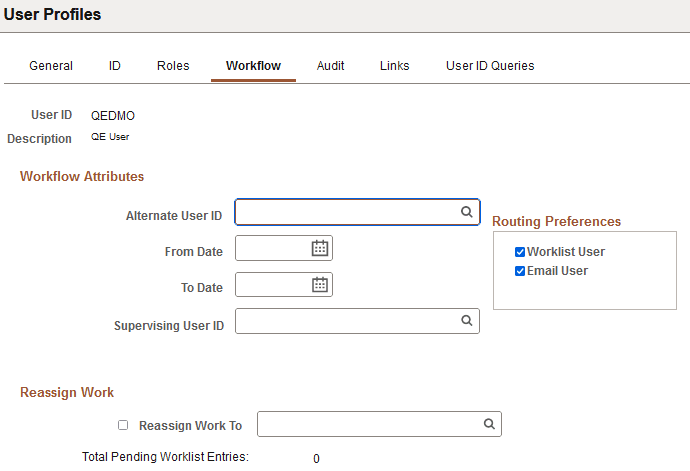
Workflow Attributes
| Field or Control | Description |
|---|---|
|
Alternate User ID |
Select an alternate role user to receive routings sent to this role user. Use this option when the role user is temporarily out (for example, on vacation or on leave). If the field contains a role user name, the system automatically forwards new work items for whoever is assigned as the current role user to the alternate role user. Note: The system forwards new work items to the alternate role user. It does not reassign items already in the user’s worklist. Note: When applying an alternate user ID in your workflow settings, make note of the fact that the system only sends workflow routings to the immediate alternate user ID. The system does not send routings down multiple levels of alternate user IDs. For example, assume user A specifies user B as the alternate user ID while user A is out of the office. Also assume that user B is out of the office at a time during user A’s absence, and user B specifies user C as an alternate user ID for this time. In this case, the system does not send workflow routings originally intended for user A to user C. Note: The Alternate User ID routing functionality works only with role-based applications, such as Virtual Approver (VA) Workflow in PeopleTools, and Enterprise Component Approval Framework. In VA Workflow, the route is to roles, not specific users. And where the Enterprise Component Approval Framework worklist uses roles, the Alternate User ID routing functionality works. The workflow field mapping must be mapped to a role or a role query in order for alternate user to work. |
|
From Date and To Date |
Enter the date on which the current role user is going to begin and return from a temporary vacancy. This field specifies the time period that the alternate user ID is used. |
|
Supervising User ID |
Select the user ID of the user’s supervisor from this drop-down list box. The system uses this value when it needs to forward information to the user’s supervisor. The system uses the JOB record to determine the user’s supervisor. Note: If you are using PeopleSoft Human Capital Management (PeopleSoft HCM) applications, this field should not appear. If it does, you must set your workflow system defaults. |
|
Routing Preferences |
Specify the routing types that this role user can receive. The Routing Preferences box shows the two places where the system can deliver work items: to a worklist or to an email mailbox. If the user does not have access to one or both of these places, deselect the check box. For example, if this person is not a PeopleSoft user, deselect Worklist User. |
Reassign Work
| Field or Control | Description |
|---|---|
|
Reassign Work To |
Use to reassign pending work for this role user if positions change or a user is temporarily out, such as on leave or on vacation. If this user has work items waiting (as shown by the Total Pending Worklist Entries in your Workflow interface), select this check box and select the user to whom work items should be forwarded from the drop-down list box. When you save the page, the system reassigns existing worklist entries to the specified user. Note: If you don’t reassign pending work items, they remain unprocessed. |
|
Total Pending Worklist Entries |
Displays the number of worklist items that require a user's attention. |