Setting User Routing Options
Access the Roles - Workflow page (select and click the Workflow tab).
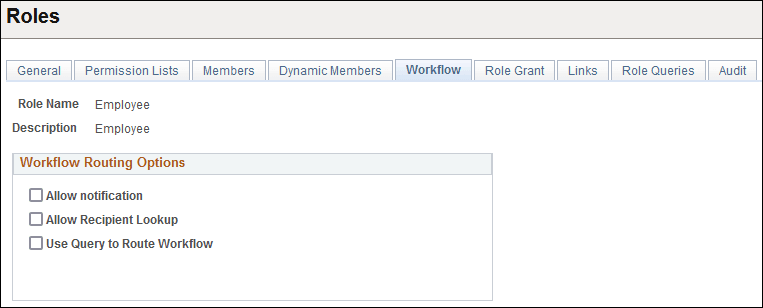
This example illustrates the fields and controls on the Roles - Workflow page.
| Field or Control | Description |
|---|---|
|
Allow notification |
Select to enable PeopleSoft Workflow notification. Users can notify others of data on a PeopleSoft page through email or worklists. When components are designed, developers can enable the Notify toolbar on the Component Properties dialog box in PeopleSoft Application Designer. If this option is set for a particular component, then this check box enables security administrators to enable the Notify feature per role. |
|
Allow Recipient Lookup |
Select to enable role users to browse the database for the email addresses of other users in the PeopleSoft system, such as vendors, customers, employees, sales leads, and so on. This check box is available only if the Allow notification check box is selected. |
|
Use Query to Route Workflow and Query Name |
Select to determine workflow routings by a workflow query. This value depends on your workflow scheme. If this option is selected, the Query Name field appears, where you specify the query to use. |