Specifying Network Information for LDAP
Access the Configure Directory - Directory Setup page (select and click the Directory Setup tab).
This example illustrates the fields and controls on the Configure LDAP Directories - Directory Setup page.
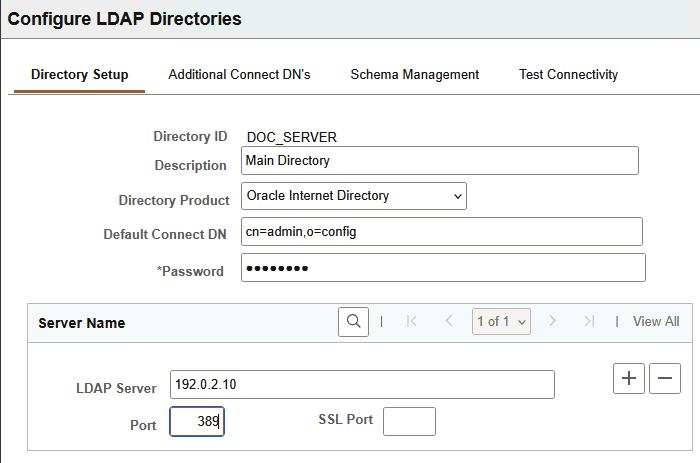
| Field or Control | Description |
|---|---|
|
Directory ID |
Displays the directory connection that you are creating. The directory ID that you enter can identify a specific LDAP server or a collection of LDAP servers, depending on how many servers you add in the Server Name section. |
|
Description |
Enter a description of the directory connection. |
|
Directory Product |
Select your directory product from the list of options. |
|
Default Connect DN (default connect distinguished name) DNs connecting to LDAP servers |
Displays the default connect DN associated with the directory ID that you entered or selected on the initial search page. The connect DN is the ID that you can use to connect to the directory server. You can enter an alternative connect DN. |
|
Password |
Enter the password associated with the directory-based account that appears in the Default Connect DN field. The maximum password length is 64 characters. Note: The password is stored in encrypted form in the database; not even individuals with administration access to the database can view the password. |
|
Server Name |
Add LDAP directory servers to a connection list. You can add multiple servers for failover purposes using the plus button. All servers you add must participate in the same directory service. |
|
LDAP Server |
Identify a specific LDAP server. You can use the DNS name or you can use IP address dotted notation. For example, either of the following formats is acceptable: ldap12.yourcompany.com or 192.201.185.90. |
|
Port |
Enter the port number on which the LDAP server is configured to receive search requests. The standard LDAP port is 389. If you do not specify the correct port, PeopleSoft Directory Interface cannot exchange data with your LDAP server. |
|
SSL Port |
If you are implementing SSL, enter the SSL port on the LDAP server. |