Specifying Optional User Properties
Access the Optional User Properties page (select and click the Optional User Properties tab).
This example illustrates the fields and controls on the User Profile Map - Optional User Properties page.
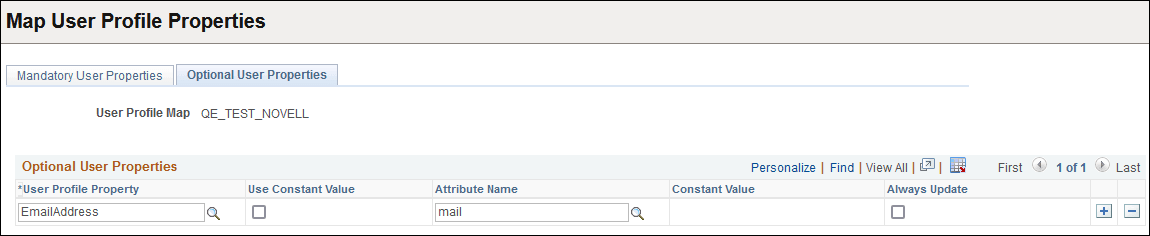
| Field or Control | Description |
|---|---|
|
User Profile Property |
Select the user profile property that you want to add to the local cache. These properties are described in the following table. |
|
Use Constant Value |
To supply a constant value for each user, select this option. |
|
Attribute Name |
Add the name of the attribute as it is represented in your LDAP schema. |
|
Constant Value |
Appears only if you selected Use Constant Value. |
|
Always Update |
Select this option if you always want the system to update the local user cache to reflect the data stored in the directory server every time the user signs in. If Always Update is not selected, the data will be taken from the directory only when the profile is first created. |
Click the User Profile Property search button to select one of the following optional user profile properties:
| Field or Control | Description |
|---|---|
|
CurrencyCode |
If the user deals with international prices, set the currency code to reflect the native or base currency so that values appear in the currency with which the user is familiar. |
|
EmailAddress |
Select if a user is part of your workflow system or you have other systems that generate emails for users. |
|
MultiLanguageEnabled |
Select if the user is set up to use PeopleSoft with multiple languages. |
|
NavigatorHomePermissionList |
Displays the homepage permission list that is associated with PeopleSoft Workflow (Navigator Homepage). |
|
PrimaryPermissionList |
PeopleSoft determines which data permissions to grant a user by examining the primary permission list and row security permission list. Which one is used varies by application and data entity (employee, customer, vendor, business unit, and so on). Consult your PeopleSoft application documentation for more details. PeopleSoft also determines mass change and definition security permissions from the primary permission list. |
|
ProcessProfilePermissionList |
The process profile contains the permissions that a user requires for running batch processes through PeopleSoft Process Scheduler. For example, the process profile authorizes users to view output, update run locations, restart processes, and so on. Only the process profile comes from this permission list, not the list of process groups. |
|
RowSecurityPermissionList |
See explanation for the Primary Permission List field. |
|
SymbolicID |
If the symbolic ID is required for the user, select this option. |
|
UserDescription |
Typically, displays the name of the user, such as an employee name or a vendor name. |
|
UserIDAlias |
In some cases, the user ID is an alias in the form of an email address. If so, select this option. |