Viewing and Modifying Definitions
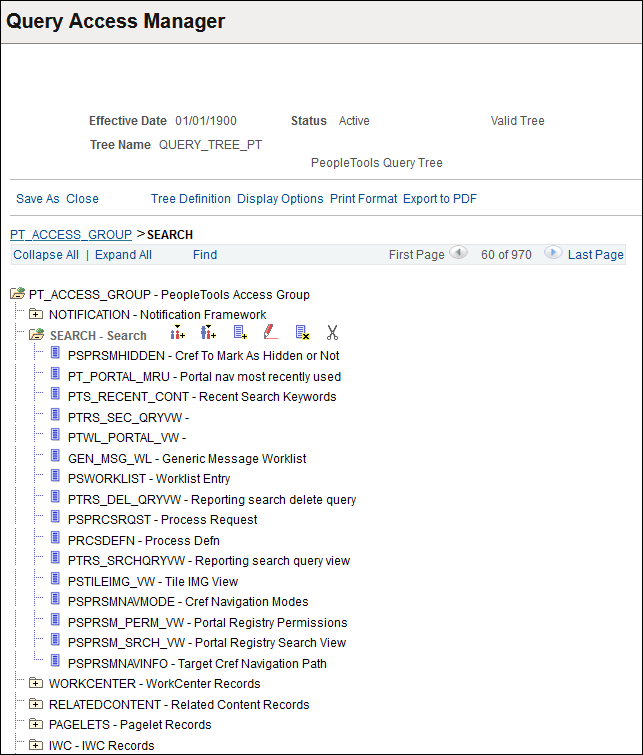
This section describes the controls you use to modify Query Access Group Trees after you have opened one from the search page.
This example illustrates the fields and controls on the top portion of the Query Access Manager page, showing details for a tree.
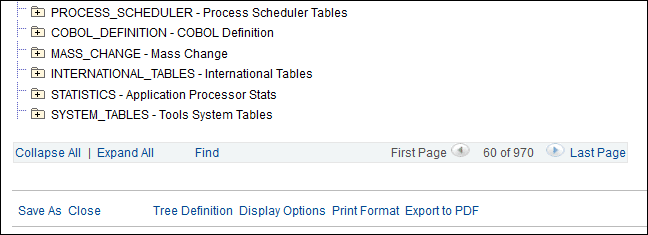
This example illustrates the fields and controls on the bottom portion of the Query Access Manager page, showing details for a tree.
Note:
Not all fields and controls are visible on this page. Depending on the page arrangement, you see additional elements by scrolling either vertically or horizontally.
| Field or Control | Description |
|---|---|
|
Effective Date |
Shows the current effective date. |
|
Status |
Shows either Active or Inactive. |
|
Tree Name |
Shows the name of the current tree. |
|
Save, Save As |
These are the two save options. Each option appears only if it relates to the current activity. Save enables you to save your changes to the database. Save As enables you to clone tree definitions at save time. |
|
Close |
Closes the definition and returns you to the search page. |
|
Tree Definition |
Shows the Tree Definition and Properties page that you modified when you created the definition. |
|
Display Options |
Shows the Configure User Options page where you can adjust the presentation of the trees. For example, you can choose whether the Node ID appears and how many lines of the definition appear at a time. Most of these don’t apply for Query Access Trees so they’re disabled. |
|
Print Format |
Displays a print preview of the tree definition. |
|
Bread Crumbs |
Once you have drilled down into a definition, a “bread crumb” view appears just above the Collapse/Expand All controls to provide orientation, especially within large trees. |
|
Collapse All |
Collapses all nodes of the tree into their parent groups so that you see only the root node and the first layer of child groups. |
|
Expand All |
Expands all nodes of the tree so that each child object is visible. |
|
Find |
If you are looking for a specific access group or a record you can use the Find Value page rather than drilling down into the tree. You specify an access group or a record or its description. You can select a case sensitive search and specify that an exact match must be found. You can use pattern search option by deselecting the Exact Matching check box. This performs platform independent search for the Record/Group starting from the specified pattern. If you want to perform pattern search not starting from the beginning of Record/Group name, specify a platform dependent wildcard character at the beginning of the pattern. For example, to find all occurrences of ‘TBL’ in the Records, you specify %TBL as a search condition (for Microsoft SQL Server database). If you specify both Group and Record search conditions the search is performed on Group condition. If you specify both Group/Record ID (name) and Description conditions the search is performed on ID/name condition. Note: Always save modifications to the tree prior to using the Find feature. |
Node/Record Controls
When you have a node or record selected, the actions you perform are controlled by the icons that appear to the left and right of the definition. The descriptions of the actions are below. You can pass the mouse pointer over an icon to reveal its label.
| Field or Control | Description |
|---|---|
|
|
When a node folder is open, click the Collapse Node icon to collapse the node. |
|
|
When a node folder is closed, click the Expand Node icon to expand the node. |
|
|
The Insert Sibling Group icon inserts an access group node at the same level as the currently selected node. |
|
|
The Insert Child Group icon inserts an access group node at the next level lower than the currently selected node. |
|
|
The Insert Child Record icon inserts a record definition within an access group node. |
|
|
For access groups, click the Edit Data icon to edit the Description and the Definition (long description) on the Access Group Table. |
|
|
Click the Delete icon to delete both access groups and records. You can't delete the root node. |
|
|
You can cut and paste access groups and records to move them within the tree. Once you click the Cut icon, the Paste as Child icon becomes enabled. You can't cut the root node. Note: After you perform the cut function, only navigation and search features are available until you use the paste function. This protects the node in the clipboard. |


 and
and 