File Extension List
Select Search for an existing Extension List Name or add a new value to access the File Extension List page.
A file extension list contains a list of file types, identified by file extension, that the system either accepts or rejects during specific file attachment operations. Once you have created a file extension list you specify it as the value for the FILE_EXT_LIST property of a URL object using the URL Maintenance page. This enables you to only upload the appropriate file types at runtime, and reject those file types you think may be suspicious, potentially harmful, or not appropriate for a particular call to a file-processing built-in PeopleCode function.
A file extension list applies only when performing these file attachment operations:
-
Uploading files (AddAttachment, MAddAtachment PeopleCode)
-
Viewing files (ViewAttachment PeopleCode)
-
Detaching files (DetachAttachment PeopleCode)
Note:
File extension lists can be assigned only to a URL object by way of the FILE_EXT_LIST property, and they apply only to these file attachment operations.
See URL Maintenance.
See PeopleCode Developer’s Guide: Understanding the File Attachment Functions.
You can create different file extension lists to restrict certain file types, depending on the needs of the application. For example, for an application that users access from outside your firewall, such as a job applicant interface, you might want to impose strict restrictions on the accepted file types to avoid allowing potentially harmful file types into your system. For an internal-facing application, you may not require such strict requirements for file attachments.
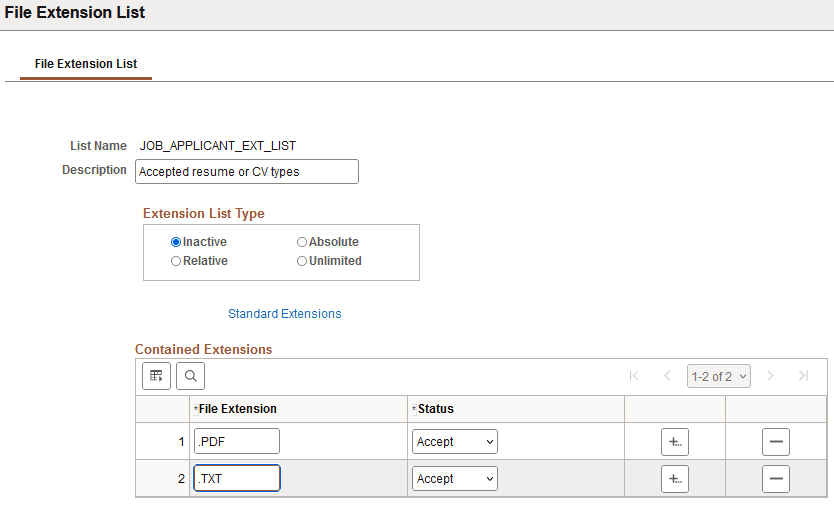
This example illustrates the fields and controls on the File Extension List page. You can find definitions for the fields and controls later on this page.
| Field or Control | Description |
|---|---|
|
List Name |
Displays the name you entered for the file extension list in the Add New Value tab. File extension list names cannot exceed 30 characters. |
|
Description |
Enter any descriptive information to help indicate how this list is to be used. |
Extension List Type
| Field or Control | Description |
|---|---|
|
Inactive |
When set to Inactive, the system ignores the file extension list. Any file extension entries in the Contained Extensions grid are ignored at runtime for an Inactive list type. From a development perspective, it may be useful to keep a working list of file extensions, but keep the list itself inactive until it is fully tested. Note:When troubleshooting or testing, setting a file extension list to Inactive, immediately disables any restrictions imposed by that file extension list. |
|
Absolute |
With an Absolute file extension list, you can create a list in which all the acceptable filename extensions are explicitly enumerated and have a status of Accept. That is, only the file extensions that appear in the Contained Extensions grid and have the Status set to Accept will be accepted for that file attachment operation at runtime. An Absolute file extension list is most appropriate for situations where you wish to accept a relatively small number of file types. Any file extension set to Reject will not be accepted at runtime. However, not including such a file extension in your absolute list will have precisely the same effect. |
|
Relative |
The Relative file extension list type is based on the Standard Extensions list, and provides a flexible means to specify a finite number of files that are acceptable, as well as enabling you to extend the Standard Extensions list, if needed. A Relative file extension list is most appropriate for situations where you wish to reject a relatively small number of file types. After reviewing the Standard Extensions list, add specific file extensions that you do not want to authorize for file attachment operations to the Contained Extensions grid, and set the Status value to Reject. By doing so, you indicate to the system that you authorize all of the extensions on the Standard Extensions list, except for those you've added to the Contained Extensions grid and set to Reject. For a Relative file extension list type, you can use the Accept status value to effectively extend the current list of Standard Extensions for this specific relative file extension list. For example, assume that at your site you use a product that uses a file extension that does not appear in the Standard Extensions list. By adding that file extension to the Contained Extensions grid and setting its Status value to Accept, the PeopleSoft system will accept that file type for file attachment operations involving this specific relative file extension list. Note:PeopleTools does not permanently add the extension to the Standard Extensions list when it is set to Accept for a relative file extension list type. That is, when you view the Standard Extensions list after setting the Status to Accept for a particular file extension, it will not appear in the list and will not affect the contents of the Standard Extensions list when it is accessed at runtime by other file extension lists you use. However, at runtime, the system will recognize that file extension as acceptable for this specific relative file extension list. |
|
Unlimited |
Do not use the Unlimited extension list type in the current release. This type of list is intended for possible use with future functionality. |
Standard Extensions
Click to display a read-only list of standard file extensions that are known and potentially acceptable to the PeopleSoft system. This list comprises the standard list of file types that a PeopleSoft web server will handle. The displayed Standard Extensions list is provided for informational purposes to help you complete your file extension lists by indicating the set of file extensions that the PeopleSoft system recognizes.
To include additional file extensions to the Standard Extensions list, refer to the Relative file extension list type description.
Contained Extensions
| Field or Control | Description |
|---|---|
|
File Extension |
Enter the file extensions you want to accept or reject. Add one extension per row, with each extension not exceeding ten characters. The system saves the value of an individual file extension as all uppercase, regardless of the case you enter, and adds a period (“.”) to the beginning of the file extension unless its first character is already a period. Note:Files having no file extension may be indicated collectively by specifying a file extension of a period ("."). |
|
Status |
For a specified file extension of type Absolute or Relative, you have these Status options:
|
Bypassing Restrict-by-File-Type Functionality for System Administrators
System administrators managing the file attachment features of your PeopleSoft system can bypass restrictions otherwise imposed by filename extension lists by using a delivered security role, PTFX Ignore Download Ext Lists.
During a call to ViewAttachment or DetachAttachment, if the user profile initiating the transaction is associated with the PTFX Ignore Download Ext Lists role, then the system ignores file download restrictions specified by any filename extension list.
Note:
The PTFX Ignore Download Ext Lists role should be associated only with the appropriate user profile(s).
Note:
The PTFX Ignore Download Ext Lists role contains no permission lists, however, its association with a user profile triggers internal PeopleTools security rules.