PeopleTools Options
Select to access the PeopleTools Options page. Use this page to set a number of options that affect multiple PeopleTools and applications, such as language options and change control settings.
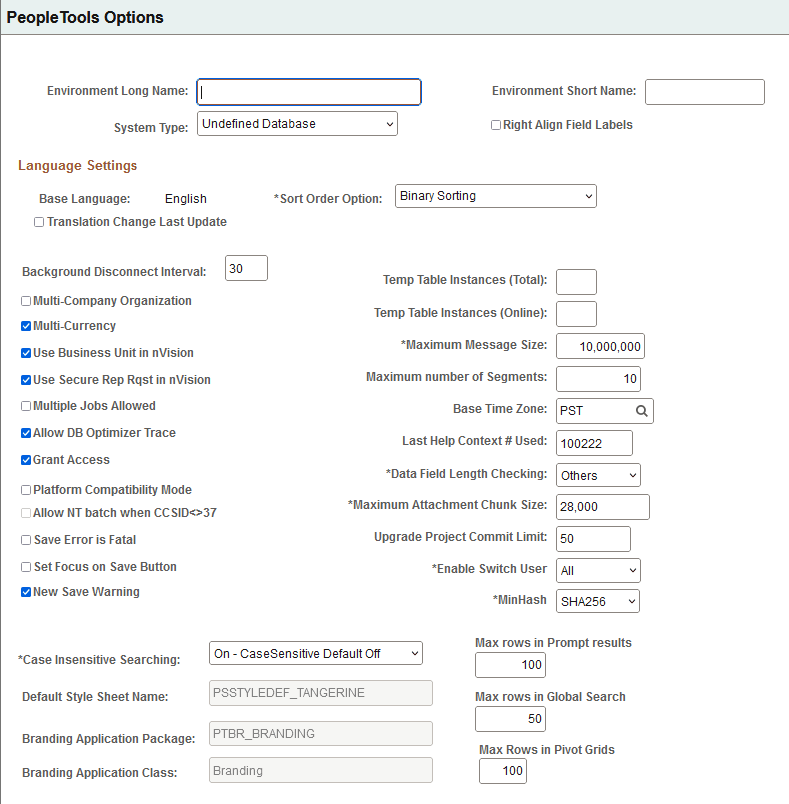
This example illustrates the fields and controls on the PeopleTools Options page (1 of 3). You can find definitions for the fields and controls later on this page.
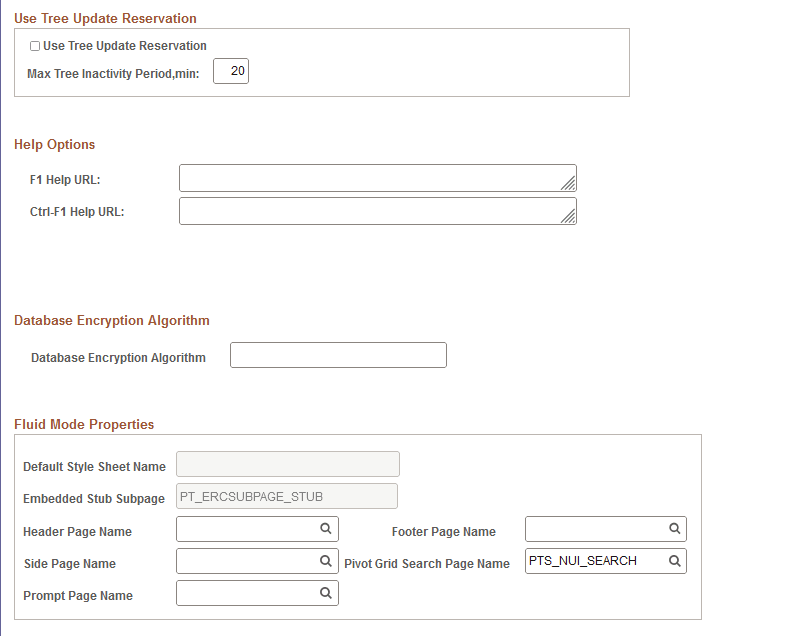
This example illustrates the fields and controls on the PeopleTools Options page (2 of 3). You can find definitions for the fields and controls later on this page.
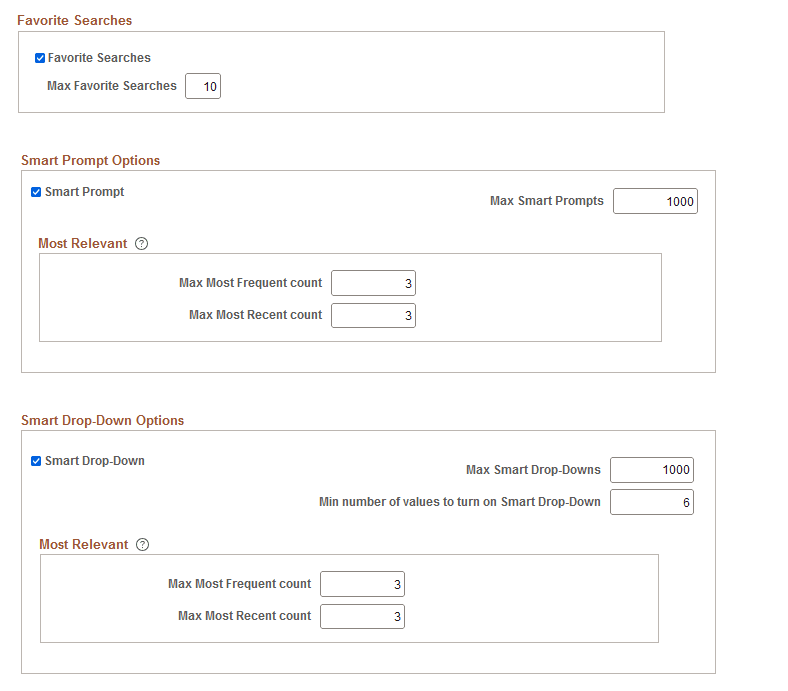
This example illustrates the fields and controls on the PeopleTools Options page (3 of 3). You can find definitions for the fields and controls later on this page.
| Field or Control | Description |
|---|---|
|
Environment Long Name and Environment Short Name |
Enter a long name and a short name for the current PeopleSoft environment. PeopleSoft software update tools use this information to identify the database when searching for updates. For example, enter HR Demo Environment for the long name, and HR Demo DB for the short name. |
|
System Type |
Select an appropriate system type from the drop-down list, for example, Demo Database. This information helps to further identify the current environment for the purpose of searching for and applying software updates. |
|
Right Align Field Labels |
By default, the system uses left label alignment when adding new fields to pages in Application Designer. To make all new page field labels use right label alignment (at design time), set the Right Align Field Labels check box on the PeopleTools Options page. See Application Designer Developer’s Guide: Setting Page Field Properties for Controls. |
Language Settings
| Field or Control | Description |
|---|---|
|
Language Code |
Identifies the database's base language. The base language of an application is the application's primary language, normally the language that is used most commonly throughout the enterprise. A database can have only one base language. All other language translations that are stored in the database are referred to as non-base languages (or sometimes as foreign languages). You can't change the base language setting on this page. This field is for display purposes only. To change the base language, use the SWAP_BASE_LANGUAGE Data Mover command. |
|
Translations Change Last Update |
If you select the Translations Change Last Update check box, and you use the PeopleTools translate utilities to translate objects, the system updates the Last Updated information of the translated object to the date/time/userid of the translation. If it's turned off, then the date/time/userid of the object does not change when it's translated. Note:This only applies when you're using the page-based PeopleTools translation utilities; the Translation Workbench always updates the last updated information. |
|
Sort Order Option |
Select the sort order that is appropriate for the site. |
General Options
| Field or Control | Description |
|---|---|
|
Background Disconnect Interval |
This option is no longer in use. |
|
Multi-Company Organization |
Turn on Multi-Company Organization if more than one company makes up the organization. This option affects how Application Processor displays company-related fields in search dialogs and pages. See the PeopleSoft Human Capital Management product documentation for more details. |
|
Multi-Currency |
The Multi-Currency setting is a system-wide switch that enables automatic formatting of currency amount fields that have associated currency control fields. Another function of this setting is to globally display currency control fields. If you turn off this option, automatic formatting based on currency control fields is no longer active and all currency control fields are thus hidden. When the Multi-Currency setting is on, it also validates user-entered currency data against the currency's defined decimal precision. This validation causes the system to issue an error if a user attempts to enter a decimal precision that is greater than that which is allowed by the currency code definition. Under most circumstances, leave Multi-Currency selected. |
|
Use Business Unit in nVision |
Deselect the Use Business Unit in nVision option if you're using an HCM database. Otherwise, select it. |
|
Use Secure Rep Rqst in nVision |
Select this check box if you want the report request in nVision to be secure. The default setting is selected. |
|
Multiple Jobs Allowed |
Selecting Multiple Jobs Allowed enables HCM systems to support employees holding concurrent jobs with more than one set of enrollments. This option affects how Application Processor displays employee-record-number-related fields in search dialogs and pages. See the HCM documentation for more details. You must select this option in order to display the fields EMPL_RCD and BENEFIT_RCD_NBR on a page. |
|
Allow DB Optimizer Trace |
Typically, you turn on this trace only during periods in which you are collecting detailed performance metrics. When you are not tuning your performance, the DB Optimizer trace should be turned off. |
|
Grant Access |
When adding a new user by using PeopleTools Security, the system automatically grants the new user select-level access to a set of PeopleTools SQL tables used for security. If you are using a SQL security package and do not want PeopleTools Security to perform any SQL grants, turn off Grant Access. |
|
Platform Compatibility Mode |
Enables you to add the capability to set a database compatibility mode as an overall database setting, forcing developers to create applications by using all platforms as the least common denominator. This option enables developers, who create applications for multi-platform deployment, to catch platform-specific issues at design time rather than during testing. Note:This option is used mainly by PeopleSoft development teams that need to develop applications to run on all supported database platforms. To support numerous database platforms, PeopleSoft needs to have a tablespace for each physical table record definition. If platform compatibility is enabled for a database, the system forces developers to enter a tablespace name when saving a record definition regardless of the current platform. If this option is disabled, you are only prompted for a tablespace name if you are developing on a platform that utilizes tablespaces. This prevents table record definitions being added to the database without a tablespace name. |
|
Allow NT batch when CCSID <>37 |
Enables you to override non-z/OS COBOL batch restrictions. If the DB2 z/OS database's CCSID is NOT 37, PeopleSoft blocks batch COBOL from running against z/OS Databases on Windows unless you choose this override. Note: Even if you choose this override, if you use %BINARYSORT() in the COBOL, the system issues an error on Windows. RemoteCall COBOL can run on Windows and UNIX regardless of this option setting, even if CCSID is NOT 37, but the system issues an error. Note: Db2 z/OS is no longer supported. |
|
Save Error is Fatal |
Select this option when you have non-repeatable PeopleCode logic in your application's SavePreChange or Workflow. In previous releases, PeopleSoft applications were coded to assume that errors during save are always fatal, but the current PeopleTools release no longer behaves this way. Use this option to ensure predictable behavior with your application without having to modify your older application code. This check box is cleared by default. If you get an error during save processing, the transaction continues and you're allowed to attempt to save again. When this option is selected, if you get an error during save processing the transaction is aborted and all changes are lost. This applies to errors that occur between and including the SavePreChange event to the SavePostChange event. It also includes the component processor save processing. It doesn't include errors from the SaveEdit event. For example, suppose you have some calculations that occur in SavePreChange which are based on the buffers and also modify the buffers. If there's an error during the save and you attempt to save again, the calculations are repeated, but this time based on the buffers that were already modified by the first time the calculations where done. Therefore the second time the calculations are done they will be incorrect, which could lead to incorrect data being saved to the database. In this case you would want to turn on the Save Error is Fatal option, because a fatal error on save is more desirable than incorrect data being put into the database. |
|
Set Focus on Save |
If selected, focus is set on the Save button when a user saves a component. If not selected, focus is set on the first control on the page that can assume focus when a user saves a component. By default, the option is not selected. Note: This setting has a system-wide effect. |
|
Temp Table Instances (Total): |
The value that you specify in the Temp Table Instances (Total) edit box controls the total number of physical temporary table instances that Application Designer creates for a temporary table record definition when you perform the Build process. This value indicates the total number of undedicated temporary table instances. The maximum number of temporary table instances that you can specify is 99. |
|
Temp Table Instances (Online) |
Enter the available online instance values. When you invoke a process online, PeopleTools randomly allocates a single temporary table instance number to programX for all of its dedicated temp table needs. The higher the number of online instances that is defined, the less likely it is for two online processes to get the same value. |
|
Maximum Message Size |
Use this parameter to set the maximum message size being handled by Integration Broker. There is a practical limit to how large a message can be. This limit can be determined by a variety of factors, including network speed, available memory, processing load, and so on. |
|
Base Time Zone |
Although you can display time data a number of different ways, PeopleSoft databases store all times relative to a system-wide base time zone. You can adjust the display of the time that an end user sees using the Use Local Time Zone (LTZONE) setting in PeopleTools, Personalizations. This base time zone is the one that the database server uses. In order for PeopleSoft to properly manage time data, the system needs to know which time zone that is. Set the Base Time Zone to the time zone that the database server's clock uses. Note:After changing this setting, reboot any application servers that are connected to the database. It is critical for the correct operation of the system that this time zone match the time zone in which the database is operating. Any discrepancy in the base time zone as defined in this page and the time zone in which the database system is operating leads to inaccurate time processing. |
|
Last Help Context # Used |
This field is no longer used. |
|
Data Field Length Checking |
Normally, field length validation is based on the number of characters that are allowed in a field. For example, a field defined as CHAR(10) in Application Designer holds ten characters, regardless of which characters you enter. In a Unicode database, double-byte characters, such as those found in Japanese, are counted the same as single-byte characters, such as those found in the Latin alphabet. If you create a non-Unicode database, the field length in Application Designer represents the number of bytes that are permitted in the field, not the number of characters. When the non-Unicode database uses a single-byte character set (SBCS), you can only enter single-byte characters, so the number of characters and the number of bytes are the same. However, because double-byte character sets (DBCS) typically allow a mix of single- and double-byte characters, the number of characters that are allowed in a field in a non-Unicode DBCS database varies. This is true for both shifting and non-shifting double-byte character sets. For example, a if a user enters ten Japanese characters into a field that is defined as CHAR(10) in Application Designer, this string needs 20 bytes of storage in a non-shifting double-byte character set and 22 bytes of storage in a shifting double-byte character set. This ten-character input fails insertion into both these databases. Use the Data Field Length Checking option to ensure field length validation appropriate to the database's character set. Values are MBCS and Others. Choose Others if you are using a Unicode-encoded database or a non-Unicode single-byte character set database. This prevents special field length checking. As discussed above, these types of databases do not require such checking. Choose MBCS if you are running a Shift-JIS Japanese database. Japanese is the only language that PeopleSoft supports in a non-Unicode DBCS encoding. All other languages requiring double-byte character sets are only supported by PeopleSoft by using Unicode encoded databases. |
|
Maximum Attachment Chunk Size |
Controls the size of the file attachment chunks that are stored in the database. This allows you to upload a file attachment that is larger than could be stored in a single row of the database. The system divides the data into chunks to store in different rows of the database table. The default is 28,000 bytes, and maximum attachment chunk size allowed by PeopleTools is 50 MB. Application Designer data types control how the system manages "long data." If you want to store your files in the database in a form that allows for portability across the database platforms supported by PeopleTools, you must set the Maximum Attachment Chunk Size option to a value that would be permitted by all of the database platforms supported by PeopleTools — no more than 28,000 bytes. However, if you do not want to consider the portability of files across database platforms supported by PeopleTools, you may set the Maximum Attachment Chunk Size option to the maximum value that your database supports. For example, if you are using the Oracle database, you can set the value to 2 GB. Note: The Maximum Attachment Chunk Size determines the size of the chunks stored in the database. This setting does not affect the maximum size of the file chunks that can be read from that table. The maximum size of the file chunks that the system reads from the database table is determined by the Maximum Length property defined for that field in Application Designer. Note: When working with file attachments it is imperative that you understand how the file processing PeopleCode constructs behave, such as the AllowLargeChunks parameter, used with the AddAttachment built-in function. See Application Designer Developer’s Guide: Specifying Long Character Field Attributes. See PeopleCode Language Reference: Functions by Category. See PeopleCode Developer’s Guide: Understanding the File Attachment Functions. |
|
Upgrade Project Commit Limit |
Sets the limit on how many rows can be modified by an upgrade project before the system issues a COMMIT statement. |
|
Enable Switch User |
The Enable Switch User option enables you to limit the users who can change identities in a PeopleSoft system. The feature applies only when accessing PeopleSoft using a browser; it has no effect on two-tier or three-tier connections. Most sites have no reason for individual users to change their PeopleSoft system identity during a session. For those sites that do require this capability, the number of users who need to switch to another user profile typically is fairly small. For example, the users who can switch identities are usually limited to the system's GUEST user (if the system has one) and, perhaps, a few system administrators or power users. Options for Enable Switch User are:
Once you specify which users can switch identities, if an identity change is attempted (switch user) by an unauthorized user, the system:
Note: Assume that the user profile to which a user switches is the “destination” user profile, and the user profile from which a user switches is the “source” user profile. If a user is allowed to switch identities during a session, it is allowed by the source user profile, not the destination user profile. For example if you allow UserA to switch to UserB, it is UserA's user profile that must have the Allow Switch User option selected. The setting for UserB's profile is not relevant in determining whether a switch user from UserA to UserB is allowed. This feature does not control the user profile to which a user can switch; it only addresses which users are permitted to switch identities during a browser session. See Security Administration: Setting General User Profile Attributes. |
|
MinHash |
The MinHash option enables you to set the minimum hash algorithm that all sites participating in single sign-on (SSO) must use in order to talk to each other. The default value is SHA256. Options for MinHash are:
Note:PeopleSoft recommends that you do not change the default value. During the PS_TOKEN validation at the Web tier, PeopleSoft uses the MinHash value to prevent Web sites with weaker hashing algorithm from talking to other sites participating in single sign-on. The MinHash option is not used for PS_TOKEN generation. See Security Administration: Implementing PeopleSoft-Only Single Signon for more information on PS_TOKEN. |
| Field or Control | Description |
|---|---|
|
Case Insensitive Searching |
Enables you to provide case-insensitive searching for the PeopleSoft search records when searching for PeopleSoft definitions. The options are:
Note: This option is not associated with Search Framework. |
|
Default Style Sheet Name Branding Application Package Branding Application Class |
Display the default, system-wide branding settings, which are defined on the Branding System Options page:
See Portal Technology: Configuring Branding System Options for more information on setting these values. |
|
Max Rows in Prompt results |
Sets the maximum number of rows seen in a prompt (lookup) result. The default value is 100. |
|
Max rows in Global Search |
Sets the maximum number of rows in the result list that an end user sees from a Global Search. The default value is 50. See Search Technology: Working with Search Results in Global Search. |
|
Max Rows in Pivot Grids |
Sets the maximum number of rows displayed in a pivot grid. |
Help Options
| Field or Control | Description |
|---|---|
|
F1 Help URL |
Specify the URL that points to an installation of PeopleTools online help. When users press the F1 key in Application Designer or other Windows client applications, the appropriate context-sensitive PeopleTools documentation is displayed. You can point to either a local installation of PeopleTools online help or to an installation on Oracle’s hosted documentation website:
Important:This setting applies only to F1 help accessed through Application Designer and other Windows client applications. Therefore, you must configure this link to point to a PeopleTools library, and not to some other PeopleSoft application. Use the Web Profile Configuration page to configure the Help link displayed on PeopleSoft pages accessed through a browser. See Portal Technology: Configuring General Portal Properties for more information. |
|
Ctrl-F1 Help URL |
This setting only applies to the Windows environment (such as Application Designer). The Ctrl+F1 URL allows you to provide an alternate location for help. For example, you may set the main F1 Help URL to PeopleTools online help and the Ctrl+F1 for the company's help site. |
Database Encryption Algorithm
(Applies to Oracle databases only.) Enables you to select the encryption algorithm the system uses to encrypt database fields to additional security.
See Data Management: Implementing Oracle Transparent Data Encryption.
Fluid Mode Properties
These properties apply to fluid applications only.
See Fluid User Interface Developer’s Guide: Configuring PeopleTools Options for Fluid Applications.
Favorite Searches
| Field or Control | Description |
|---|---|
|
Favorite Searches |
Select this check box to enable all users to save configurable searches to their My Favorite Searches page. The feature is enabled by default. |
|
Max Favorite Searches |
Enter the maximum number of searches that a user can save and add to their My Favorite Searches page. The default is 10. |
Setting Smart Prompt and Smart Drop-Down Options
You can configure prompt fields and drop-down fields to respond to user choices and display prompt values or drop-down list values based on recently used or frequently used values. Such prompts and drop-down lists are called Smart Prompt and Smart Drop-Down respectively. Smart Prompts and Smart Drop-Down are enabled by default.
You can configure the smart prompt and smart drop-down feature on:
-
Classic and fluid pages.
-
Search pages and transaction pages.
-
Standard and keyword search.
-
All fields at all levels.
Note:
Smart-prompt feature is not supported on date fields.
-
Smart drop-down feature is supported on system-generated drop-down fields and PeopleCode-generated drop-down fields.
Important:
The smart prompt and smart drop-down feature is not available in screen reader mode.
For information on end users interacting with smart prompt and smart drop-down lists, refer to Application User's Guide: Using Smart Prompts and Applications User’s Guide: Using Drop-Down List Boxes. Also, refer to the Considerations for Using Smart Prompt and Smart Drop-Down in Grids and Scroll Areas section in Applications User’s Guide: Adding Rows.
Consider the following regarding the smart prompt and smart drop-down feature:
-
Browser cache is used for data storage.
-
Browser cache stores data per user basis, that is, data stored for one user cannot be accessed by another user.
-
Browser cache is updated when a user selects a value from the prompt values or from the drop-down list. The page does not have to be saved.
You can disable or enable smart prompts and smart drop-down at four levels, namely:
-
At system-wide level (on the PeopleSoft Options page) by system administrators, which is described in this topic.
-
At the user level (on the My Preferences page) by an end-user, for more information, see Applications User’s Guide: Specifying General Settings in My Preferences.
-
At the record-field level (in Application Designer) by application developers, for more information, see Application Designer Developer’s Guide: Setting Record Field Use Properties.
-
At the page-field level (in Application Designer) by application developers, for more information, see Application Designer Developer’s Guide: Setting Use Properties.
Other conditions and factors also affect the availability of the feature are described later in this topic.
On the PeopleTools Options page, use the Smart Prompt Options and the Smart Drop-Down Options group boxes to disable or enable the Smart Prompt and Smart Drop-Down Options system-wide.
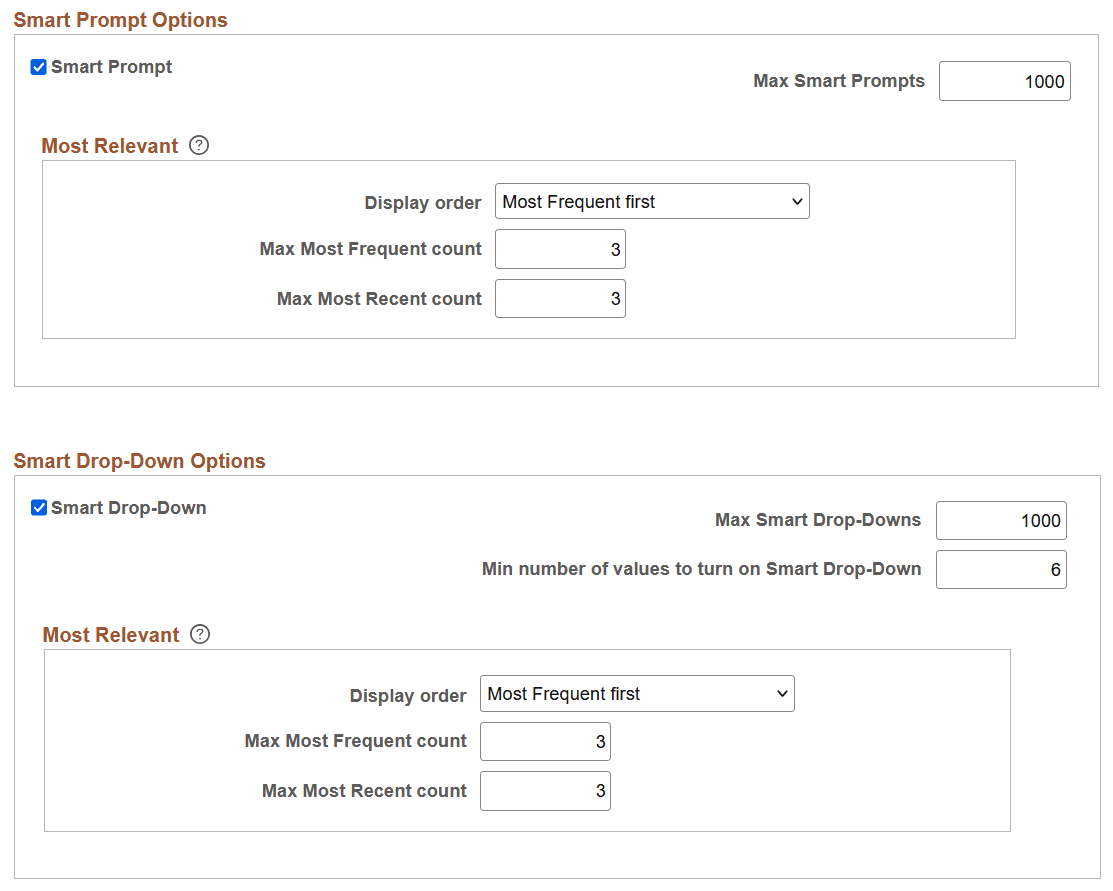
This example illustrates the fields and controls on the PeopleTools Options page: Smart Prompt Options and Smart Drop-Down Options. You can find definitions for the fields and controls later on this page.
The following table describes the Smart Prompt Options:
| Field or Control | Description |
|---|---|
|
Smart Prompt |
Smart Prompt is enabled by default. Deselect the Smart Prompt check box to disable the display of smart prompt system-wide. That is, the prompt field displays the list of values devoid of sections. To enable smart prompt feature, select the Smart Prompt check box. See the table describing the configuration at the four levels that control the availability or non-availability of the smart-prompt option. |
|
Max Smart Prompts |
The maximum number of smart prompt values is 1000, by default. This is a configurable value, so based on your business requirements, you may increase or decrease the maximum number of smart prompt values. If you want to increase the maximum number of smart prompt values beyond the default value, you should be aware that it may impact storage, performance, and usability. |
|
Display Order |
Select whether you want to display frequently viewed values first or recently viewed values first in the Most Relevant section of smart prompt. The default is Most Frequent first. When you select Most Frequent first, then in the Most Relevant section of smart prompt, the most frequently used values are listed first followed by the most recently used values. Similarly, if you select Most Recent first, then in the Most Relevant section of smart prompt, the most recently used values are listed first followed by the most frequently used values. |
|
Max Most Frequent Count |
Specify the maximum number of frequently used values you want to display in the Most Relevant section of smart prompt. |
|
Max Most Recent Count |
Specify the maximum number of recently used values you want to display in the Most Relevant section of smart prompt. |
The following table describes the Smart Drop-Down Options:
| Field or Control | Description |
|---|---|
|
Smart Drop-Down |
Smart Drop-Down is enabled by default. Deselect the Smart Drop-Down check box to disable the display of smart drop-down lists system-wide. That is, the drop-down field displays the list of values devoid of sections. To enable smart drop-down feature, select the Smart Drop-Down check box. See the table describing the configuration at the four levels that control the availability or non-availability of the smart-prompt option. |
|
Max Smart Drop-Downs |
The maximum number of smart drop-down list values is 1000, by default. This is a configurable value, so based on your business requirements, you may increase or decrease the maximum number of smart drop-down list values. If you want to increase the maximum number of smart drop-down list values beyond the default value, you should be aware that it may impact storage, performance, and usability. |
|
Min number of values to turn on Smart Drop-Down |
Specify the minimum number of drop-down list values to activate the Smart Drop-Down list. When the specified threshold is reached, the drop-down list values are displayed based on recently used or frequently used values and the list is divided into Most Relevant and Others sections. The default minimum number is 6. |
|
Display Order |
Select whether you want to display frequently viewed values first or recently used values first in the Most Relevant section of smart drop-down list. The default is Most Frequent first. When you select Most Frequent first, then in the Most Relevant section of smart drop-down list, the most frequently used values are listed first followed by the most recently used values. Similarly, if you select Most Recent first, then in the Most Relevant section of smart drop-down list, the most recently used values are listed first followed by the most frequently used values. |
|
Max Most Frequent count |
Specify the maximum number of frequently viewed values you want to display in the Most Relevant section of smart drop-down list. |
|
Max Most Recent count |
Specify the maximum number of recently used values you want to display in the Most Relevant section of smart drop-down list. |
The following table illustrates the configuration of smart prompts and smart drop-down options at the four levels and its resultant availability or non-availability.
| System Level | User Level | Record-Field Level | Page-Field Level | Feature Availability |
|---|---|---|---|---|
|
Enabled |
Enabled |
Enabled |
Enabled |
Yes |
|
Not enabled |
Enabled |
Enabled |
Enabled |
No The feature is disabled for all users. |
|
Enabled |
Not enabled |
Enabled |
Enabled |
Not available for the specific user; no impact to other users. |
|
Enabled |
Enabled |
Not enabled |
Enabled |
Smart prompt feature is disabled in every page field that uses this record field and impacts all users. No impact to other fields in those pages. |
|
Enabled |
Enabled |
Enabled |
Not enabled |
Smart prompt feature is disabled only for that page field and impacts all users. Does not impact other fields in the same page, similarly no impact to other pages. |
In addition to the configuration of smart prompt and smart drop-down options at the four levels, several factors or conditions also affect the availability or non-availability of the smart prompt and smart drop-down feature. When the following conditions or factors are true, the smart prompt and smart drop-down feature is not available.
| Conditions or Factors | Feature Availability |
|---|---|
|
User logs in screen reader mode. |
No |
|
Browser cache is not available. |
No |
|
A user switches from one browser to another browser. |
Smart prompt and smart drop-down feature is not available till the user choices are built in the browser cache. Browser cache is not imported from other browsers. |
|
User interface elements that look like drop-down list, for example, search category on global search, and so on. |
No |
|
User interface elements that look like prompt fields, such as, push buttons with prompt action. |
No |
|
Lookup field is a search record field, which does not have a prompt table. |
No |
|
Browser cache is cleared. |
Smart prompt and smart drop-down feature is not available till the user choices are built again in the browser cache. |
|
PeopleTools version is upgraded. |
Smart prompt and smart drop-down feature is not available till the user choices are built in the browser cache. |
|
PIA URL is changed. The PIA URL may change due to various reasons such as, when Web servers are recreated, system downtime due to maintenance, or servers are moved. |
Smart prompt and smart drop-down feature is not available till the user choices are built in the browser cache. |