Strings Table
Select . Search for and select a Program Name to access the Strings Table page.
This example illustrates the fields and controls on the Strings Table page. You can find definitions for the fields and controls later on this page.
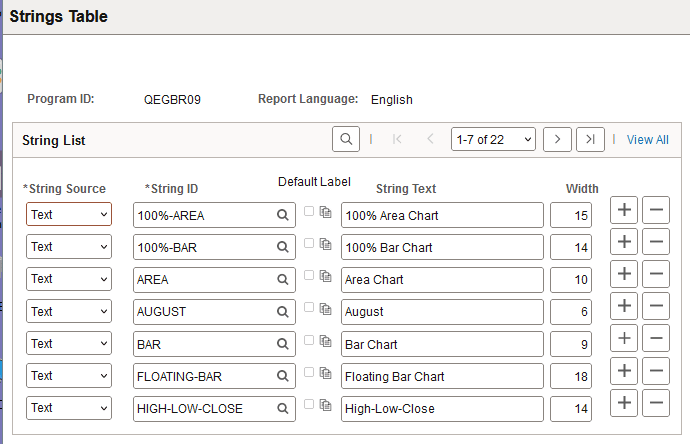
| Field or Control | Description |
|---|---|
|
String Source |
Options are: RFT Long: Select if you want the long description of the field to be displayed in the column heading as set in Application Designer. RFT Short: Select if you want the short description of the field as set in the Application Designer to be displayed in the column heading. Text: Select to enter a custom column heading for the report. |
|
String ID |
Use the browse button to select the string ID that is to be used for the column heading in the SQR report. |
|
Default Label |
The default label is enabled if you select the RFT Long or RFT Short string source, otherwise, the check box is disabled. Remember that fields can have multiple labels. Select the Default Label option to ensure that the default label is used. If you do not use the field's default label, you must select which of the field's labels to use using the label properties button. |
|
String Text |
Enter the text for the custom column heading, This is the text that is displayed if you set the string source to Text. |
|
Width |
The default value is the current width of the string that you enter or select. Be sure to update the width based on the actual space that is available on the report layout to avoid limiting a translator to an artificially short length, which is likely to degrade the quality of the translation. |