Using PeopleTools Feature Options
Use the PeopleTools Feature Options page to configure system-level properties for PeopleTools features.
Select PeopleTools, then Utilities, and then PeopleTools Feature Options. Only administrators are able to access this page. Expand and collapse the sections and use the toggle switches to enable or disable the features.
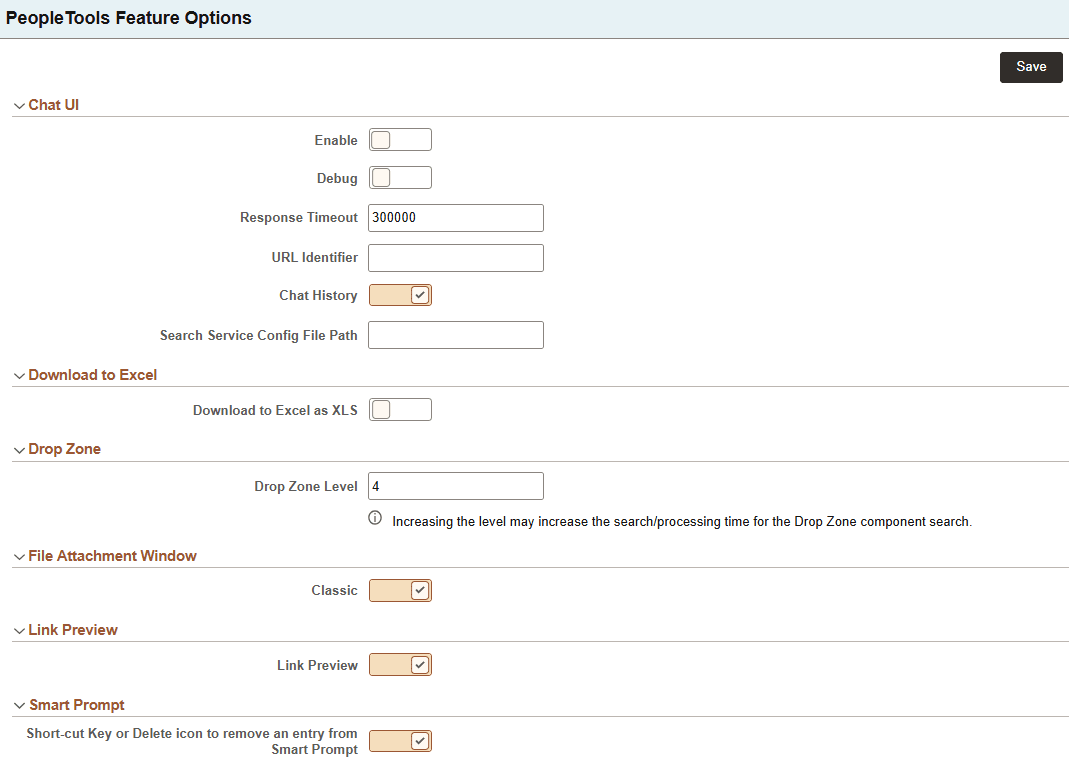
This example illustrates the PeopleTools Feature Options page.
Chat UI
This section includes controls for the Chat UI feature. The feature is available in many locations in PIA by default.
| Field or Control | Description |
|---|---|
|
Enable |
Control whether the Chat UI will be available. It is not enabled by default. |
|
Debug |
Enable debugging. This is not enabled by default. When debugging is enabled, the administrator obtains the debugging information in the browser console log. Check your browser documentation for information on accessing the browser console log. |
|
Response Timeout |
Enter a value in milliseconds. The default is 300000 msec (5 minutes). This is the maximum amount of time the Chat User Interface (Chat UI) will wait for a back-end response before it prints a "Response Timeout" message. |
|
URL Identifier |
The URL identifier specifies the credentials (user ID, password, token) that the system uses to access the Chat UI services. See URL Maintenance for details on specifying the credentials. |
|
Chat History |
Control whether to store the questions asked by the end user in the chat history table (PS_PTML_CHAT_HIST). It is enabled by default. If this is disabled, the questions are not saved. |
|
Search Service Config File Path |
Enter the path to the configuration file used by PeopleSoft Assistant for using the Search Service. |
See Portal Technology: Working with Chat User Interface (Chat UI)
Download to Excel
| Field or Control | Description |
|---|---|
|
Download to Excel as XLS |
Select this option to download grid data as a spreadsheet with the .xls extension. By default, this option is disabled, that is, the grid data is downloaded as a Microsoft Excel spreadsheet with the .xlsx extension. This option should be enabled only as a fallback mechanism. |
For more information on using this option, see Viewing Data in Original Layout Grid, Downloading Grid Data and Viewing Data in Scrollable Layout Grids, Downloading Grid Data
Drop Zone
| Field or Control | Description |
|---|---|
|
Drop Zone Level |
Use this section to specify how many drop zone levels are included in a search. The default is 4, and zero (a blank field) is not allowed. The default value of 4 means that search results on the Component Drop Zone page include components with drop zones on the main page and on pages nested up to three levels below it. Note. Increasing the level may increase the search or processing time for the Drop Zone component. |
See Applications Designer Developer's Guide: Configuring Drop Zones.
File Attachment Window
| Field or Control | Description |
|---|---|
|
Classic |
Control whether a fluid-style file attachment window appears on classic pages. The file attachment window is where users browse for and select files to upload. This option is enabled by default, which means that when a user performs an action to add an attachment from a classic page, the system displays the traditional modal window as seen in previous releases. If this option is disabled, when a user adds an attachment from a classic page, the system displays a fluid-style attachment window. Because the window is opened within a classic page, it includes standard classic window controls, such as Move and Resize, which are not available when the attachment window is accessed directly from a fluid page. Note that an end user can drag and drop attachments using either the classic or fluid modal window, but the fluid window has the area to drag and drop attachments more clearly defined. |
Link Preview
| Field or Control | Description |
|---|---|
|
Link Preview |
Control the ability to display previews for PeopleSoft links. This option is enabled by default. If the Link Preview option is enabled, when a link is shared or posted, instead of seeing a URL, users can see a preview; that is, title, description, and image of the link content. If this option is disabled, end users see a URL when accessing a PeopleSoft link. |
See Portal Technology: Creating Rich Preview for PeopleSoft Links.
Smart Prompt
| Field or Control | Description |
|---|---|
|
Short-cut Key or Delete icon to remove an entry from Smart Prompt |
Select this option to display a delete (X) button next to a smart-prompt value in the Most Relevant section. This option is enabled by default. Note: The delete button can be enabled only for prompt values; it cannot be enabled for smart drop-down list values. |
See Applications User's Guide: Using Smart Prompts.
See Setting Smart Prompts and Smart Drop-Down Options in PeopleTools Options.
Reviewing the PT_FEATUREOPT Table
The options on the PeopleTools Feature Options page are stored in the PT_FEATUREOPT table. This table follows a name-value pair model, and contains several columns that define the metadata for each system-level property. This table lists each relevant column and its purpose:
| Column Name | Purpose |
|---|---|
|
PT_PROPERTYNAME |
Property Name —Stores the name of the individual property associated with a PeopleTools feature. |
|
PT_PROPERTYVALUE |
Property Value — Stores the current value assigned to the property. |
|
MSGSET |
Message Set Number — Defines the Message Catalog entry used to display the label for the property name in PIA (PeopleSoft Internet Architecture). |
|
MSGNUM |
Message Number — Defines the Message Catalog entry used to display the label for the property name in PIA (PeopleSoft Internet Architecture). |
|
LABEL_ID |
Field Label ID — Contains the Label ID that identifies the user-facing label associated with the property name. |
|
PT_FEATUREMSGSET |
Feature Message Set — Represents the feature name through Message Catalog entries (for example, PT_CONFIG_SRCH, PT_MYFAV_SEARCH). These are used for grouping properties under a specific feature |
|
PT_FEATUREMSGNUM |
Feature Message Number — Represents the feature name through Message Catalog entries (for example, PT_CONFIG_SRCH, PT_MYFAV_SEARCH). These are used for grouping properties under a specific feature |
|
PT_FEATURE_SW |
Feature Switch — Indicates whether the property acts as a feature switch for the feature. Note: There will be only one feature switch for a feature. |
|
PT_OPTNDISP |
Display type — Specifies the UI control type (for example, Drop-down, checkbox or edit box) used to render the property value in the user interface.
|
|
DISPLAYONLY |
Display only — Specifies whether the display control is display only or not. |
|
FIELDTYPE |
Field type — Specifies the field type, 0 for character field, 2 for number field. |
|
PT_PROMPTRECNAME |
Prompt record name — Specifies the record name that should be used by the prompt. The field is blank by default (the value is " "). |
|
PT_HELPMSGSET |
Message Set Number — Contains the Message Catalog entry for the help text associated with the property, shown in PIA for user guidance. |
|
PT_HELPMSGNUM |
Message Number — Contains the Message Catalog entry for the help text associated with the property, shown in PIA for user guidance. |
The table uses a caching mechanism to improve performance. The system reads from cache by default. The cache is refreshed only when the table data is modified.