Creating a Connection to a PTF Environment
To create a connection to a PTF environment:
-
Run the PTF client.
Either double-click the PTF shortcut on your desktop or navigate to Start, All Programs, PeopleSoft Test Framework.
-
The PeopleSoft Test Framework - Signon dialog box appears. If you have not yet created a connection to a PTF environment, the environment signon dialog box is empty and the fields are disabled.
-
Click the New button.
Enter details for the following fields:
Field or Control Description Database Name
Enter a descriptive name for this environment. You can use any name.
Server:Port
Enter the server name and port for the environment. Contact your Integration Broker administrator or system administrator for the correct values.
The format for the Server:Port field is:
<machine_name>:<https_port>For example:
us.example.com:443If the https port is the default 443 the port is optional.
You can also enter a complete https URL in this format:
https://<machine_name>:<https_port>/PSIGW/HttpListeningConnectorFor example:
https://us.example.com:443/PSIGW/HttpListeningConnectorUse Proxy
Select this field if using a proxy server.
When you select this check box the Proxy Information link is enabled.
Proxy Information
Click this link to enter details for the proxy server.
Enter the following information for the proxy server:
-
Server: Enter the server name
-
Port: Enter the server port.
-
User: Enter the user ID for the proxy server.
If you use network authentication, use the DOMAIN\USER format.
-
Password: Enter the password.
Node ID
This field is required if more than one database is connected to the server. Enter the name of the PeopleSoft node with which the integration gateway is to communicate.
Contact your Integration Broker administrator or system administrator for the correct values.
User
Enter a valid user ID for the PeopleSoft application that contains the environment. The user ID must have one of the PTF security roles assigned. Contact your security administrator to add the role if required.
If this user ID does not have PTF access, you will receive a login error:
See Setting Up Security.
Password
Enter the password for this user.
-
-
Click the OK button.
PTF launches with a connection to the designated environment.
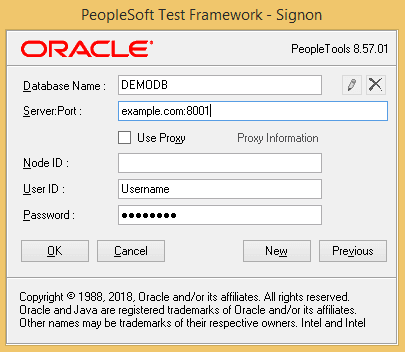
This example illustrates a completed environment signon dialog box. In this example the Node ID field is left blank because the default gateway is used.
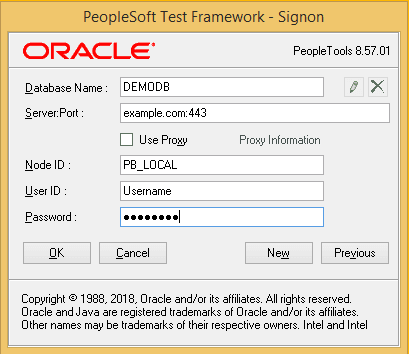
This example illustrates a PeopleSoft Test Framework - Signon dialog box where the default gateway is not used. This requires that the Node ID be specified:.
Note:
Contact your Integration Broker administrator to determine the correct value to use for the Node ID field.
Troubleshooting Tips
This section describes some of the errors you might encounter when attempting to log in to PTF and suggests possible solutions.
You will receive a login error if PTF security has not been configured correctly. Possible causes and solutions for this error are:
-
The user ID and password you entered are not valid for the PeopleSoft application corresponding to the entry in the Server:Port field.
-
The user ID you entered in the User field in the Environment Login does not have PTF privileges. Add at least the PTF User role to the user profile.
-
The user ID for the ANONYMOUS node does not have PTF privileges. Add at least the PTF User role to the user profile.
You will receive the following error message if you specify the wrong HTTPS port in the environment login URL:
There was an error when PeopleSoft test Framework was trying to login.
Please, check if the User ID and Password are correct.

ErrMessage:Could not connect to https://example.com:442/PSIGW/HttpListeninConnector. TCP error code 10061: No connection could be made because the target machine actively refused it
192.0.2.1:442
ErrSource:mscorlib
The default port is 443. If a different port was specified during installation, you will need to contact your system administrator to determine the correct port number.
You will receive the following error message if you try to logon to an environment that is not secured with an SSL Certificate.
This example illustrates the error message received when trying to login to an unsecured environment.
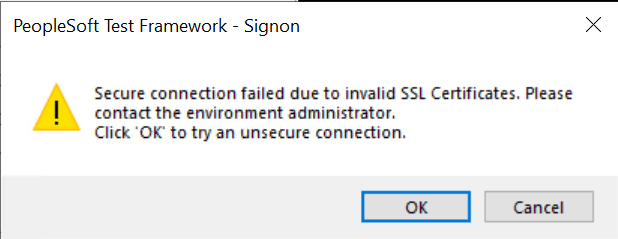
PTF requires use of an HTTPS site for security purposes. Contact your PTF administrator to resolve this error.